

Finding it cumbersome to shutdown, restart, or log off your computer on Windows 8? Windows 8 brought a lot of changes and one of them is letting go of the traditional Start Menu that gives quick access to programs and commands. The good news is there's a way of making it easier through the use of shortcuts. Here's how to do it: Shut down The first thing you need to do is create a shortcut by right-clicking on your Desktop, click New -> Shortcut, then type in command below as the location of the item: shutdown /s /t 0 (That's the number zero and not the letter O.) Now click Next, name the shortcut "Shut down" (or whatever you like), then hit Finish. The next step is to change the icon of the shortcut to make it easier to identify. To do so just right click on the shortcut, click Properties, then click Change icon. Running the shortcut from the desktop requires a double click, so to make it run with a single click just drag it in the Taskbar and click on it from there. I've had the beta version of Windows 7 installed on my Intel Core 2 Quad, a Compaq Presario, and an Atom-based netbook for about a week now and so far, Microsoft's upcoming operating system gave a fairly good impression. Read more in our articles including "Shut down, Restart, or Log Off Windows 8 with one click" and "Windows 7 Preview: Less of the Same".
Finding it cumbersome to shutdown, restart, or log off your computer on Windows 8? If…
Nov 10, 2012I’ve had the beta version of Windows 7 installed on my Intel Core 2 Quad,…
Jan 15, 2009Microsoft has finally announced the SKUs of their upcoming OS, Windows 7. The line-up didn’t…
Feb 4, 2009

Microsoft has started rolling out a new “Xbox mode” for Windows 11 PCs, bringing a…
May 1, 2026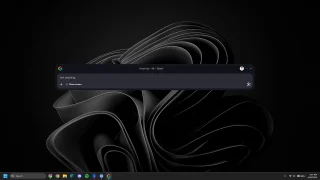
Google has launched its desktop app for Windows, bringing its AI-powered search experience beyond the…
Apr 20, 2026Finding it cumbersome to shutdown, restart, or log off your computer on Windows 8? Windows 8 brought a lot of changes and one of them is letting go of the traditional Start Menu that gives quick access to programs and commands.
The good news is there's a way of making it easier through the use of shortcuts. Here's how to do it: Shut down The first thing you need to do is create a shortcut by right-clicking on your Desktop, click New -> Shortcut, then type in command below as the location of the item: shutdown /s /t 0 (That's the number zero and not the letter O.) Now click Next, name the shortcut "Shut down" (or whatever you like), then hit Finish. The next step is to change the icon of the shortcut to make it easier to identify.
Our coverage of windows 8 shortcut includes: "Shut down, Restart, or Log Off Windows 8 with one click"; "Windows 7 Preview: Less of the Same"; "The 6 flavors of Windows 7". Each article provides unique insights and information.