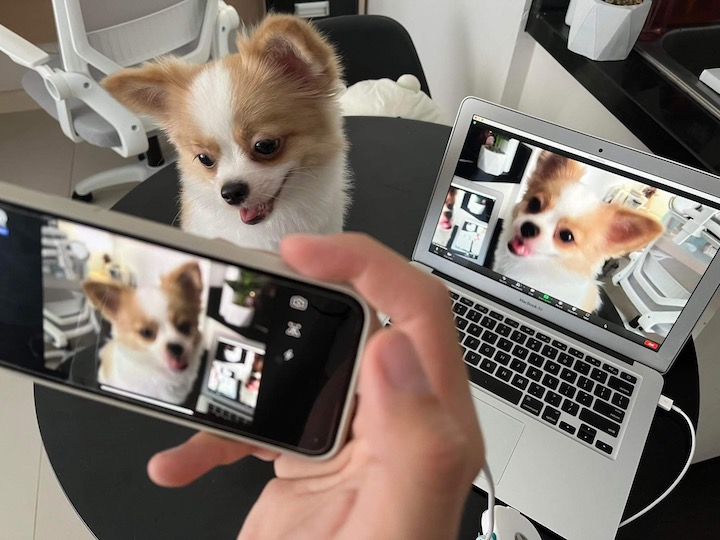

But did you know that you could put it to good use by converting it to a webcam? For this guide, we’ll be showing you how to use Iriun. We chose Iriun because it is one of the few webcam apps that is found on both iOS and Android, as well as on macOS and Windows. In addition, the free version of Iriun, already delivers great video quality and gives you all the features that you essentially need in a webcam. We’ll have each step highlighted below but in general, you would want to begin by heading over to Apple’s App Store or Google’s Play Store and download the Iriun app. Next, you would want to download Iriun on your Mac or PC by visiting iriun.com. Once Iriun has been both downloaded on your phone and PC, make sure that your computer and phone are both connected to the same Wi-Fi. Once connected to the same Wi-Fi, you can now open the Iriun app on your computer and phone. Read more in our articles including "How to turn your old Smartphone into a Webcam" and "Best Budget Tablets for Back-to-School 2026 | Under P10,000".

Got an old smartphone lying around? Chances are that it might just be on a…
Mar 28, 2022
A new school year means new projects, research papers, presentations, and online learning tasks. Whether…
Jun 14, 2026
With the announcement of the Xiaomi 17T series today, those hoping to upgrade from last…
May 29, 2026
Inflation is now (May 2026) at 7.2%, electricity rates at Php14.33/kWhr, and gas prices through…
May 28, 2026
GCash has expanded its in-app help tools and security features to address a growing number…
May 22, 2026
Smartphones today can handle all the basics. The real difference now is how well a…
Apr 30, 2026But did you know that you could put it to good use by converting it to a webcam? For this guide, we’ll be showing you how to use Iriun.
We chose Iriun because it is one of the few webcam apps that is found on both iOS and Android, as well as on macOS and Windows. In addition, the free version of Iriun, already delivers great video quality and gives you all the features that you essentially need in a webcam. We’ll have each step highlighted below but in general, you would want to begin by heading over to Apple’s App Store or Google’s Play Store and download the Iriun app.
Our coverage of Iriun webcam includes: "How to turn your old Smartphone into a Webcam"; "Best Budget Tablets for Back-to-School 2026 | Under P10,000"; "Xiaomi 17T vs. Xiaomi 15T, what's different?". Each article provides unique insights and information.