

We’re glad that you already got your own Huawei P40 Pro or other variants from the brand’s latest series. The old steps on how to install Google Play Store on a Huawei device no longer work on the P40 series, so after a few research, here’s one of the most effective ways that we tried on how you can install GMS on your P40 smartphone with Google Pay working well. In the Settings, go to Apps > Apps and search for Google Play Services. When it loads properly, don’t download anything yet as it’s important that you uninstall Google Play services again. So go to Settings > Apps > Apps and search/go Google Play Services. Read more in our articles including "How to Install Google Mobile Services on the Huawei P40 Series" and "Google to expand promotions for Online Gambling and Social Casino Gaming to the Philippines".

We’re glad that you already got your own Huawei P40 Pro or other variants from…
Apr 24, 2020
Google has sent out a notice to Ad Buyers that they will be expanding their…
Jul 22, 2026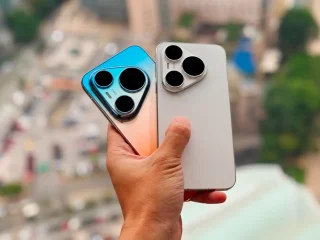
HUAWEI has unveiled the Pura 90s Pro, Pura 90s Pro Max, and the new MatePad…
Jul 14, 2026
The European Commission has issued preliminary findings that Meta may have violated the Digital Services…
Jul 12, 2026
We all know that Apple and its closed ecosystem is arguably THE best one out…
Aug 1, 2026
We’ve spent weeks using the HONOR 600 Series as our daily drivers to get a…
Jul 23, 2026We’re glad that you already got your own Huawei P40 Pro or other variants from the brand’s latest series. The old steps on how to install Google Play Store on a Huawei device no longer work on the P40 series, so after a few research, here’s one of the most effective ways that we tried on how you can install GMS on your P40 smartphone with Google Pay working well.
In the Settings, go to Apps > Apps and search for Google Play Services. When it loads properly, don’t download anything yet as it’s important that you uninstall Google Play services again. So go to Settings > Apps > Apps and search/go Google Play Services.
Our coverage of huawei p40 pro google play services includes: "How to Install Google Mobile Services on the Huawei P40 Series"; "Google to expand promotions for Online Gambling and Social Casino Gaming to the Philippines"; "HUAWEI Pura 90s Pro, 90s Pro Max, MatePad Air now official". Each article provides unique insights and information.