
From here, you can do markups using the tools inside Paint. Snipping Tool Just like Paint, the Snipping Tool got more features and easier to use. Additionally, you can also do markups within the app but with less tools to navigate. Launch the Snipping Tool by either searching or finding it in the Apps list or pressing Windows key + Shift + S on your keyboard. Once clicked, your screen dims a bit, and a toolbar should appear on the top portion of your screen. This toolbar would appear right away if you used the keyboard shortcut. Click on it and a Snipping Tool window will launch where you can edit and do markups.Tip: the screenshot is also saved on your clipboard. Additional tip on doing markups: one of the new features of the Snipping Tool is ‘Quick Redact’. Read more in our articles including "Capturing Screenshots on macOS & Windows: You’re Doing It WRONG" and "ASUS ExpertBook Ultra - 5 Best Features That Make This a Serious Executive Productivity Machine".
Making a screenshot on our smartphones is a piece of cake — pressing only the…
Feb 12, 2024
Business laptops have come a long way from being simple tools for emails and spreadsheets.…
Jul 1, 2026
As someone who occasionally uses a laptop to work, one thing I sometimes wish for…
Jun 30, 2026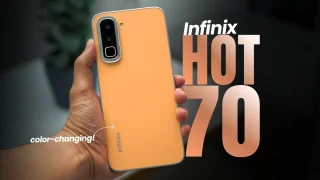
Coming in hot in the entry-level segment is the new Infinix HOT 70, and for…
Jun 25, 2026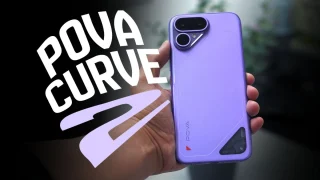
The TECNO POVA Curve 2 5G has arrived. It’s a slim, lightweight phone, and yet…
Jun 12, 2026
Everything Apple Announced at WWDC 2026: New Siri AI, iOS 27, macOS Golden Gate, and…
Jun 9, 2026From here, you can do markups using the tools inside Paint. Snipping Tool Just like Paint, the Snipping Tool got more features and easier to use.
Additionally, you can also do markups within the app but with less tools to navigate. Launch the Snipping Tool by either searching or finding it in the Apps list or pressing Windows key + Shift + S on your keyboard. Once clicked, your screen dims a bit, and a toolbar should appear on the top portion of your screen.
Our coverage of snipping tool includes: "Capturing Screenshots on macOS & Windows: You’re Doing It WRONG"; "ASUS ExpertBook Ultra - 5 Best Features That Make This a Serious Executive Productivity Machine"; "See more, do more with BenQ’s new monitors". Each article provides unique insights and information.