

Gmail will now allow users to express themselves and quickly respond to emails with emojis. As of the moment, the feature of sending emoji reactions on Gmail is only available to users of Android phones and tablets. Users can add an emoji reaction on Gmail by following these steps: On your Android phone or tablet, open the Gmail app. Below the message, tap Add emoji reaction . From the picker, select an emoji you want to use. The emoji you select appears at the bottom of the email. Google also stated that users can see who reacted to an email by touching and holding on to the emoji reaction they want to check. Then to add an emoji on a message thread, users can tap More in the message and then "Add reaction". Read more in our articles including "Gmail now lets users reply to messages with emojis" and "New 67 possible emojis in 2018 revealed".

Gmail will now allow users to express themselves and quickly respond to emails with emojis.…
Oct 5, 2023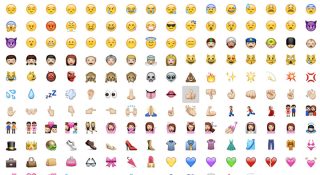
New emojis for smartphones are already in the works and is being decided by a…
Aug 5, 2017Gmail still has the most number of useful features than other email providers, free or paid.…
Feb 18, 2016
Instagram has rolled out a new feature that allows creators to add unique captions to…
Jun 20, 2026
Canva has officially launched Offline Mode, allowing users to create and edit designs without an…
Jun 10, 2026
Google has announced that the Fitbit app will soon become the new Google Health app,…
May 9, 2026Gmail will now allow users to express themselves and quickly respond to emails with emojis. As of the moment, the feature of sending emoji reactions on Gmail is only available to users of Android phones and tablets.
Users can add an emoji reaction on Gmail by following these steps: On your Android phone or tablet, open the Gmail app. Below the message, tap Add emoji reaction . From the picker, select an emoji you want to use.
Our coverage of gmail emoji includes: "Gmail now lets users reply to messages with emojis"; "New 67 possible emojis in 2018 revealed"; "Gmailify gives other email service providers Gmail features". Each article provides unique insights and information.