

Filters are just some of the tools we use to make our Instagram or Facebook content more engaging. For starters, I decided to make a Background filter since it's easy: STEP 3: In the "Assets" board on the left side of your screen, right-click "replaceMe." STEP 4: Tap the "Replace." STEP 5: Open file and choose your preferred background you want to see in your AR Filter. If you want to try it on yourself, choose "USB Webcam" or whatever webcam name you have, and you'll be able to build a filter on your face. Also, make sure you're logged on to the Facebook / Instagram account where you want to publish the effect. STEP 12: Again, on the right side, look and tap "Shader Type," then select "Face Paint." STEP 13: Now, under "Shader Type" select the "Face Paint" STEP 14: Then you will see "Texture" and select "Choose file" then open your chosen filter. You can create custom filters for personal use or promote a brand or cause. Meta has announced new updates to its Teen Accounts program, expanding safety features for young users across Facebook, Instagram, and Messenger. Meta has announced the global rollout of new subscription plans for Facebook, Instagram, and WhatsApp, adding paid features across its social media and messaging platforms. Read more in our articles including "Here's how to make your own Instagram and Facebook filter" and "Meta strengthens teen protections across Facebook, Instagram, and Messenger".
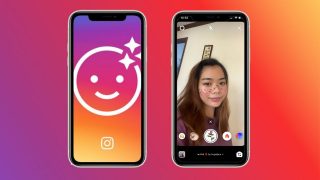
Filters are just some of the tools we use to make our Instagram or Facebook…
May 22, 2020
Meta has announced new updates to its Teen Accounts program, expanding safety features for young…
Jun 19, 2026
Meta has announced the global rollout of new subscription plans for Facebook, Instagram, and WhatsApp,…
May 28, 2026
Meta has start rolling out a subscription for users to not receive ads on Facebook…
Sep 27, 2025
Meta has rolled out a new AI voice dubbing feature globally, allowing users to translate…
Aug 23, 2025
Facebook is launching a new game, Your Profile, Your Home where users can build their…
May 20, 2022Filters are just some of the tools we use to make our Instagram or Facebook content more engaging. For starters, I decided to make a Background filter since it's easy: STEP 3: In the "Assets" board on the left side of your screen, right-click "replaceMe." STEP 4: Tap the "Replace." STEP 5: Open file and choose your preferred background you want to see in your AR Filter.
If you want to try it on yourself, choose "USB Webcam" or whatever webcam name you have, and you'll be able to build a filter on your face. Also, make sure you're logged on to the Facebook / Instagram account where you want to publish the effect. STEP 12: Again, on the right side, look and tap "Shader Type," then select "Face Paint." STEP 13: Now, under "Shader Type" select the "Face Paint" STEP 14: Then you will see "Texture" and select "Choose file" then open your chosen filter.
Our coverage of Instagram and Facebook Filter includes: "Here's how to make your own Instagram and Facebook filter"; "Meta strengthens teen protections across Facebook, Instagram, and Messenger"; "Meta introduces Plus subscriptions for Facebook, Instagram, and WhatsApp". Each article provides unique insights and information.