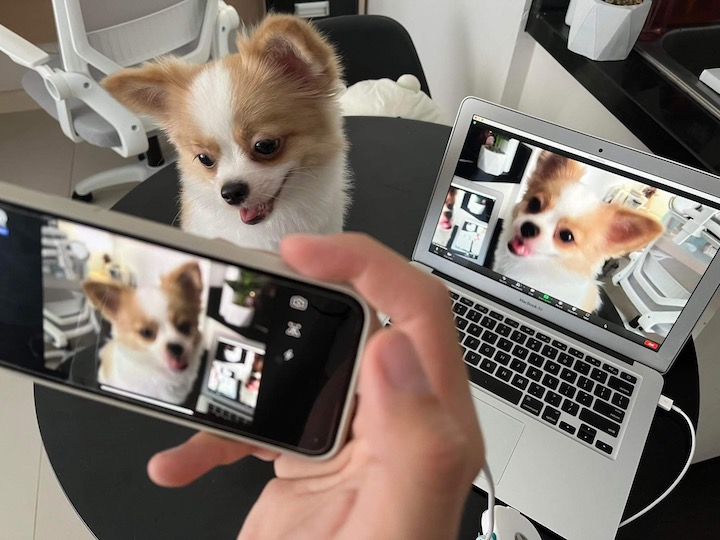


For this guide, we’ll be showing you how to use Iriun. We chose Iriun because it is one of the few webcam apps that is found on both iOS and Android, as well as on macOS and Windows. In addition, the free version of Iriun, already delivers great video quality and gives you all the features that you essentially need in a webcam. We’ll have each step highlighted below but in general, you would want to begin by heading over to Apple’s App Store or Google’s Play Store and download the Iriun app. Next, you would want to download Iriun on your Mac or PC by visiting iriun.com. Once Iriun has been both downloaded on your phone and PC, make sure that your computer and phone are both connected to the same Wi-Fi. Once connected to the same Wi-Fi, you can now open the Iriun app on your computer and phone. To get the best connection, plug your phone into your computer whilst having Iriun opened on both devices. Read more in our articles including "How to turn your old Smartphone into a Webcam" and "How to Use Your Android and iOS Smartphone as Webcam".

Got an old smartphone lying around? Chances are that it might just be on a…
Mar 28, 2022
The way we value web cameras today has drastically changed due to the situation we…
Sep 24, 2020
Apple has loosened its grip on retro console emulators within the App Store. This move…
Apr 6, 2024
Apple has revealed that the iPhone 12 and 12 mini now come in the color…
Apr 21, 2021
Apple has a reputation for making premium and expensive products– from accessories down to smart…
Aug 9, 2020
Apple released the iPhone SE 2020 last week. It’s Apple’s most affordable iPhone in its…
Apr 24, 2020For this guide, we’ll be showing you how to use Iriun. We chose Iriun because it is one of the few webcam apps that is found on both iOS and Android, as well as on macOS and Windows.
In addition, the free version of Iriun, already delivers great video quality and gives you all the features that you essentially need in a webcam. We’ll have each step highlighted below but in general, you would want to begin by heading over to Apple’s App Store or Google’s Play Store and download the Iriun app. Next, you would want to download Iriun on your Mac or PC by visiting iriun.com.
Our coverage of Iriun App includes: "How to turn your old Smartphone into a Webcam"; "How to Use Your Android and iOS Smartphone as Webcam"; "Apple App Store now permits game emulators globally". Each article provides unique insights and information.