
Using the Print Screen key and Paint combo is now probably an ancient way on getting a screenshot on Windows. But since the Paint app has gotten more features over the years, this method makes quite the charm for new and veteran users. Here’s how: Print Screen and Paint Press the Print Screen key, likewise the “PrtSc” key on your keyboard to capture your entire screen. Pull up the Paint app by searching for it through the Start menu or through the ‘All apps’ list. Once Paint is launched, press Ctrl + V on your keyboard to paste the screenshot onto the canvas. From here, you can do markups using the tools inside Paint. Snipping Tool Just like Paint, the Snipping Tool got more features and easier to use. Tip: in case you want to do easy markups, you can always use either Snipping Tool or Paint to do so. Read more in our articles including "Capturing Screenshots on macOS & Windows: You’re Doing It WRONG" and "Microsoft Paint gets OpenAI text-to-image generator on Windows 11".

Making a screenshot on our smartphones is a piece of cake — pressing only the…
Feb 12, 2024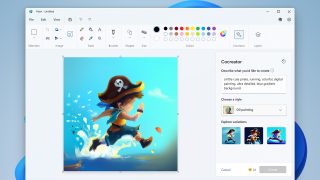
Microsoft Paint is still standing strong and on top of its new features—including the new…
Dec 3, 2023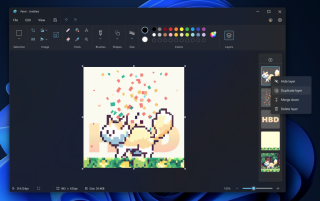
After introducing the ability to remove backgrounds with a single click, the Paint app on…
Sep 24, 2023
After 32 years, Microsoft is planning to remove the famous Paint feature on its upcoming…
Jul 24, 2017
Microsoft has removed Paint 3D from the Microsoft Store. Updates will no longer be received…
Nov 6, 2024
Microsoft has announced to completely remove the Adobe Flash component from Windows through the KB4577586…
May 5, 2021Using the Print Screen key and Paint combo is now probably an ancient way on getting a screenshot on Windows. But since the Paint app has gotten more features over the years, this method makes quite the charm for new and veteran users.
Here’s how: Print Screen and Paint Press the Print Screen key, likewise the “PrtSc” key on your keyboard to capture your entire screen. Pull up the Paint app by searching for it through the Start menu or through the ‘All apps’ list. Once Paint is launched, press Ctrl + V on your keyboard to paste the screenshot onto the canvas.
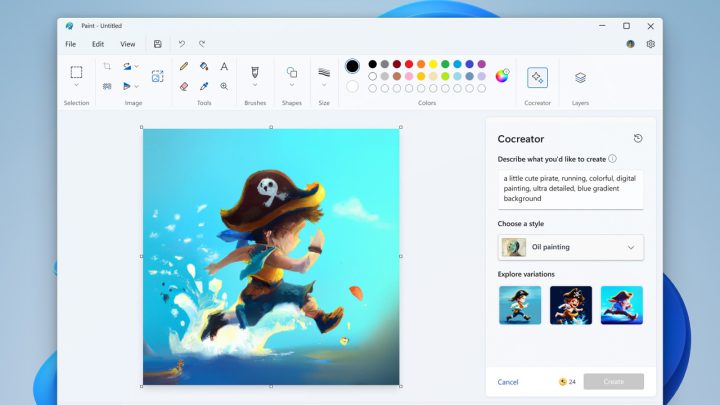
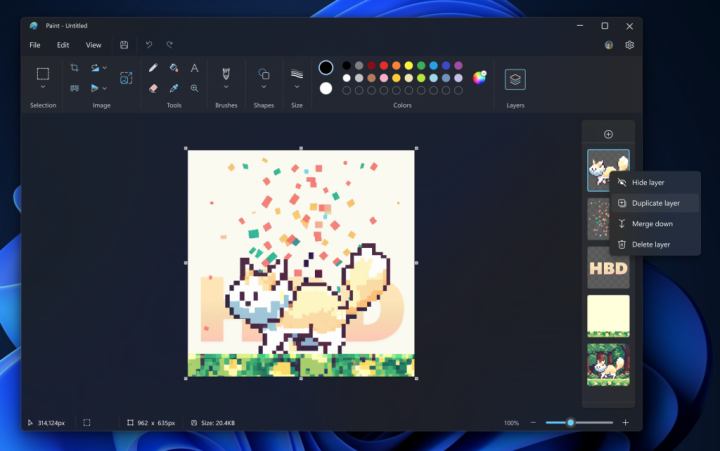
Our coverage of microsoft paint includes: "Capturing Screenshots on macOS & Windows: You’re Doing It WRONG"; "Microsoft Paint gets OpenAI text-to-image generator on Windows 11"; "Paint on Windows now supports layers and transparent backgrounds". Each article provides unique insights and information.