0:00Chewy is no stranger to building compact
0:02laptops and mini PCs. And by compact, I
0:05mean really compact. Just last year, we
0:08were able to review a 10-in laptop from
0:10Chewy. And if you’re interested in that,
0:12you can check it out on the channel. In
0:14this video, we’re looking at something a
0:16bit bigger. Instead of being compact,
0:19it’s a bit bigger, but its biggest
0:22advantage is its weight. And by weight,
0:25I mean lack thereof. In fact, it’s here
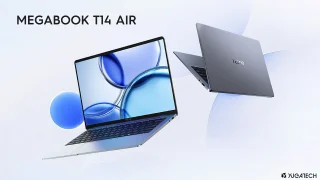
0:28right in front of you. the new Chewy
0:30Corebook Air. Just how lightweight is
0:33it? Well, it only weighs 1 kilogram,
0:36which is quite light for a 14in laptop.
0:39Despite its featherweight build, it
0:41still packs an AMD Ryzen 5 processor and
0:43even a 55Wh battery. Not to mention,
0:46it’s still very much affordable, similar
0:48to other Chewy products we’ve tried out.
0:50But just how good is the new Chewy
0:52Corebook Air? Well, let’s find out in
0:54this review.
1:02What makes the Chewy Corbbook Air unique
1:04is that it’s very light. In fact, it
1:08only weighs 1 kg as I mentioned earlier.
1:11With that, we expected it to be made out
1:14of plastic, but that’s not the case.
1:17Instead, it’s mostly made of lightweight
1:19aluminum, which helps with the weight
1:21loss. Both the top and bottom are
1:23aluminum which gives the laptop a solid
1:25build despite it being a featherweight.
1:27It also features a smooth matte surface
1:30which feels nice to the touch. Not to
1:32mention it looks great too, adopting a
1:34minimalist design featuring a small
1:36Chewy logo at the center of the lid
1:38cover. Our review unit is in the indigo
1:40blue colorway which we think looks
1:41great. But I’m sure you guys will have
1:43your own opinion on this color.
1:45Unfortunately, the aluminum lid cover
1:47and base are not particularly smudge
1:49resistant. Just picking it up is enough
1:51to leave fingerprints on the lid cover
1:54already. It also takes a bit of effort
1:56to clean it when there are [music]
1:57smudges. Surprisingly, the lid can be
1:59opened with one hand, which is a nice
2:01touch from Chewy. Once open, we’re
2:03greeted by the keyboard and trackpad.
2:05It’s not a full-size keyboard, but it’s
2:07properly spaced out. I had no problems
2:09typing, and they’re soft with decent
2:11travel. They don’t feel as nice, though,
2:13since the keys feel a bit mushy, but at
2:15least they’re comfortable on your
2:17fingers. What we’re more concerned about
2:20is the deck flex. If you’re someone who
2:22types a bit hard, just like how I do,
2:24you’ll notice a lot of flex on the
2:26keyboard when you’re typing. It’s a bit
2:28concerning because no matter which key
2:29you choose to type, the deck will flex.
2:32As for the trackpad, it’s rather small
2:34for our liking, but it feels decent to
2:36the touch. It features a smooth finish
2:38as opposed to the textured finish on the
2:40rest of the deck, meaning our fingers
2:42glide smoothly across it. What we didn’t
2:44like about the trackpad was that the
2:45upper portion and the center didn’t have
2:47any click. This means you will have to
2:49purposely move your fingers to the lower
2:51left and right parts of the trackpad to
2:53left and right click. Alternatively,
2:55taps just work a lot better. With that,
2:57we highly recommend some users to bring
2:59a mouse instead just in case you’re not
3:02liking the trackpad. Despite being a
3:04small and lightweight laptop, the Chewy
3:06Corebook Air does come with a bunch of
3:08iOS and ports available. On the left
3:11side, there are two USB 3.2 2 Gen 2
3:13Type-C ports and an HDMI 2.1 port. While
3:16on the right side, we find a USB 2.0
3:18Type-C port, a USB 3.2 Gen1 TypeA port
3:21and a 3.5 mm audio port. Given the
3:24number of ports available, we didn’t
3:25really find a need to bring a USB hub
3:28whenever we went. However, if you want
3:30to transfer some files from a micro SD
3:32card or even an SD card, that’s where
3:34you’ll need a hub. But together with its
3:37lightweight and compact design, there’s
3:38no doubt that the Chewy Corebook Air is
3:41perfect for someone who wants to be
3:43always on the go. Open up the Chewy
3:44Corebook Air and we are greeted by a
3:4614-in WXGA IPS display featuring a 16×10
3:51aspect ratio and a 60 Hz refresh rate.
3:53It’s a matte display and the anti-glare
3:55works really well. Despite it being an
3:57IPS panel, it’s quite sharp and the
3:59colors are rather vibrant. However, the
4:01colors don’t seem to be the most
4:02accurate out of the box. It does have
4:04decent viewing angles though with
4:05minimal color shift. Unless the user
4:07really needs color accuracy, you may
4:10want to have it calibrated first. But if
4:12you’re just going to be using this
4:13mainly to get work done, well, I don’t
4:15see the need to do so anymore. The 60 Hz
4:17refresh rate might also feel dull for
4:19some users, especially if you’re used to
4:22120 Hz refresh rate phones or displays.
4:25This is especially noticeable when
4:26watching videos or playing games. When
4:28listening to music, the CoreBook Air
4:30does come with two two-watt speakers,
4:32which are decent at best. If the
4:34speakers aren’t good enough for ears,
4:36well, there’s always the option to pair
4:37your favorite Bluetooth headphones, or
4:40use the 3.5 mm audio port. It’s there
4:42for a reason. There’s also a 2 megapel
4:44front camera for video conferencing, and
4:46Zoom calls should you need to do so.
4:48Under the hood, the Chewy Corebook Air
4:49packs an AMD Ryzen 5 6600H processor
4:52with an AMD Radon 660M
4:56GPU. Our review unit comes with 16
4:58gigabytes of LPDDR5 RAM and 512 GB of
5:01storage. While it does have a GPU, it’s
5:03not exactly a dedicated GPU as you would
5:06expect with other laptops, especially
5:08the ones on gaming laptops. With that,
5:10we do need to set our expectation when
5:12it comes to playing games. When it comes
5:14to everyday work and productivity use,
5:16though, it’s more than enough. The
5:18Corebook Air ran all the usual
5:20productivity tasks we threw at it, no
5:23problem. These include having multiple
5:24tabs of Chrome open while Spotify and
5:26Discord are running in the background.
5:28It could even handle Lightroom and
5:30Photoshop running at the same time for
5:31those trying to get some basic editing
5:33work done. Exporting high resolution
5:35photos don’t take a long time either.
5:37While it can run Premiere, it takes a
5:38bit of time rendering 4K videos. Despite
5:41the video having very simple cuts and
5:44edits, if the user plans to add a bit
5:46more effects or add a lot of layers,
5:49well, it’s not going to be enough
5:51because you’re going to have a long time
5:53exporting the video. As for gaming, it
5:55can run lighter titles. But, as I
5:58mentioned earlier, do expect most of the
5:59graphic settings to be at low or even
6:02the lowest settings. We played a bit of
6:04Dota 2 on this, and even with the
6:05graphics settings set to the lowest, we
6:07were only able to manage around 70 to 80
6:09FPS in game. It even drops to 60
6:12sometimes depending on what’s happening
6:14in the match. Genchin Impact runs
6:16smoothly with all graphics set to the
6:17lowest with the exception of the FPS set
6:20to 60. While it could run the game with
6:21some settings at medium, we were already
6:23encountering a lot of frame rate drops
6:25and lag even when we were just moving
6:27around or just checking out what’s
6:29around us. Now, one thing to note is
6:30that this laptop does heat up quite a
6:32bit. Even when you’re just loading
6:35Lightroom and exporting photos, it’s not
6:37exactly uncomfortably hot, but it does
6:40make the upper part of the keyboard a
6:41bit warm to the touch. And as for the
6:43benchmarks, well, you can check them out
6:45on screen right now.
7:01Powering the Chewy Corebook Air is a 55W
7:04lithium polymer battery pack. It’s
7:06regularly sized for the device, but it
7:08does last a relatively long time. With
7:11that, I barely brought the charger
7:13around with me whenever I was out and
7:15about. For reference, I used it for an
7:16hour to get work done with Spotify and
7:18Discord running in the background along
7:19with the display and keyboard brightness
7:21maxed out. After an hour, I still had
7:23around 82% battery life left, which is a
7:26great figure. Chewy does claim it has an
7:288 hour battery life when continuously
7:30watching videos. However, as with all
7:32laptops, the battery does drain quite
7:34fast when you’re playing games. After an
7:36hour of playing Dota 2, the Corebook Air
7:38only had around 53 battery life left,
7:40but again, that’s to be expected. If you
7:42do need to charge, the Corebook Air does
7:44come with a 65 watt charging brick, but
7:47it’s not exactly the most compact since
7:50it’s a bit bulky. Thankfully, it can
7:51also charge using other USB cables and
7:54as long as your power brick can handle
7:56it. Overall, the Chewy Corebook Air is a
7:59decent laptop if you’re someone who
8:01likes working on the go and want to
8:03carry light. Put it in your bag and
8:05it’ll feel like nothing’s there. Even if
8:07you carry it around daily, it won’t be
8:09heavy at all. In addition, it also
8:11features decent performance, which
8:12allows users to work and play at the
8:15same time, play light games for that
8:17matter. With the long battery life, it
8:18doesn’t need to charge that often
8:20either. It’s more than adequate if you
8:21just want a laptop to work whenever,
8:24wherever, without giving you back pain.
8:26Not to mention, the CoreBook Air isn’t
8:28really that expensive to begin with, as
8:30with all Chewy products. The specific
8:32model retails for 31,339
8:35pesos on the Chewy website minus
8:38shipping. For all that it offers at this
8:40price point, it’s hard to disregard what
8:42this laptop can do. But if you’re
8:44someone who needs a laptop with a bit
8:46more power to edit videos or for
8:49creative work or even if you just want
8:50to play games, then this isn’t something
8:52you should consider. But overall, what
8:54do you guys think of the Chewy Corebook
8:57Air and it’s very lightweight design. Is
9:00it something you’d consider buying or
9:02would you choose a different laptop for
9:04work and play? Whatever the case, share
9:06your thoughts in the comment section
9:07down below. Don’t forget to follow us on
9:09our social media platform. That’s
9:10Facebook, Twitter, Instagram, and Tik
9:12Tok. And of course, visit yugatech.com
9:14for the latest tech news and reviews.
9:16Once again, this has been Os and I’ll
9:18see you guys in the next video.
⚠️ This transcription is auto-generated from YouTube captions. Some text may not be 100% accurate.






0 Comments
Leave a Reply