
E-wallets, also known as digital wallets, are becoming more and more popular these days. These are online services that allow for electronic transactions or payments instead of cash. However, one of the challenges of using an e-wallet is funding it.

The good news is banks like BPI allow you to load your e-wallet straight from your mobile app. So easy and convenient, right? Fortunately, banks and fintechs can actually work together to help us go about our financial obligations with no hassle.
Just remember to double-check if the partners are trusted and that you’re on a secure website before making any transaction. Make sure to check for the padlock symbol and URL in your browser.
For BPI, it has actually tapped the following partners for their e-wallets: Autosweep RFID, Easytrip, GCash, PayMaya, and Smart Padala. The partners list is part of the bank’s digital ecosystem that enables you to bank faster, safer, and more conveniently.
So, here’s how you load your e-wallet through BPI:
Step 1: Log in to the new BPI Mobile app and select “Payments/Load” > “Load e-wallet” tab.
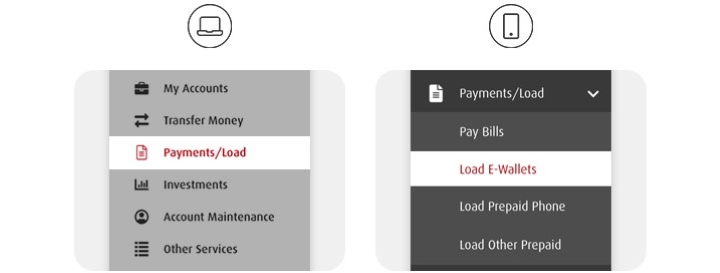
Step 2: Choose the account where you want to get your funds from, choose the e-wallet account you want to load, then enter the load amount.

Step 3: Confirm the details and enter the One-Time PIN (OTP) then select “Submit”. Always remember not to share your OTP with anyone.
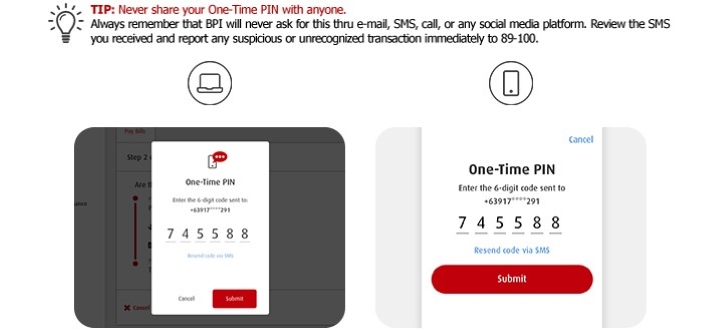
Once the OTP is accepted, just wait for the load confirmation and you’re good to go. Each transaction has an e-mail confirmation.
This is a very convenient feature especially if you use the e-wallets mentioned above. It’s on mobile, so you can make the transaction almost anywhere and anytime. I once was able to reload my Easytrip account in minutes before I drove to work. We can expect BPI to build partnerships with more e-wallets to make it easier for all of us.
So, if you haven’t tried this feature, go ahead and follow the steps above.


I will join telegram discussion Jerome lobitaña