
So, you just got a shiny new phone, and what’s exactly the first thing you’d do? Download some apps, set up your accounts and everything, right?
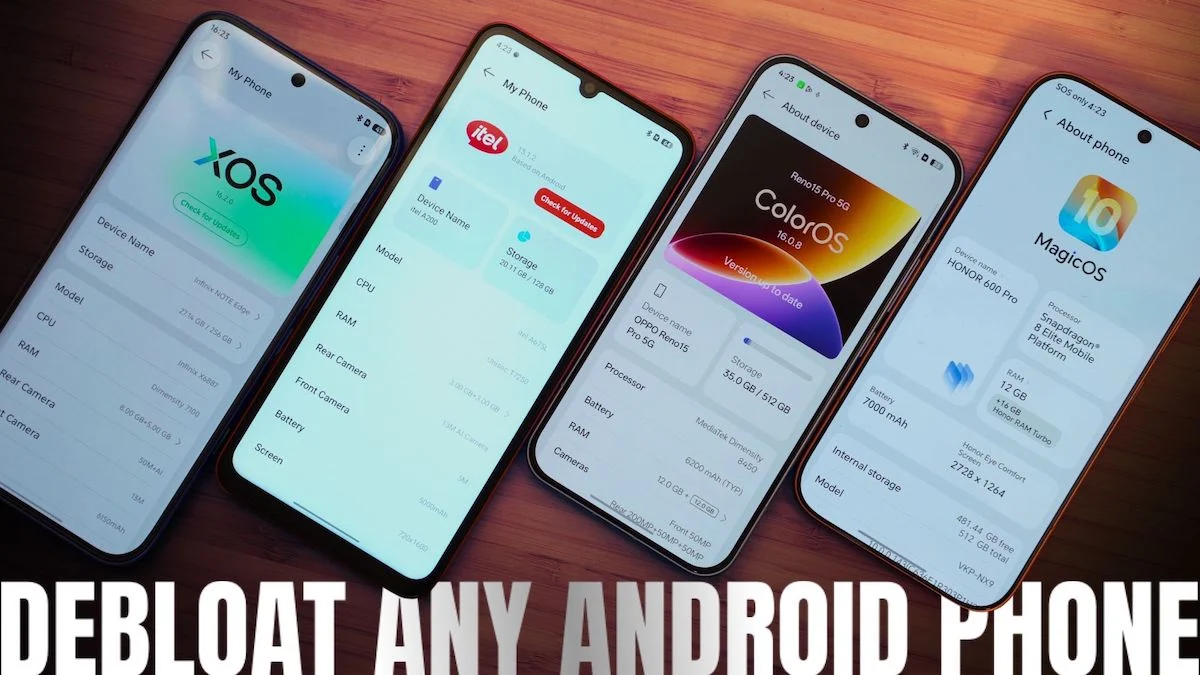
But then, you come across with lots of pre-installed apps and even duplicate app markets. These are the so-called “bloatware” on your smartphone.
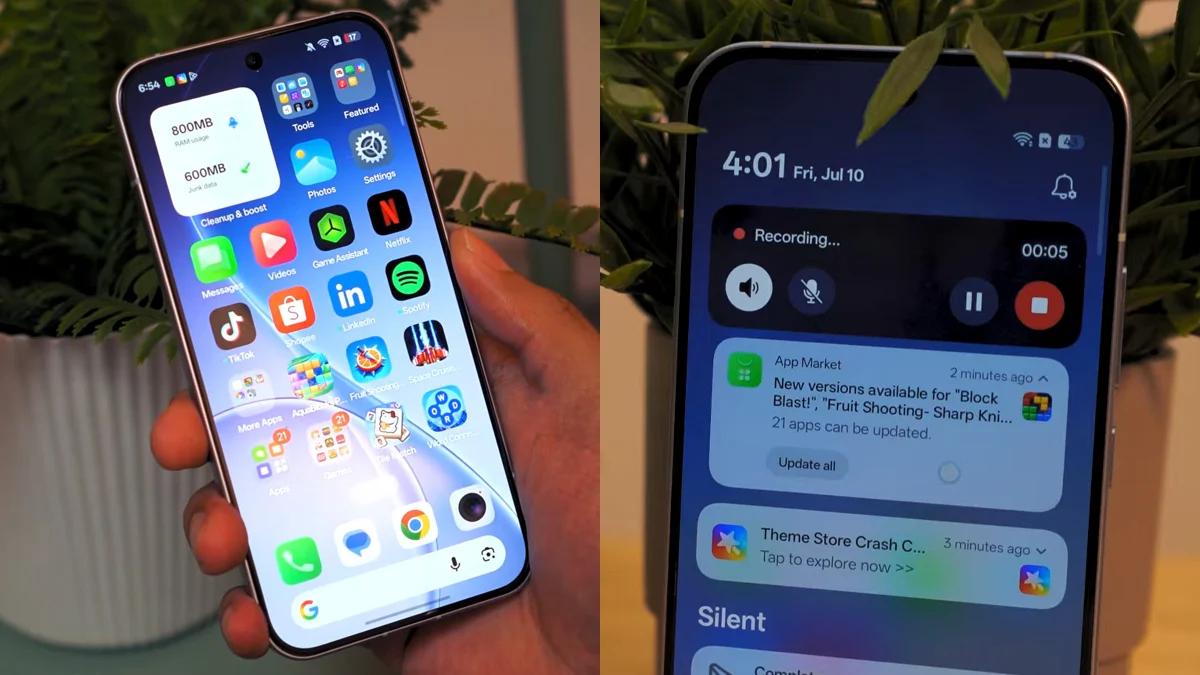
At this point, you either want to get rid of them, or just ignore them for the rest of the phone’s shelf life. We’re choosing the first option, of course.
So, we’re gonna help you debloat your Android phone. Whether it’s a premium midrange or an entry-level one, getting rid of the bloatware apps you don’t need is actually a lot easier than you might think.
Preliminaries
Ever heard of the Canta + Shizuku method? That’s exactly what we’re doing in this guide.
We’re covering major Android brands available in the Philippines like Infinix, OPPO, and HONOR, along with their sister brands. The debloating process is mostly the same, with just a few tweaks here and there.
For context, Android brands under the same “umbrella” usually share the same codebase. Take OPPO, realme, and OnePlus, for example. They may have different Android skins like ColorOS, realme UI, and OxygenOS, respectively, but they’re basically the same OS with the same features and functionalities.
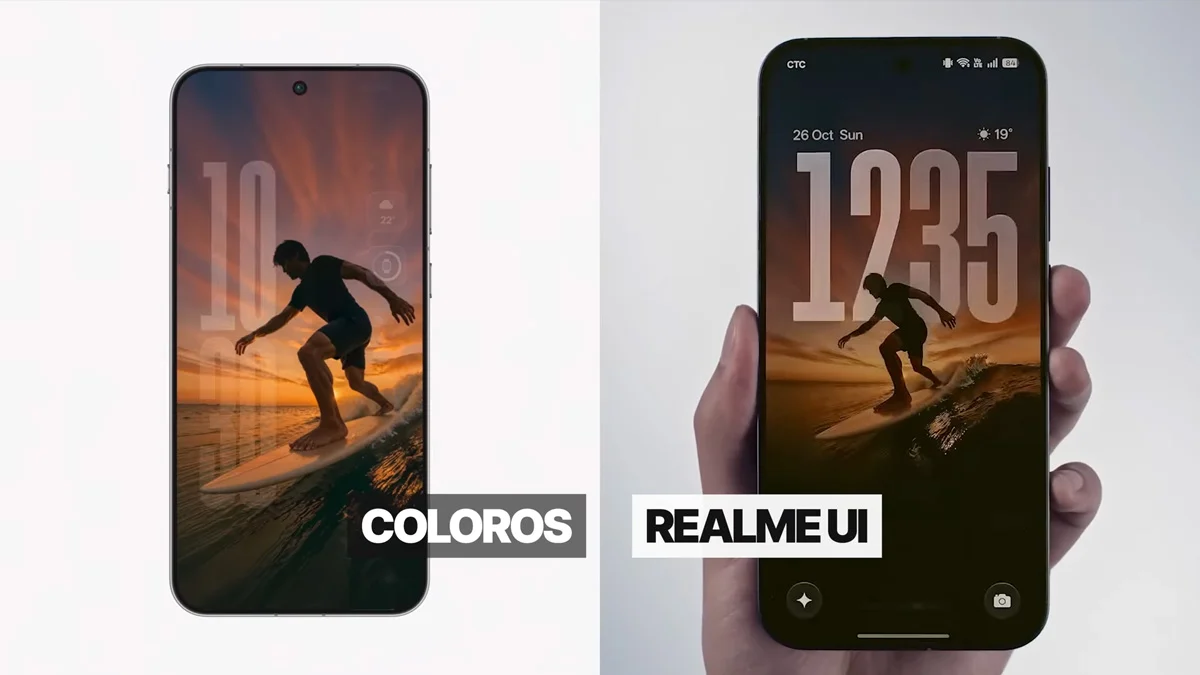
Therefore making the debloating process similar.
Other brands, however, may have a slightly different way of getting into the ADB (Android Debug Bridge), the tool Shizuku uses to grant Canta the permissions it needs to remove apps.
You’ll see what I mean.
Step 1: Enable “Developer options”
Find the “About phone” or “My phone” in the Settings > then tap multiple times on the “Build number”.
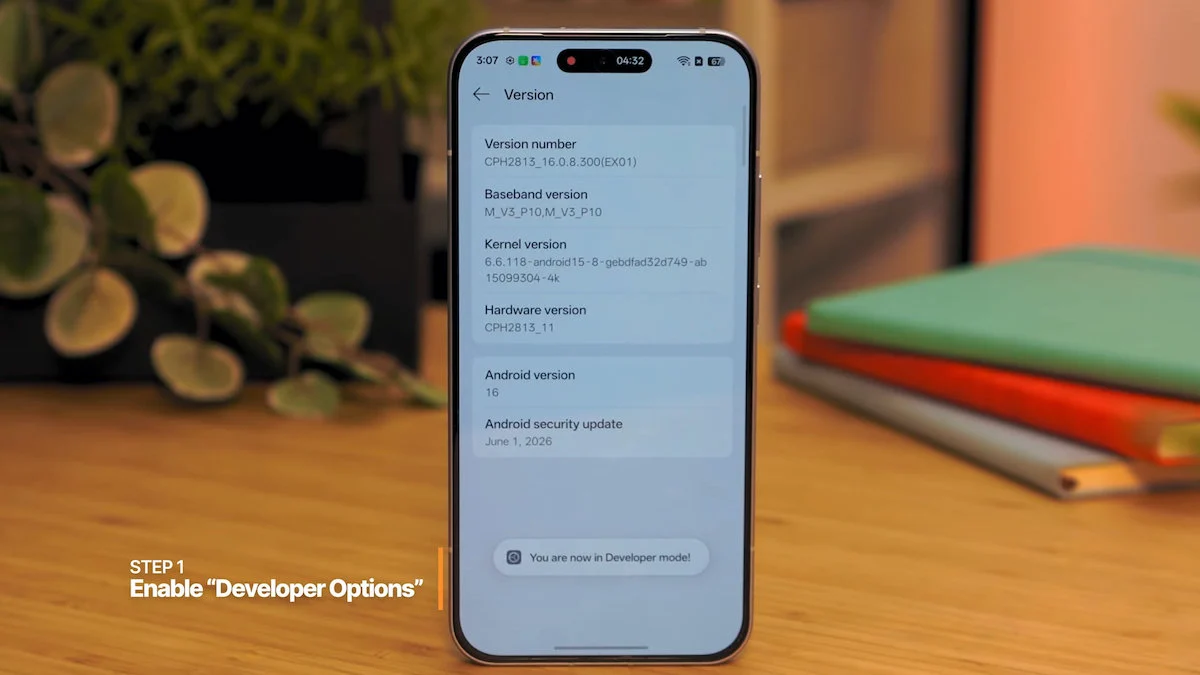
Sometimes, you may have to find the “Version number” or “OS version” first before you can see the “Build number,” and in OPPO’s case, just tap on the “Version number” itself.
After tapping multiple times, you’ll be prompted for your passcode or biometrics. Go ahead and verify, and you should see a pop-up saying “You are now a developer!”
Step 2: Download Canta and Shizuku
Next, let’s download Canta and Shizuku through the Google Play Store.
If you run into an error trying to get Shizuku, we can sideload it instead by heading to its official GitHub page.
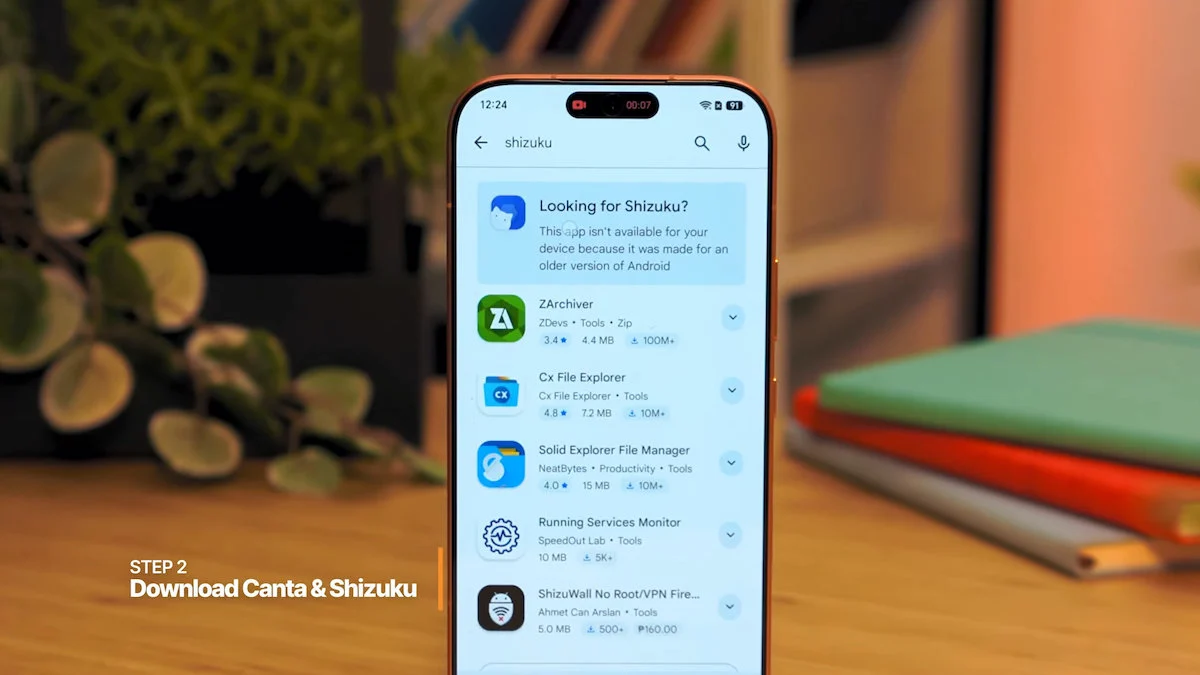
The latest version of Shizuku (v13.6.0) can be downloaded here.
Once you’re on the GitHub page, scroll down and click the first link under “Assets” (that’s the APK file for Shizuku, by the way) > tap on it and your browser may warn that the “File might be harmful,” just ignore that and tap “Download anyway.”
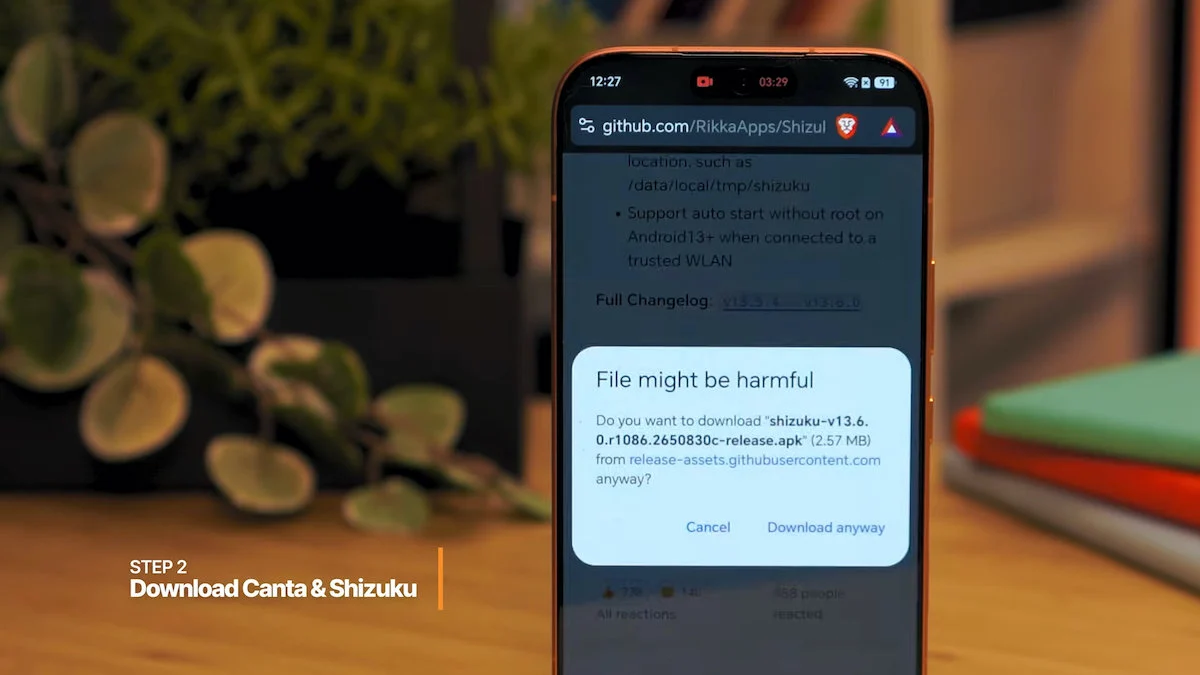
Open the file and another security prompt may pop up > tap “Settings” and toggle on “Allow app installs” > then we can finally install the app.
Step 3: Pairing Shizuku through wireless debugging
Now that we have what we need, open Shizuku > tap on “Pairing” > tap on “Notification options” > then toggle “Allow-” or “Show notifications > go back one time, then tap on “Developer options” > scroll down until you see “Wireless debugging,” tap on it, then toggle the slider, your Wi-Fi details pop up, then hit “Allow.”
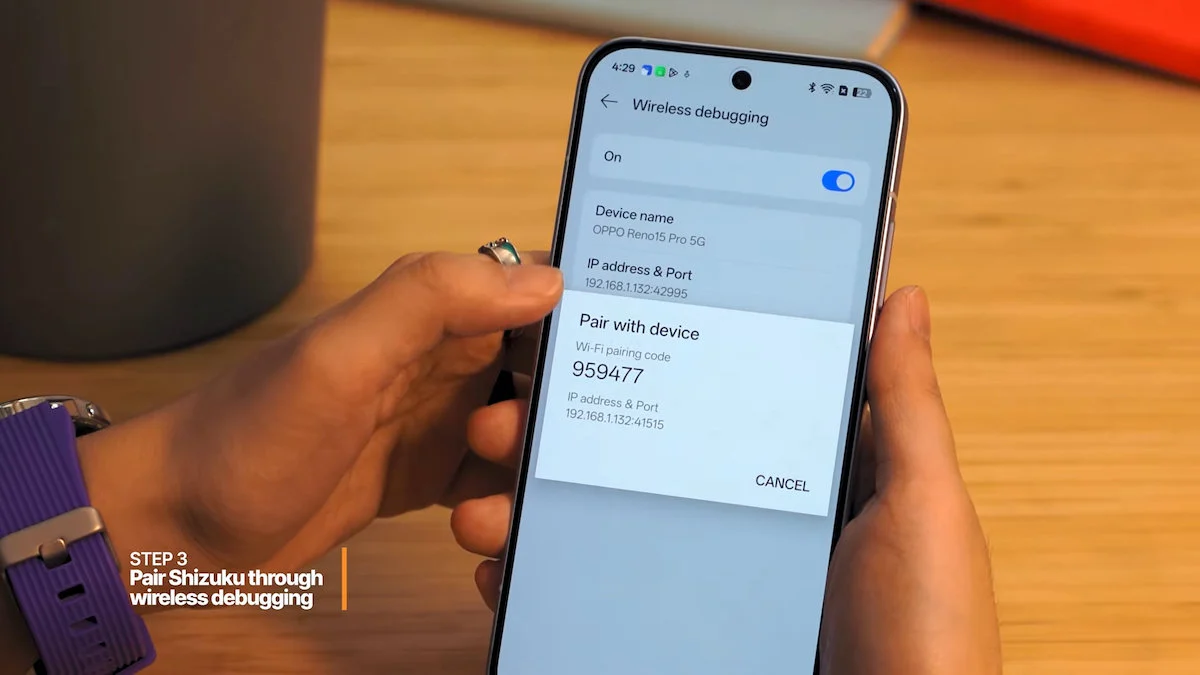
You must be connected to a Wi-Fi router or a hotspot for this to work. Just in case you don’t have a Wi-Fi router, another smartphone as a hotspot will do.
From here, you should see the option “Pair device with pairing code” > tap on it and a six digit code appears > shortly after, a notification from Shizuku should pop up > and then enter the pairing code like so.
You should then see a notification saying “Pairing successful.”
Step 4: Start Shizuku
With that out of the way, we can now start the Shizuku app itself.
Open the app and click on “Start” > wait for a few seconds then it should say “Shizuku is running.”
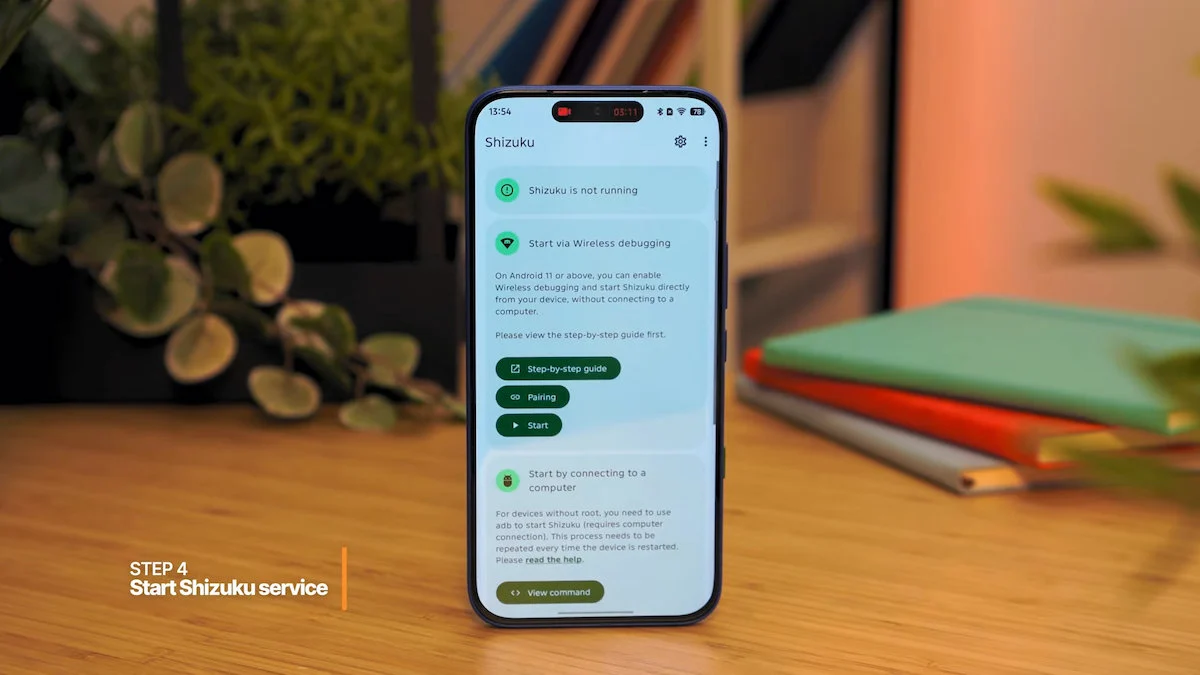
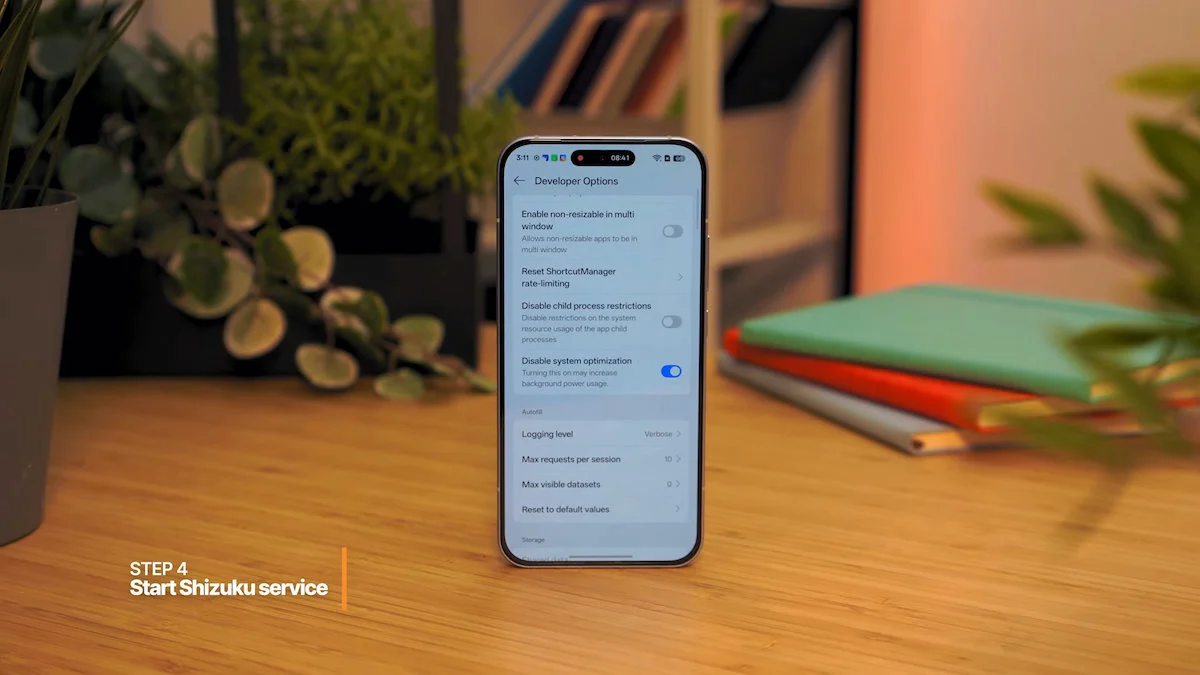
However, some OS versions require an extra step before Shizuku can run. For ColorOS, you’ll need to toggle “Disable system optimization” in Developer options.
Xiaomi, on the other hand, has a more tedious set of extra steps, so it’s better to just watch our explainer on YouTube focused on removing bloatware and ads if you haven’t already.
Step 5: The fun part (removing bloatware apps using Canta)
Now here’s the fun part: we finally get to uninstall apps using Canta.
Open the app, and you’ll see every app and system service installed on your phone which are sorted into four labels: “Recommended,” “Advanced,” “Unsafe,” and “Expert.”
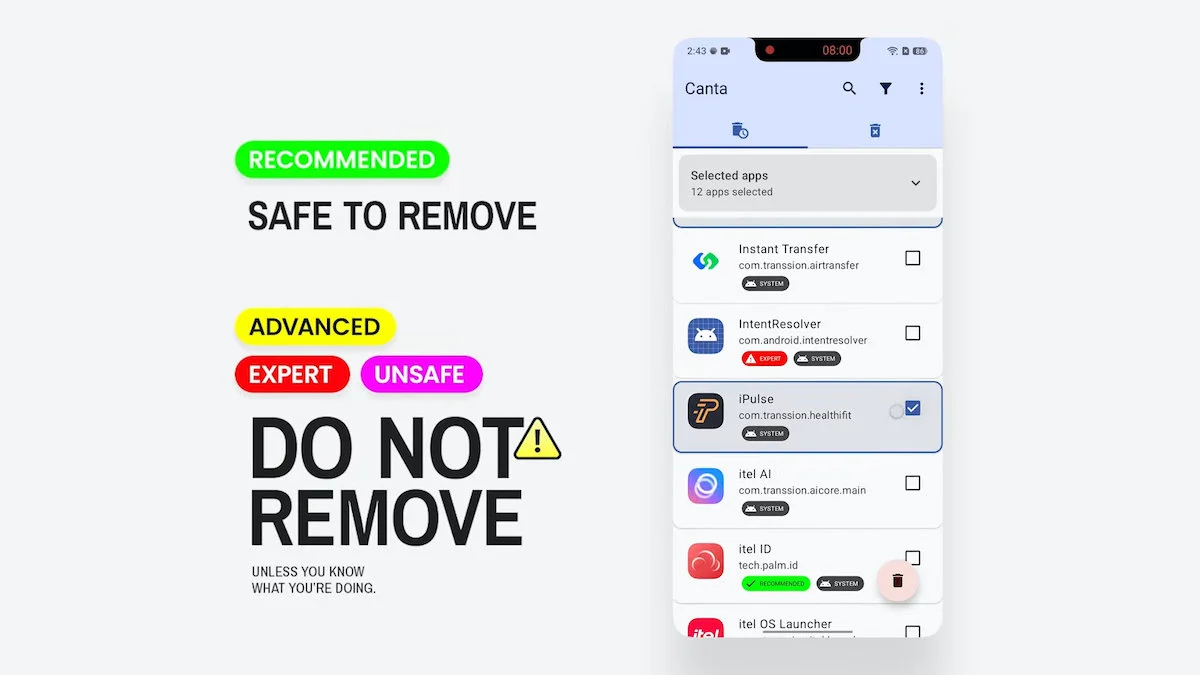
Aside from “Recommended,” treat the rest with caution. Removing the wrong system app could brick your phone entirely, so for this guide, we’re sticking strictly to what’s labeled “Recommended.” Nothing more.
Just a quick disclaimer, we’re not liable for any damages in case you remove a critical app and end up bricking your phone. Consider yourself warned.
Sure, you’re technically free to uninstall any “Recommended” app, but a few of them still serve a purpose. Most of the time, tapping on the app itself in Canta shows a short description of what it does and whether it’s safe to remove. Sadly, that description doesn’t show up for every app, so don’t rely on it too much.
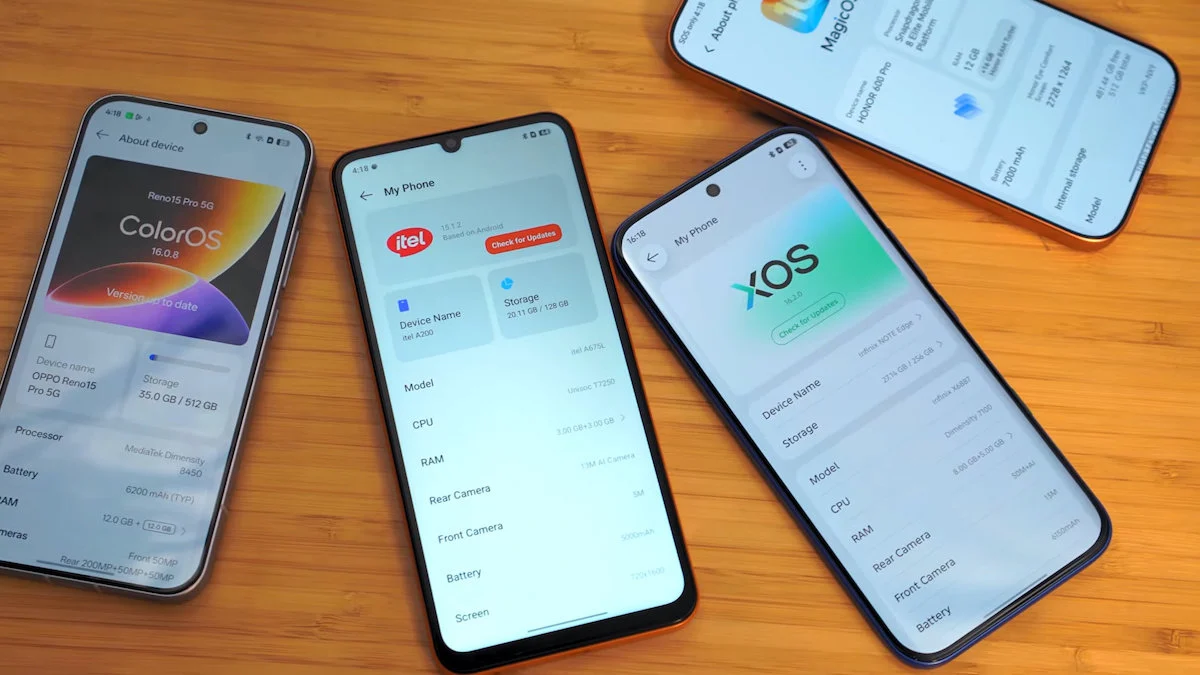
This next part will look a little different depending on which brand you’re on. The list of “Recommended” apps isn’t universal, so what shows up on an Infinix won’t be identical to what you’ll find on an OPPO or HONOR unit.
With that, we’re just gonna run you through a list of apps we debloated for each brand.
Debloating HONOR
Let’s start with HONOR and what we have here is the HONOR 600 Pro running MagicOS 10 based on Android 16. For a premium midrange phone, this one’s got a lot of bloatware.
We removed the usual culprits like a duplicate app store and several duplicate services that are essentially useless like HONOR Lens, HONOR Share, and Emoji Keyboard.
These are already available through Google apps like Google Lens, Quick Share, and Gboard. So, it just makes sense to remove them.
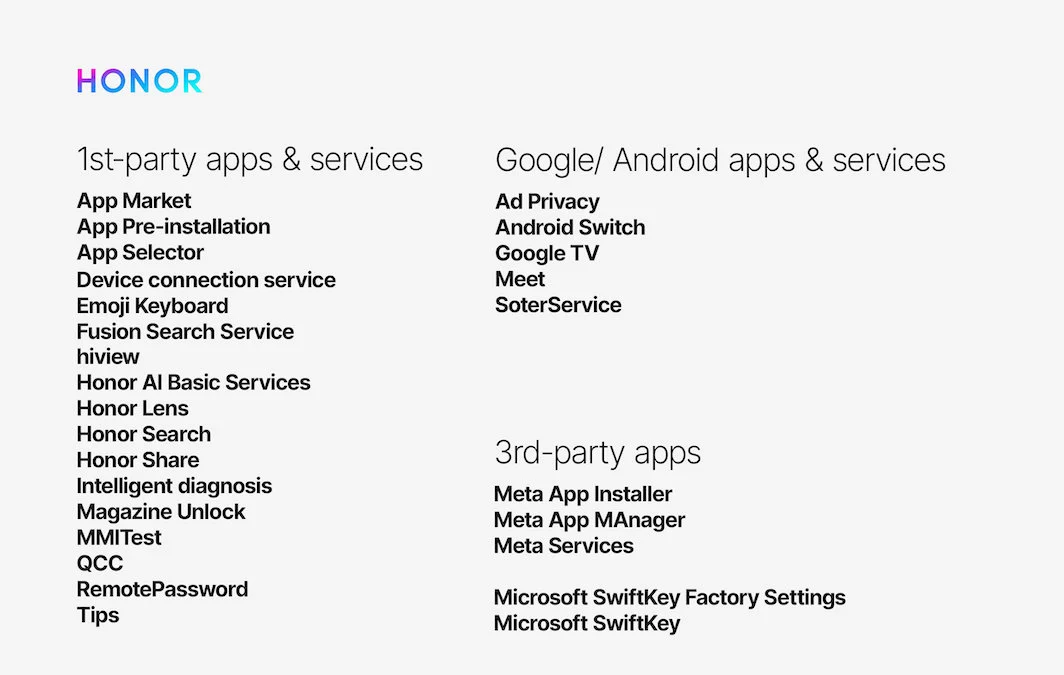
Weirdly enough, pre-installed third-party apps and games like Facebook, TikTok, and Block Blast! are not showing up on Canta itself, so we just uninstall them one-by-one, normally.
Debloating OPPO/ realme/ OnePlus
Next, we have the OPPO Reno15 Pro with ColorOS 16, which is also a premium midrange phone having a bunch of bloat, both system-wide and third-party apps.
And if you’ll notice, system apps here have “oplus” and “heytap” labels, both of which are also present with realme and OnePlus devices.
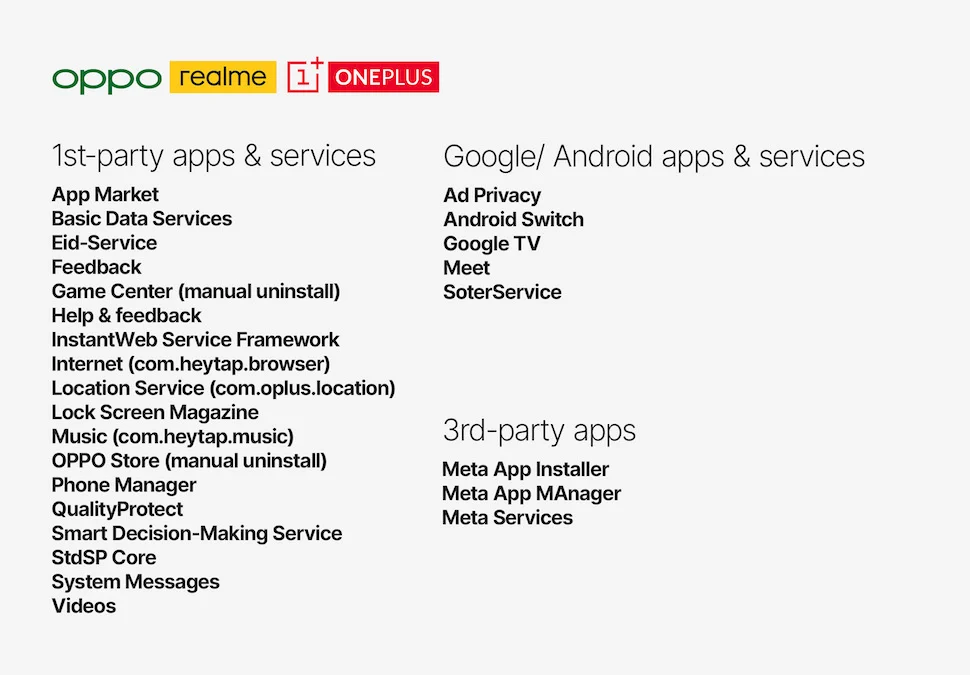
It’s also the same case with HONOR where bloatware apps and games are not appearing on Canta for some reason. So, uninstall them again normally like so.
Another thing that’s a bit annoying is that, whenever you remove the App Market through Canta, it just comes back like nothing happened. For that, you can just go into its App info and disable it instead.
Debloating Infinix/ TECNO/ itel
Lastly, we have the Infinix NOTE Edge and the itel A200 bothing running XOS 16 and itel OS 15. The latter runs Android 15 Go Edition for some variety in this list.
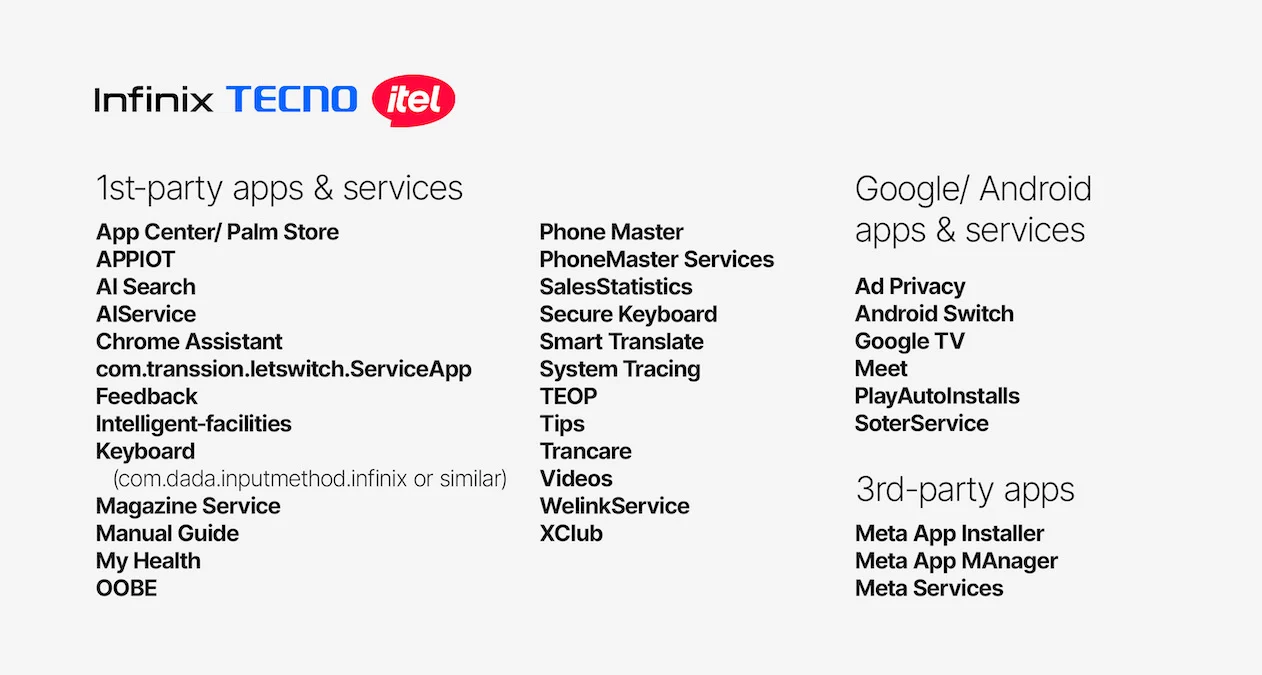
You can see that “transsion” labels are present on their system apps, so yes, the apps you see here are most likely the same with a TECNO phone. And just like the others, there’s a duplicate app store called “Palm Store” or “App Center” having the same app icon.
Step 6: Finishing touches
There you have it! That’s how you debloat your Android phone using the Canta + Shizuku method.
But before you go, there’s a couple more things you need to do: disable Developer options. This is crucial since some apps out there, especially finance apps like GCash, have strict security checks that stop them from working unless Developer options is turned off.
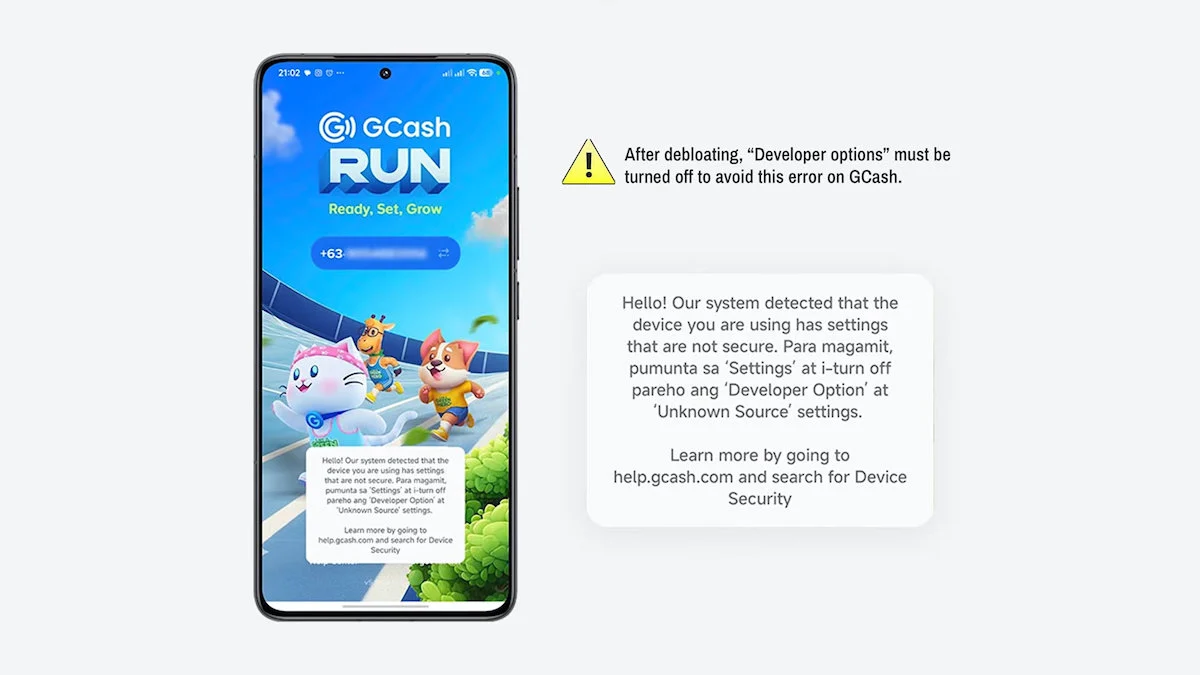
So, go back to Settings > type “Developer options” in the search bar > tap on it, then toggle it OFF. Some phones may require a restart after this, but I’d recommend restarting anyway, even if it’s not required.
Also, don’t forget to toggle “Disable system optimization” on OPPO/ realme/ OnePlus devices before turning off Developer options.
You can either keep Canta and Shizuku installed or uninstall them too. Even if you uninstall Canta, it’ll still remember the bloatware you removed once you reinstall it later on.
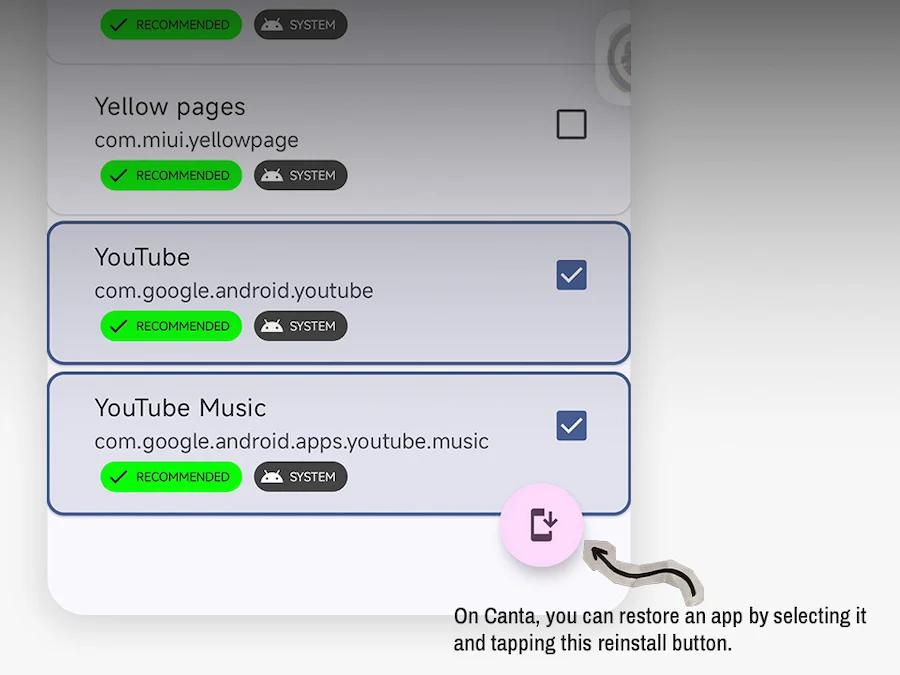
Also, if you accidentally uninstalled an app, you can safely reinstall it by going to Canta’s Uninstalled apps page > select the app you want to reinstall > tap on the reinstall icon on the lower right corner of the screen.
So that’s it for this guide!
Depending on which phone brand you’re using, there might still be some bloat lingering around, like recommended apps tucked inside folders, or an extra launcher screen plagued with unnecessary ads.
That’s gonna require some additional tweaks in the device’s system settings, so we’ll save that for another day. Maybe a series of debloating tutorials focused on each Android skin? Let us know if that’s something you’d want to see.


0 Comments
Leave a Reply