
We all know that Apple and its closed ecosystem is arguably THE best one out there, because “it just works.” Be it iPhones, MacBooks, iPads and all, these can all work together seamlessly without much hassle.
What if I told you Android brands have been doing the same, and it’s just that they aren’t talked about enough? One brand that most people sleep on is Xiaomi.
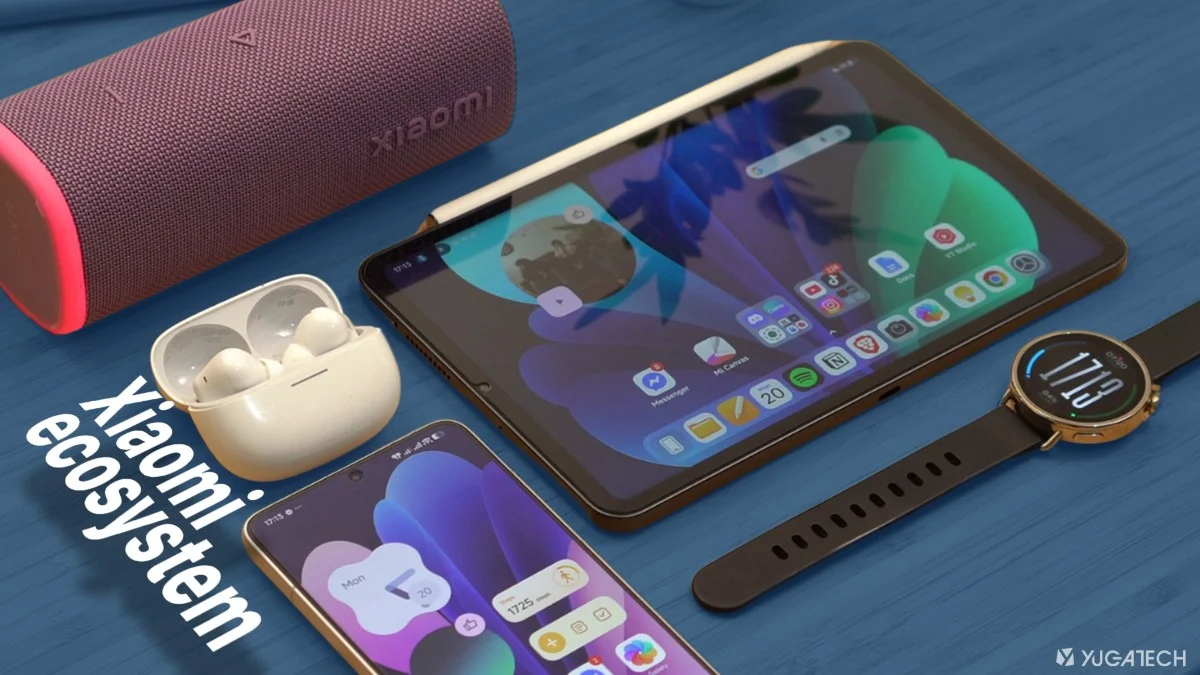
Now, does it work as smoothly as Apple’s version? That’s exactly what we’re here to find out. In this article, we’ll go through what Xiaomi gets right, where it still falls short, and whether it’s actually worth buying into the Xiaomi ecosystem.
And in case you didn’t know, Xiaomi isn’t just about the usual tablet-smartphone-wearables ecosystem. They also have smart home devices, IoT gadgets, and they even have their own electric car. For fairness’ sake though, we’re only going to focus on their mobile ecosystem. As much as we’d like to have a Xiaomi SU7 in our garage, this is as far as we can go for now.
Unified HyperOS
For the past few years, Xiaomi has been using a unified software across different sub-brands like REDMI and POCO. That itself is already an advantage I would say.
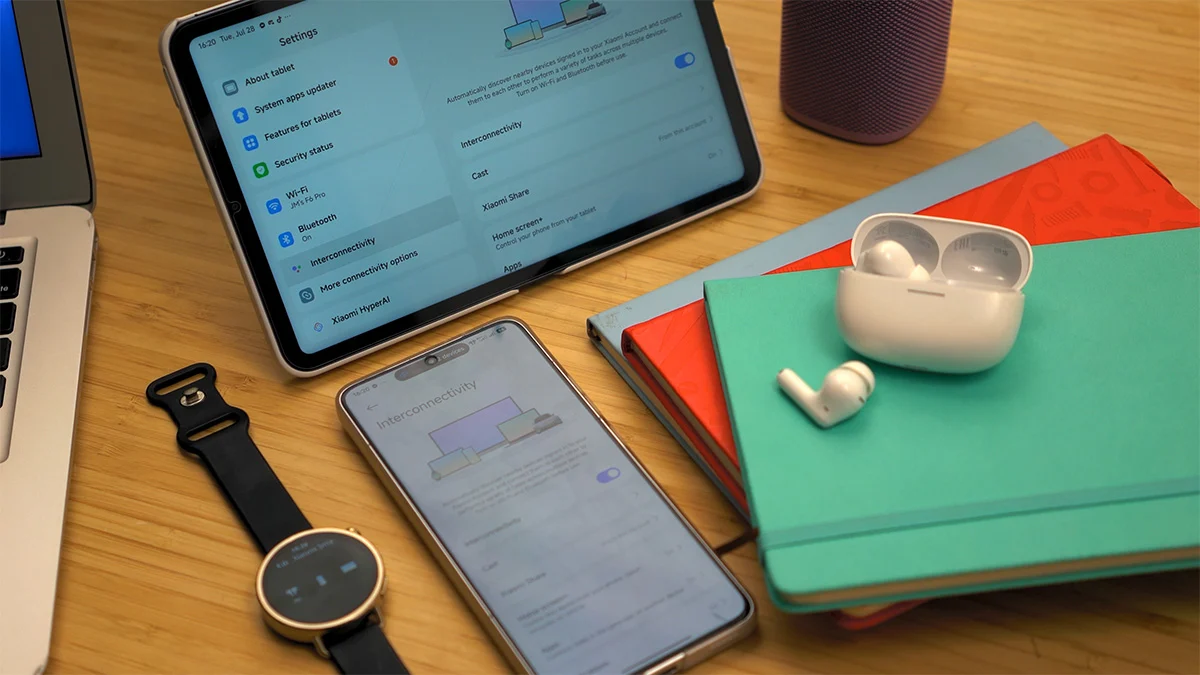
What we have here are the POCO F6 Pro, the Xiaomi Pad Mini, and the Xiaomi Watch S4 all running HyperOS.
And we also have other accessories to, kind of, complete the whole ecosystem experience that we’re talking about. These include the Redmi Buds 6 Pro, Xiaomi Focus Pen Pro for the tablet, and also the Xiaomi Sound Play.
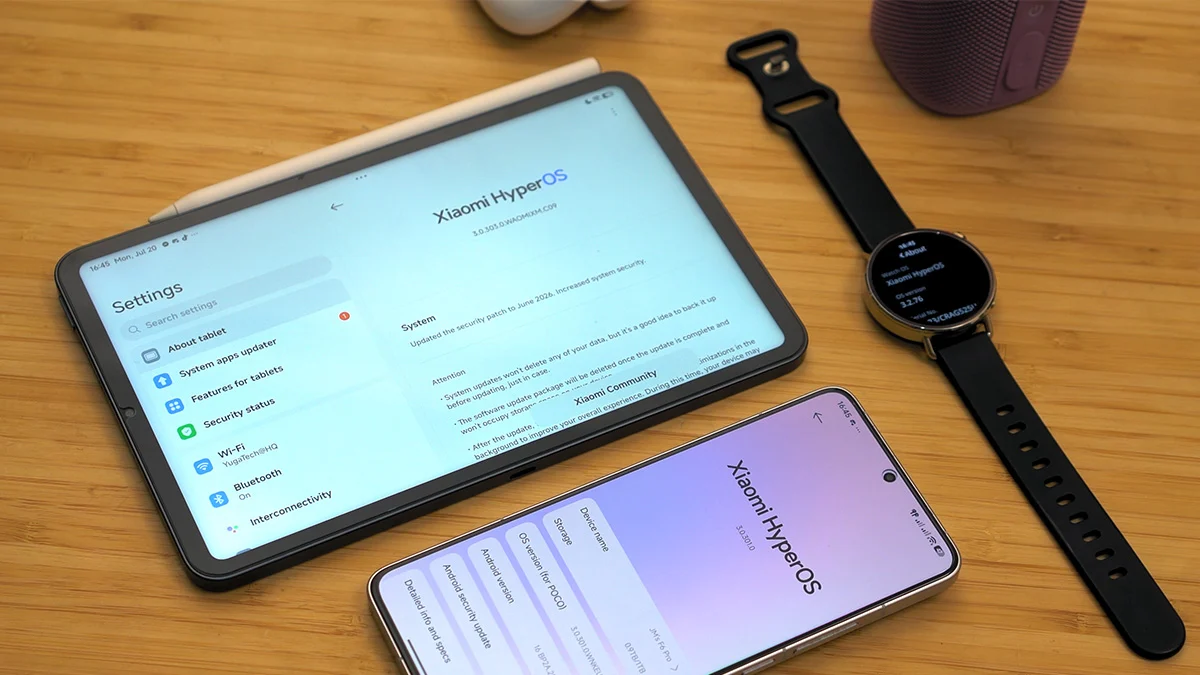
You see, despite coming from different brands, the phone, the tablet, the smartwatch, and the earbuds are all compatible with each other. Newer Xiaomi phones, specifically those within the midrange and flagship segments, already have this so-called “Interconnectivity” feature which essentially makes the device integration possible.
If I’m not mistaken, the POCO F6 Pro didn’t have this feature until HyperOS 3 update came around. So, this sounds like a recent effort from the company which makes sense. You want people to buy your stuff? You make these devices work together seamlessly.
Just as expected though, like Apple, creating a Xiaomi account is required to use Interconnectivity features. Just follow the sign up process and you’re good to go!
Xiaomi Interconnectivity features
Xiaomi Smart Hub
First things first, there’s the “Xiaomi Smart Hub” that you can easily find on the control center. All your active connected devices show up here on your phone, tablet, and even on the smartwatch.
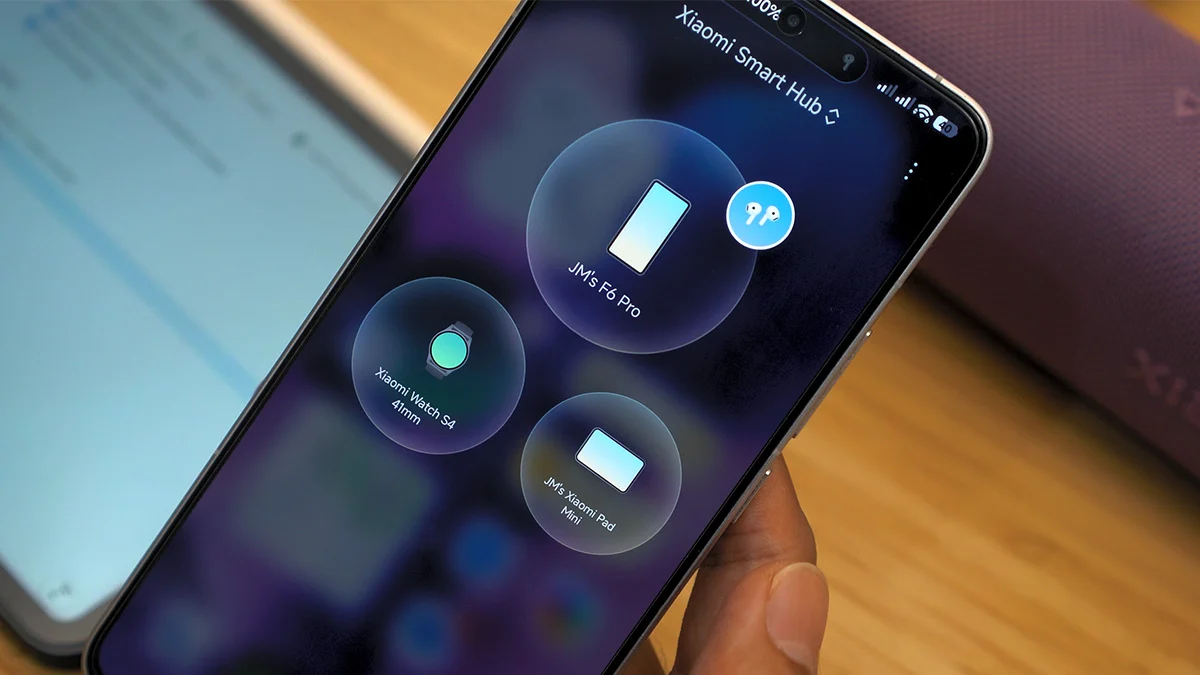
Tapping on each deice reveals essential info like remaining battery, and some even come with additional controls, like playing a sound, which is handy if you’ve misplaced your phone, tablet, or smartwatch somewhere nearby. This same “play a sound” button is also available on the smartwatch by the way.
There are other controls here like sharing your home screen and media playback controls, which we’ll get to in a bit.
Home screen+
One of the main features that really comes in handy, at least for us, is Home screen+. It basically lets you project your smartphone screen onto the tablet.
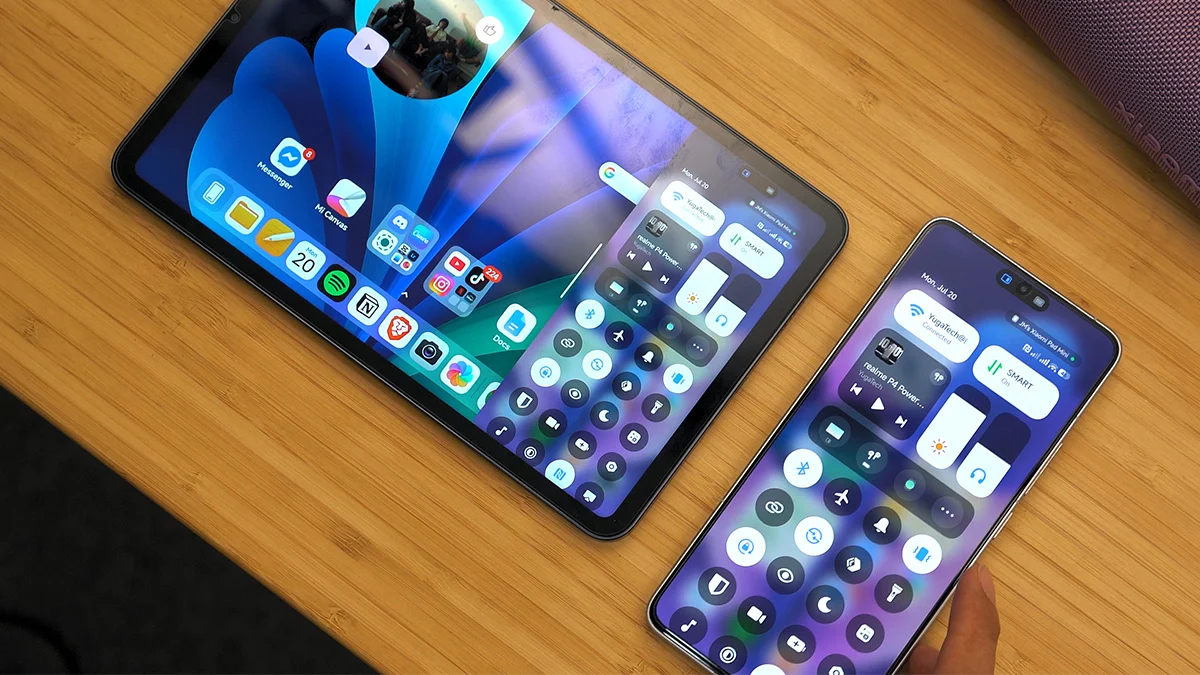
I find this quite useful, especially when I want to check something on my phone while I’m using the tablet. I can just tap the phone icon via the Smart Hub or on the taskbar (with the tablet) and access it right then and there. What’s even cooler is that I can unlock the phone directly from the tablet.
There’s a lot you can do here, too. You can use the phone on the tablet just like you normally would, except when trying to make a payment or open a locked app, that’s when you’ll need to grab the actual phone.
Copying files from the tablet to the phone, and vice versa, is also possible.
That said, depending on how good your Wi-Fi connection is, the experience is usable but not exactly smooth, which is kind of expected.
Handoff
Are you familiar with Handoff on Apple devices? Xiaomi has a similar feature that lets you continue right where you left off, moving from the smartphone to the tablet.
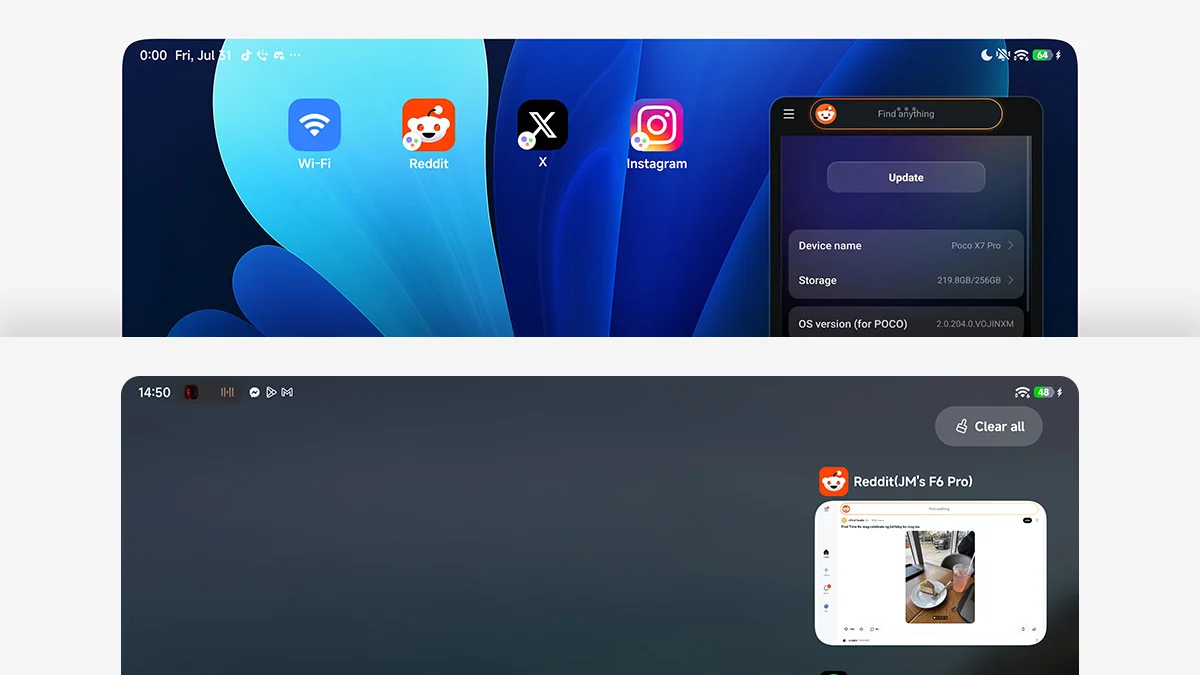
You can even create app shortcuts on the tablet to launch certain apps directly, without needing to unlock the phone itself.
Handoff apps will be full screen by default, but you also have the option to switch them into a floating window if you’d rather adjust the layout. Oddly enough, trying it the other way around only seems to work with Notes for some reason.
Clipboard+
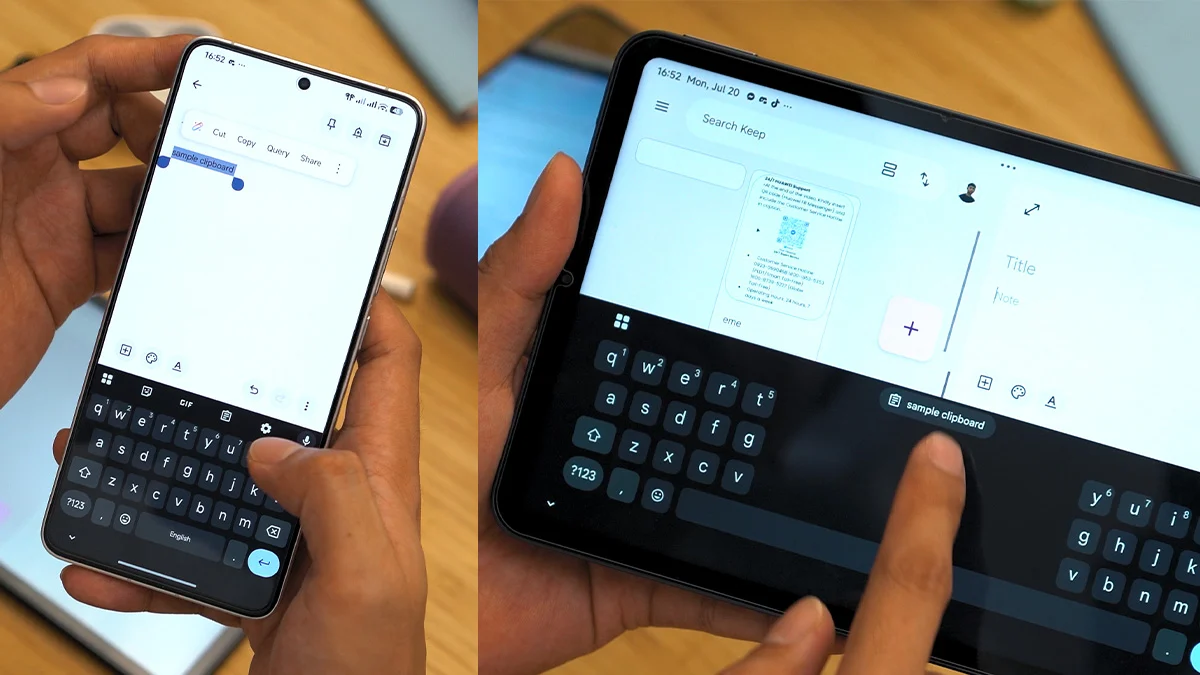
Another nifty feature is the Clipboard+, which instantly syncs between the phone and the tablet. You can copy text, and even images, and it’ll pop up on both devices right away.
Xiaomi Share
If stock Android has Quick Share, Xiaomi has its own “Xiaomi Share”. It’s also found on the control center that lets you send and receive files across Xiaomi phones, tablets, and even MacBooks and iPads—more on that later.
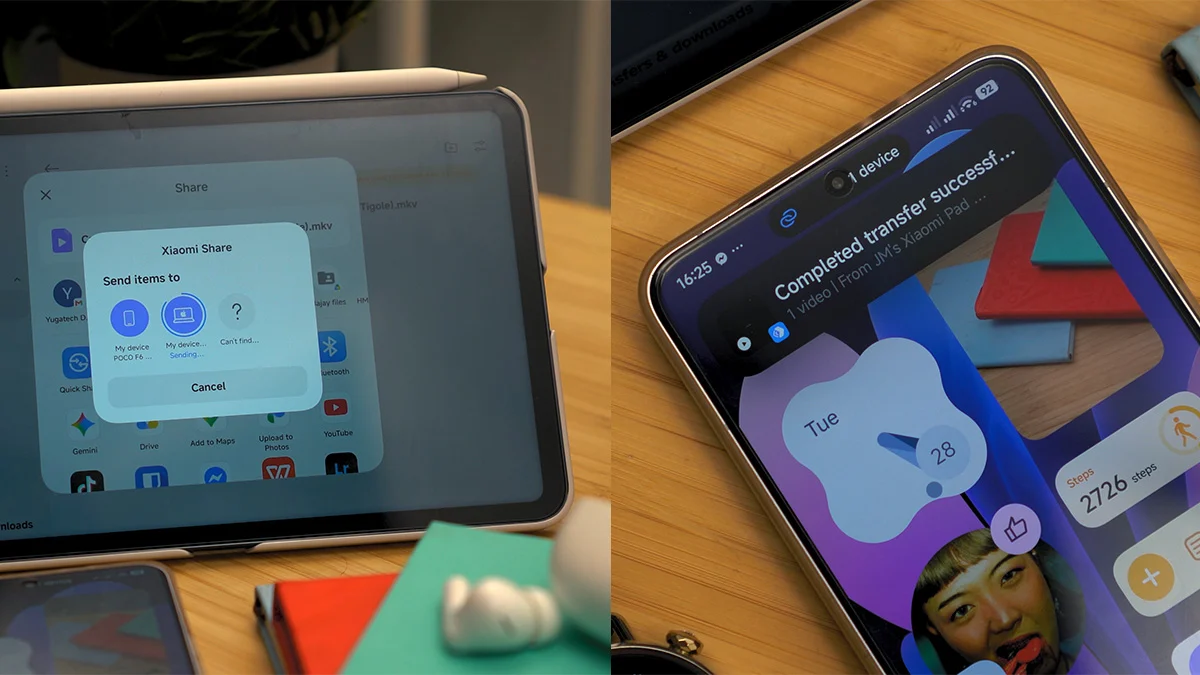
Honestly, from my experience, Xiaomi Share is much faster and more consistent than Quick Share, though its main advantage lies on availability since all Android phones have this feature readily accessible.
Call sync and Network sync
Call syncing is also available across the tablet and the smartwatch. You can answer a phone call using either device and continue the call right from the device of your choosing.
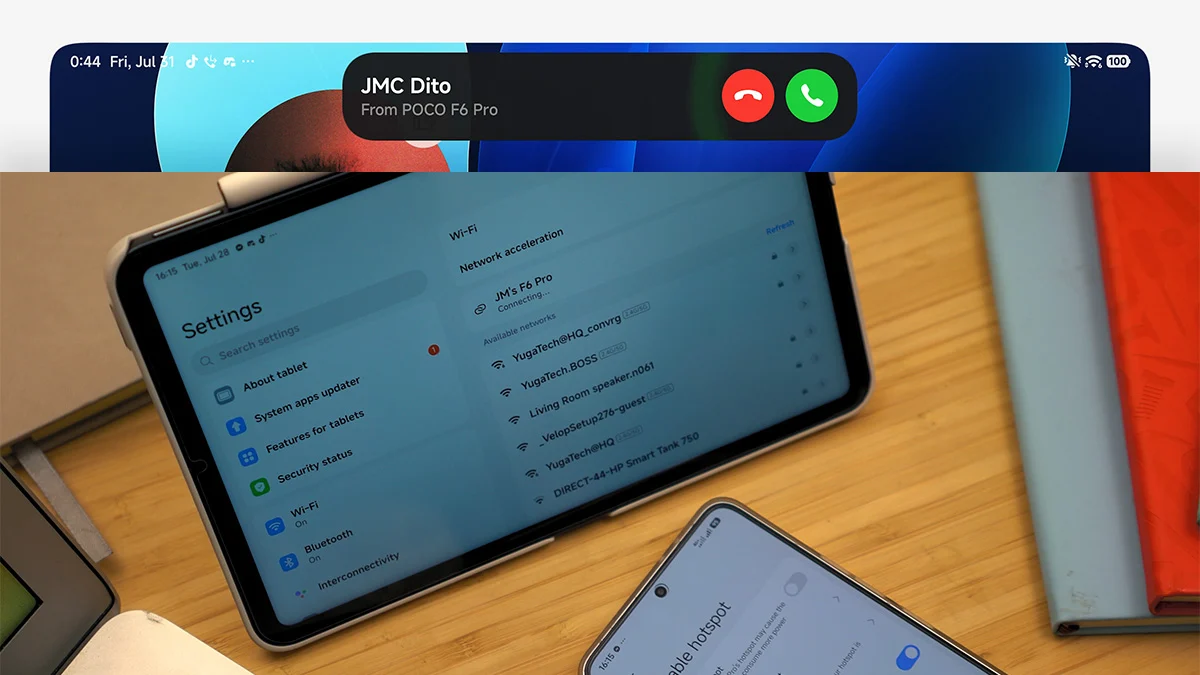
There’s also Network Sync, which lets the tablet automatically connect to the phone’s hotspot whenever it loses Wi-Fi, or when Wi-Fi becomes unavailable altogether.
This comes in handy when you’re out and about using mobile data, or connecting to a new Wi-Fi network for the first time through the phone.
Media playback and noise cancellation controls
As someone who always has music playing through a pair of wireless earbuds, probably my most favorite feature that Xiaomi Interconnectivity offer is easy access to playback and noise cancellation controls.
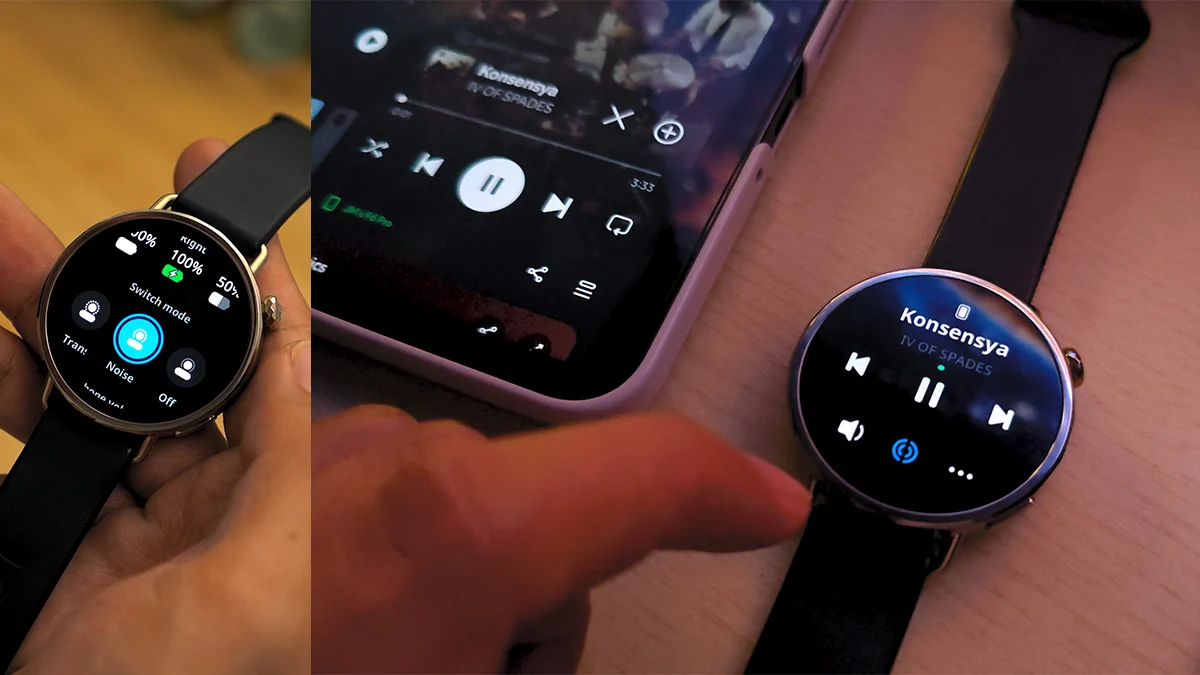
On the Xiaomi Smart Hub, you can tap on the wireless earbuds and instantly see battery levels of the earbuds and the charging case, along with noise cancellation controls and volume.
These same controls also show up on the smartwatch, right alongside media playback controls. So, juggling songs and noise cancellation is just as easy using the smartwatch alone.
MacBook: Home screen+ (phone) and Screen extension (tablet)
Interestingly, Xiaomi phones and tablets can also connect to a MacBook, and Xiaomi doesn’t seem to mind you doing so. In fact, the company actually encourages users to adopt this kind of setup, instead of pushing their devices as strictly Windows companions, lol.
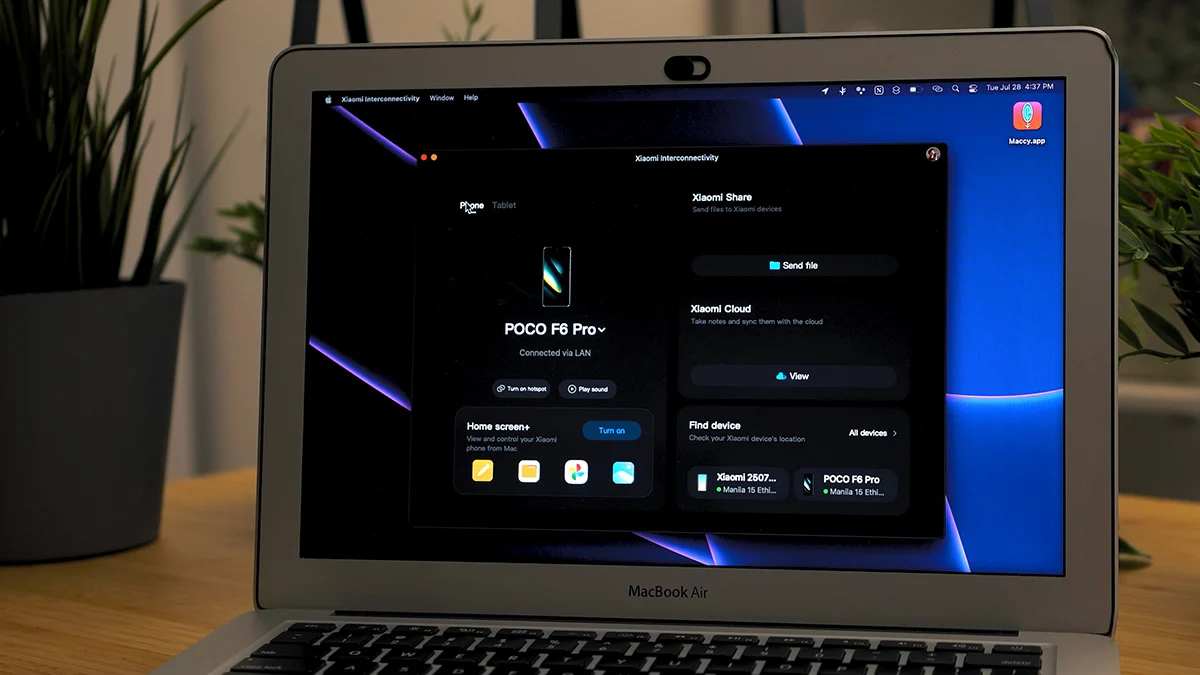
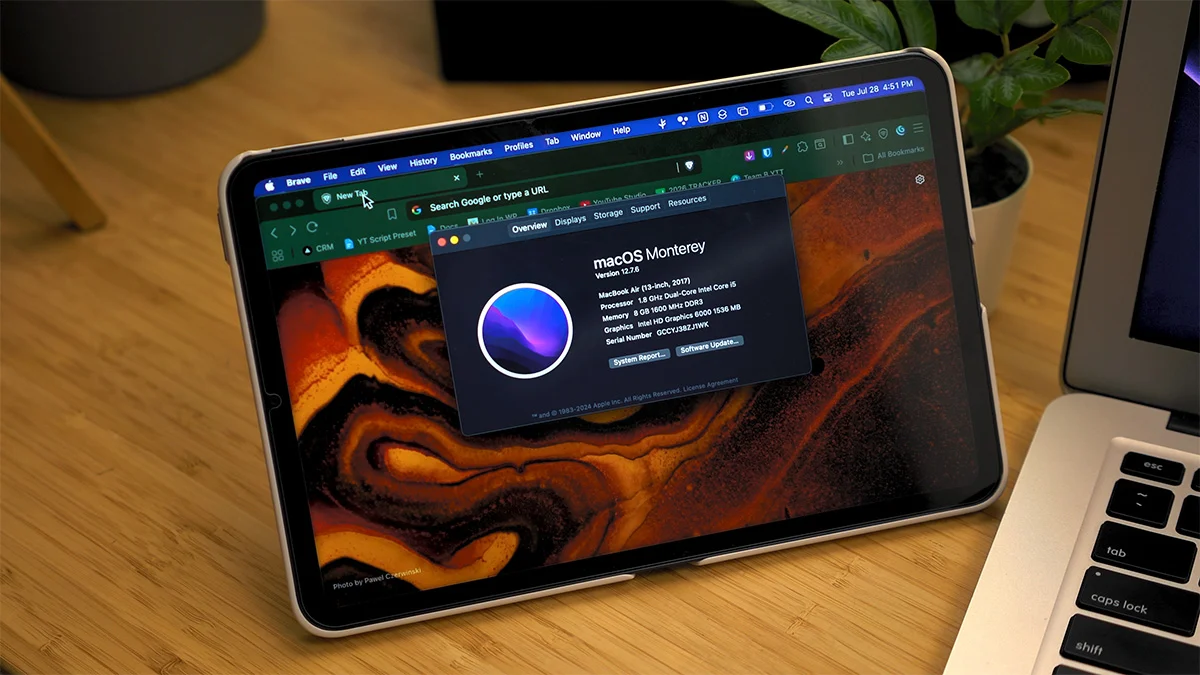
By downloading the Xiaomi Interconnectivity app, you unlock several features on the MacBook that are already available across Xiaomi devices, including access to Xiaomi Cloud, though only Mi Notes only shows up here, plus Xiaomi Share, Home Screen+ support, and even Screen extension, which lets you use the tablet as a second screen.
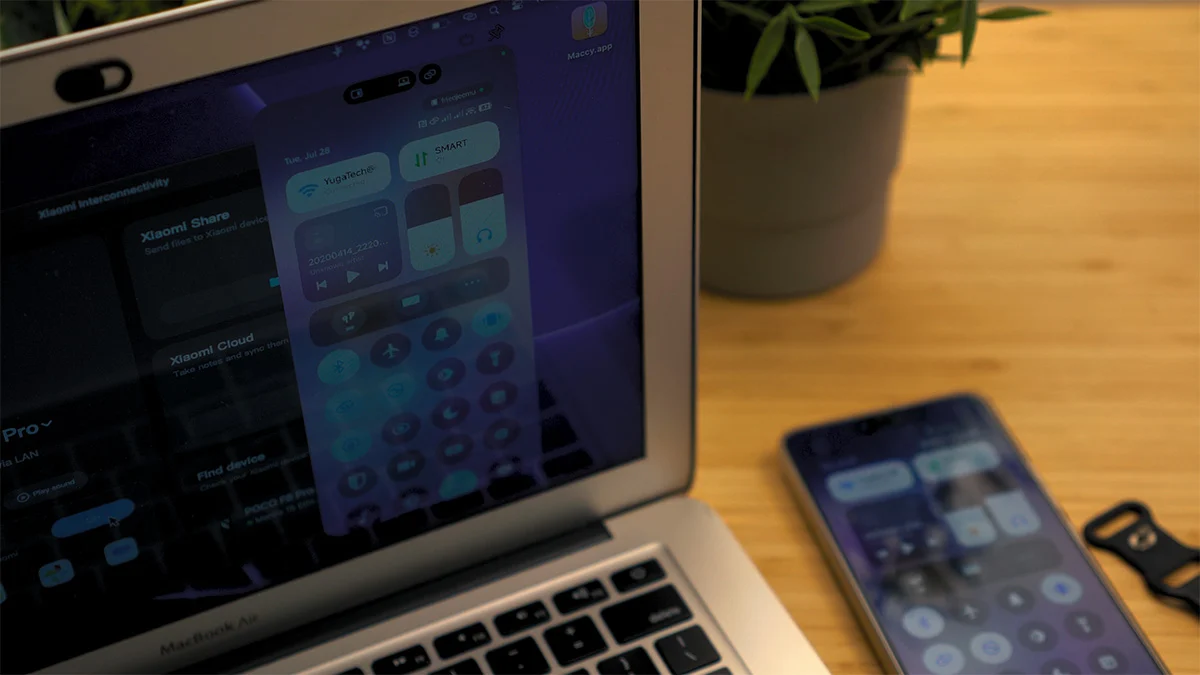
That’s not all. Xiaomi also recently made its devices compatible with AirPods, so it’s clear they’re really leaning into cross-system “Interconnectivity” here, and we’re living for it.
What it needs to improve on
Now that we’ve covered the good, let’s talk about where Xiaomi Interconnectivity still falls short.
Hassle Xiaomi Cloud login
Logging into Xiaomi Cloud, whether through the website or the Windows app, is a hassle more often than not.
Every time I try to access Notes or any via the website, it prompts for a verification code sent through text, but I never actually receive it, no matter how many times I try. So now, I’m stuck to just using Notes on my phone or the tablet.
Find Device isn’t as reliable
Locating devices isn’t as fast or reliable as I expected it to be. Xiaomi accessories don’t even show up on the Find Device interface, and locating a certain device is kinda slow. I once waited a good minute, and had to manually open the tablet before it finally located it.
I’d rather use Google’s Find Hub for this which shows the wireless earbuds at least.
There’s also that lack of Ultra Wideband support for these Xiaomi devices, so if your earbuds ever get lost, tracking them down becomes a real headache. Google’s Find Hub relies on approximate location instead, which won’t be nearly as accurate as what you’d get with AirPods or iPhones.
Limited smartwatch functions
Another annoyance is that you can’t bind the smartwatch to both the phone and tablet at the same time. It only connects to one device, meaning Bluetooth unlocking only works there, and there’s no way to get it working on the tablet.
Unless, you unbind it from your phone and connect the watch to the tablet instead.
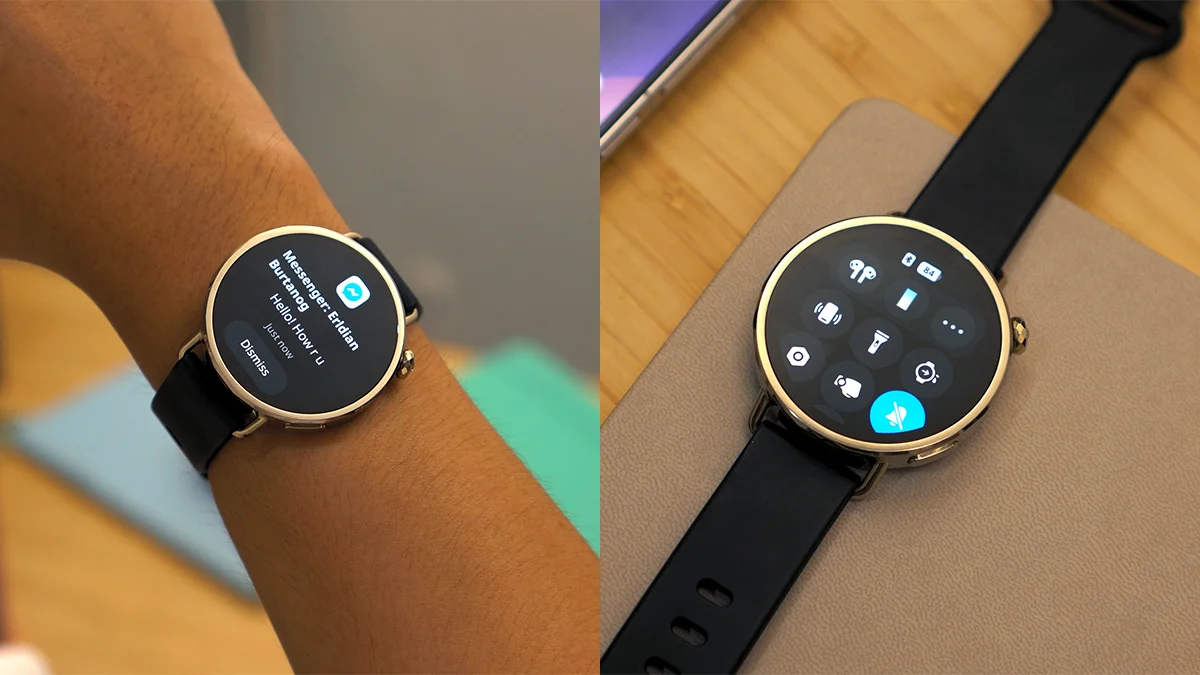
The smartwatch does have NFC, but there’s no real way to take advantage of it since Google Wallet, or any other digital wallet service for that matter, is nowhere to be found on the watch.
And while we appreciate that the watch can also show notifications from the phone, you can’t really make your replies to messages which kind of take away an essential part of owning a smartwatch.
Final thoughts
At the end of the day, Xiaomi Interconnectivity shows a lot of promise, and honestly, some of these features genuinely make daily use more convenient, especially if you’re already living in the Xiaomi ecosystem.
It’s even bold enough to bring MacBooks into its own ecosystem, which honestly makes sense since Xiaomi doesn’t really make laptops for the global market anyway, and that’s perfectly fine by me.
That said, it’s clear this ecosystem still has some rough edges to smooth out. Cloud login issues, inconsistent device detection, and limited functionalities among other disadvantages hold it back from feeling truly seamless.
For the most part though, Xiaomi ecosystem just works, too.
If Xiaomi keeps refining this the way Apple has with its own walled garden, this could genuinely become one of its stronger selling points down the line.




0 Comments
Leave a Reply