

PanGu 개발팀은 지난 6 월 iOS 7.1/7.1.1 을 위한 언테이저드 제일브레이크를 출시한 이후 iOS 영역에서 명성을 쌓아왔습니다. 중국 기반 그룹이 다시 한번 나섰으며, 이번에는 iOS 8.1을 겨냥해 해당 버전용 언테이저드 제일브레이크를 출시했습니다.
Before you proceed with the hack, bear in mind that we hold no accountability for any damage that this jailbreak will cause to your device. So as with other things that involves tinkering with your device’s OS/software, please proceed with caution and follow the steps down to a “T”.
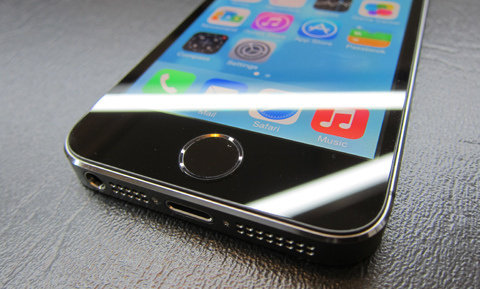
Prior to jailbreaking, make sure that you back up your device in case something bad happens. Moreover, you need to disable the Passcode or TouchID and Find My iPhone features on your iOS device. These can be done following the simple steps listed below.
Disable Passcode/TouchID: Settings > General > Touch ID & Passcode > turn off Simple Passcode
Disable Find My iPhone: Settings > iCloud > Find my iPhone
Now that’s out of the way, we can proceed with the actual jailbreak.
1. Download PanGu for iOS 8 from this link (for Windows only, MAC version is currently not available).
2. Run the PanGu software (Pangu8_v1.0.exe) that you’ve downloaded as Administrator.
3. Plug the supported iDevice that you want to Jailbreak to your Windows PC using a USB cable.

4. The software should automatically detect the iDevice that’s connected to your PC. If it didn’t, try to reconnect the USB cable or try a different cable.
5. There’s a checkbox on the left side part of the software’s main dashboard accompanied by Chinese characters. Make sure that it’s unchecked before you proceed.
6. Click on the Blue button to start the jailbreak process.
7. Let the software do its thing. Just make sure that the connection between the device and PC remains as it is during the course of this step.
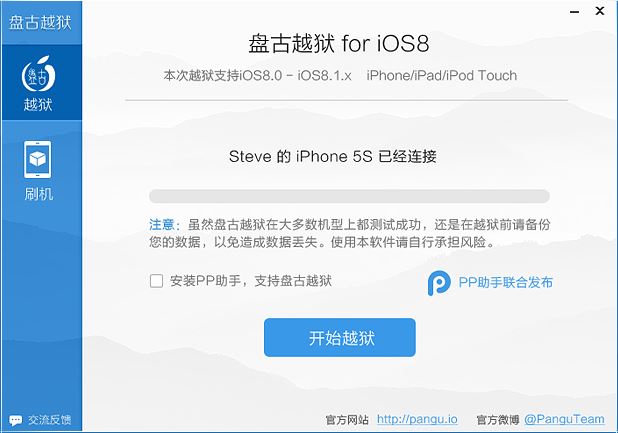
8. Once the status bar on the Pangu software reaches the 5/6 mark, the connected iOS device will reboot. You will need to access the installed Pangu app (pangunew)on your device in order for the software to finish the jailbreak access.
9. Just tap “Trust” on the pop-up notification screen on your iOS device. This will resume the installation on the Pangu software.
10. After this, the Pangu software will reboot your iOS device. Wait for your iDevice to finish doing its thing which should take around a minute or two. Once that’s done and your device booted back up, your device should now be jailbroken!
Do note that this jailbreak doesn’t automatically install Cydia on your device because Saurik has yet to update the utility for iOS 8. But once it’s updated, you should be able to install Cydia on your jailbroken device through the pangunew app that was installed during the jailbreak process.

If I got it right, it is indeed available but cydia is not yet in it. Saurik and Pangu team, are both working together to iron out the bugs. As far as I know, the current jailbreak for 8.1 doe snot have cydia, and is probably better for developers. Give that, they are hoping to get the update with cydia in it real soon.