
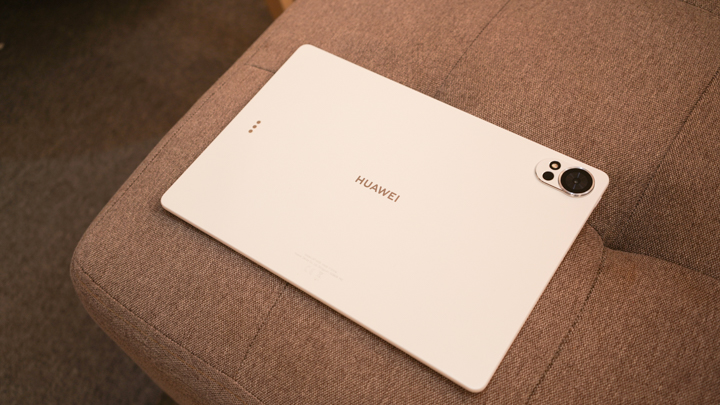
HUAWEI MatePad 12 X (2026) Review



Last month, we gave you a tour of the features of the vivo T1 5G and why it is a good buy. One of those reasons is Ultra Game Mode which enhances your experience when playing mobile games. So, for this article, we’re going to focus on that feature and find out how it can provide your vivo T1 5G with that Turbo gaming experience.

One of the first things you need to do before you launch a game is to set up Ultra Game Mode. You can do this by going to Settings and then scrolling down to Ultra Game Mode.

Once you’re inside, look at the bottom and you’ll see the games recognized to run with Ultra Game Mode. You have to make sure that your game is there. If it’s not, you can just tap on the ‘+’ icon to add the game app.
Since you have already included your game in Ultra Game Mode, this feature will automatically launch alongside your game. You’ll know it’s there when you see the launch intro of the feature and the floating sidebar on the left.

Swipe from the left to bring out the Ultra Game Mode dashboard. Initially, tweaks are not implemented but one of the first things you want to activate is Performance mode. Activating it will give you gauges for the CPU and GPU workload.
This mode is also the best option if you want the vivo T1 5G to dedicate its resources to the game you’re playing, but there’s also Balanced mode and Battery Saver mode if the situation requires it.
The Ultra Game Mode dashboard gives you eight features that you can quickly activate with a tap. One of the first things we use is Eagle eye view or Eagle eye enhancement.

What it does is to make the game look more visually pleasing, on top of the graphics features that the game has to offer:
• Local tone mapping – Divide your screen into zones and adjust the contrast ratio of each individual zone for sharper contrast.
• Color enhancement – Increase the saturation of game scenes to display more brilliant colors.
• Memory color protection – Keep memory colors, such as the sky, grassland, and skin tones intact when adjusting imaging saturation. This ensures image fidelity.
• Detail sharpening – Adjust image sharpness depending on different game resources to provide better details.
Blocking notifications
One of the most annoying things that happen when playing games are interruptions brought by notifications coming from calls, messages, and app updates. You can block those by activating three features:
• Reject calls – automatically reject incoming calls
• Mute Notifications
• Background calls – let the call run in the background
Lock brightness
Another feature lets you lock the brightness when playing a game. This is handy when you have the brightness set at auto as sometimes the display can get dimmer and brighter than you’d like, depending on the. Activating this feature makes sure that the screen’s brightness locks on your preferred intensity.
Autoplay with screen off

Sometimes you need to take a break between games, but at the same time, you don’t want to leave your phone’s screen on to save on battery. Then you can use this feature. Just tap on it and the screen will go black, but you can still hear the game playing in the background, though. Once you’re ready to play, just slide on the screen and the game is there where you left it.
Screenshots and Record Screen
These features are common but still very handy. If you want to screenshot your game, you don’t need to press multiple buttons at once, just tap on the screenshot icon and it will take a screenshot.
The record screen feature, on the other hand, is for those who want to upload their game to social media platforms. You even have the option to choose the recording quality or choose what audio it should record.
Esports mode

When playing supported competitive games like Mobile Legends and Arena of Valor, this feature will become available. Activating this feature will do the following:
• Minimal disturbance – All notifications, except for low battery warnings, will be muted. Block Notifications and Background Calls in Ultra Game Mode will also be enabled.
• Optimized control – Turn on Disable Three-finger Screen Capture in Ultra Game Mode to prevent accidental touches.
• Optimized display settings – Turn on Brightness Lock in Ultra Game Mode to provide the best display settings.
• Adaptive frame rate and temperature – Provide the best gaming performance by intelligently balancing temperature and frame rate.
Voice changer
Esports mode will also give you access to the Voice changer feature which you can use for voice chats in your current game. There’s Original sound, Artificial intelligence, Commander, War correspondent, Cowboy, and Child.
This is handy if you don’t feel comfortable using your own voice or for additional entertainment.
When playing Genshin Impact or Ni no Kuni: Cross Worlds, we use Performance mode then we just activate Eagle eye view, Mute Notifications, and Background calls. These are enough to make sure that we have uninterrupted gameplay. We also didn’t have to clear background applications, the Ultra Game Mode automatically allocates the resources we need.
Then when playing Mobile Legends, we use Esports mode, which automatically activates the feature we need for competitive gaming.
So far, we enjoy using it. It’s not tedious and can provide tremendous benefits in terms of performance and experience. So, if you already have the vivo T1 5G, make sure to explore and take advantage of these features.
On the other hand, if you’re looking for a premium mid-range smartphone that has the hardware to handle the top mobile games in the market, and the software to provide an amazing experience, the vivo T1 5G is worth considering.
The vivo T1 5G is now available for PHP 16,999 and comes in Turbo Black and Turbo Cyan colors.






Apple, Asus, Cherry Mobile, Huawei, LG, Nokia, Oppo, Samsung, Sony, Vivo, Xiaomi, Lenovo, Infinix Mobile, Pocophone, Honor, iPhone, OnePlus, Tecno, Realme, HTC, Gionee, Kata, IQ00, Redmi, Razer, CloudFone, Motorola, Panasonic, TCL, Wiko
Best Android smartphones between PHP 20,000 - 25,000
Smartphones under PHP 10,000 in the Philippines
Smartphones under PHP 12K Philippines
Best smartphones for kids under PHP 7,000
Smartphones under PHP 15,000 in the Philippines
Best Android smartphones between PHP 15,000 - 20,000
Smartphones under PHP 20,000 in the Philippines
Most affordable 5G phones in the Philippines under PHP 20K
5G smartphones in the Philippines under PHP 16K


Reyner says:
🌱 Noobs🏆1
Hi love you so much more now I am working now
Guylian B Cabales says:
🌱 Noobs🏆1
Cabalesguy****@****.***