

Microsoft has quietly introduced a new internet speed test feature in Windows 11, giving users a quicker way to check their connection directly from the taskbar.
The feature, which began appearing in recent updates for Windows 11 versions 24H2 and 25H2, adds a “Perform speed test” option in the network menu. Users can access it by right-clicking the Wi-Fi or Ethernet icon, or through the quick settings panel.
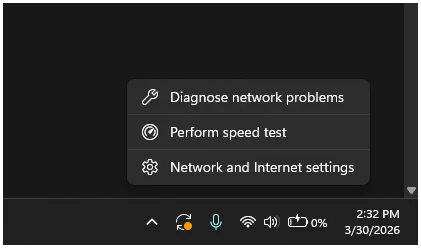
Once selected, the option opens a browser-based speed test powered by Ookla, showing key metrics such as ping, download speed, and upload speed. The results are comparable to popular services like Speedtest, making it a reliable quick-check tool for everyday use.
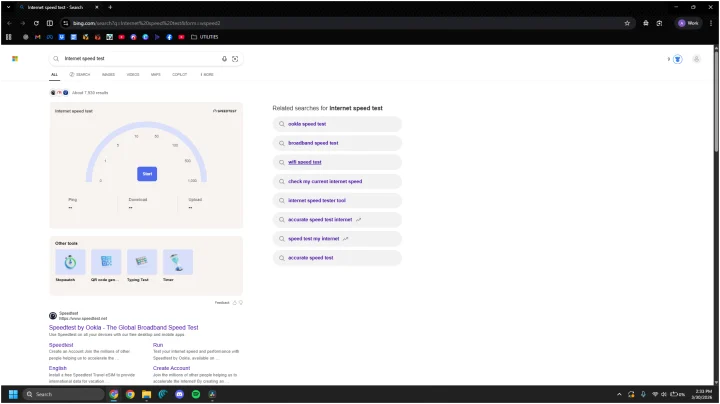
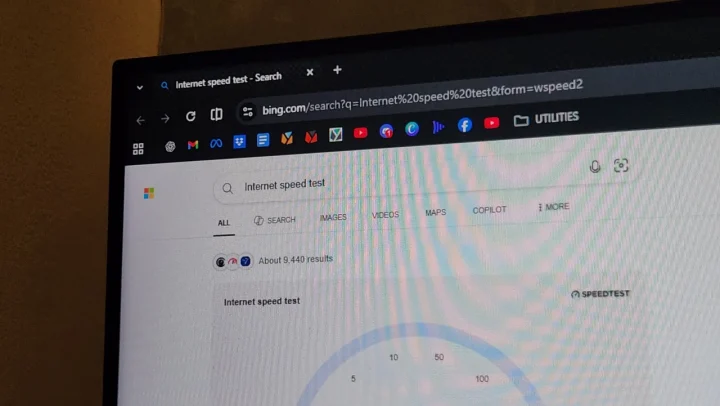
Unlike some Microsoft features, the speed test respects the user’s default browser instead of forcing Microsoft Edge. However, it is not fully integrated into the system, as it simply redirects users to a Bing-powered page where the test must be manually started.
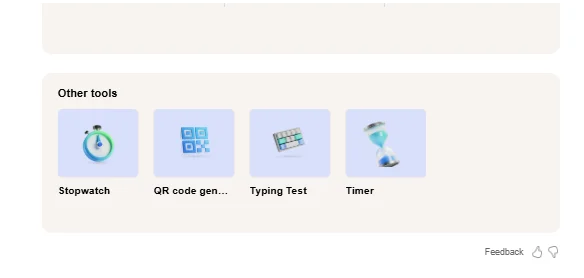
Beyond measuring internet speed, the page also includes additional tools such as a stopwatch, timer, typing test, and QR code generator, turning it into a lightweight utility hub.
While the addition improves accessibility, it stops short of being a fully native Windows feature. Microsoft previously offered a dedicated Network Speed Test app in earlier versions of Windows, which provided deeper insights and tracking capabilities.
Still, the new taskbar shortcut offers a convenient way for users to quickly check their internet performance without relying on third-party apps.






0 Comments
Leave a Reply