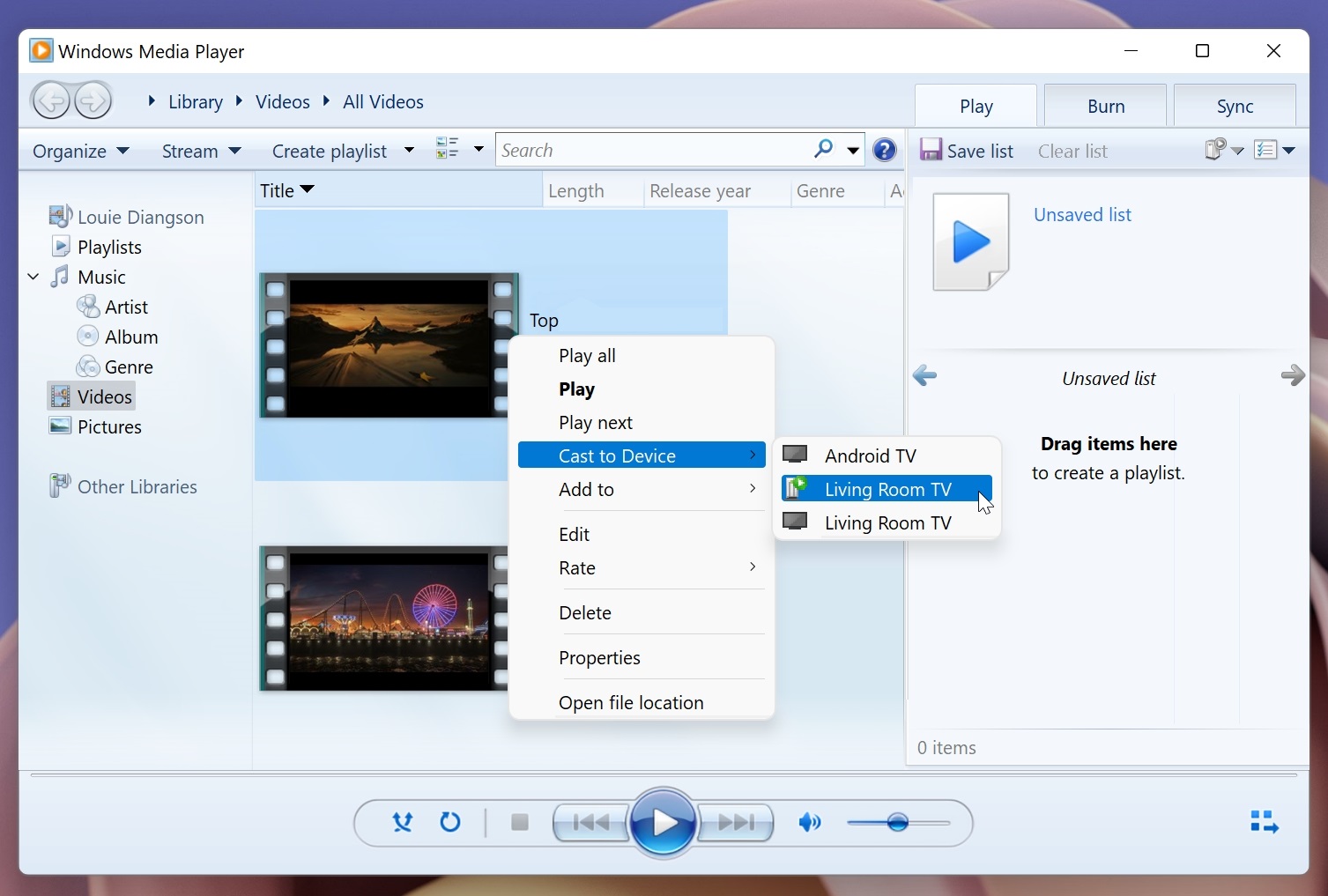

Alternatively, you can also cast videos from your smartphone or tablet to your Android TV via its built-in Chromecast. What's tricky to do, though, is streaming video files stored on your Windows PC. As a requirement, you need to make sure that your PC is running Windows Media Player 11 or higher, and that your PC and Android TV are on the same WiFi network. The first part is to enable content casting: Step 1: Open Windows Media Player. Step 5: Search for "Services" on Windows and open it. Step 6: Scroll and find "Windows Media Player Network Sharing Service" and double click to open. How to add media Step 1: Open the Windows Media Player and select "Organize" then "Manage Libraries", then select the media you wish to add. How to cast content: Step 1: Return to the Windows Media Player and right-click the content you wish to cast. Read more in our articles including "How to cast video files from your Windows PC to an Android TV" and "Smart Bro now up to 2Mbps".
An Android TV is a nice thing to have as you can install streaming apps…
Aug 24, 2022A new poster ad from Smart Bro promotes their broadband speed to be up to…
Oct 11, 2008Healthy competition drives prices down and at the end of the day, consumers win. So…
Sep 6, 2008Just after midnight today, we headed off to Baguio City to spend the holiday. I…
Nov 1, 2006Launched just yesterday, Smart WiFi is a new broadband internet service which allows users to…
Jun 16, 2005
Smart Communications is at the forefront of a steady rise in average monthly 5G data…
Apr 30, 2024Alternatively, you can also cast videos from your smartphone or tablet to your Android TV via its built-in Chromecast. What's tricky to do, though, is streaming video files stored on your Windows PC.
As a requirement, you need to make sure that your PC is running Windows Media Player 11 or higher, and that your PC and Android TV are on the same WiFi network. The first part is to enable content casting: Step 1: Open Windows Media Player. Step 5: Search for "Services" on Windows and open it.
Our coverage of windows to smart tv includes: "How to cast video files from your Windows PC to an Android TV"; "Smart Bro now up to 2Mbps"; "Globe drops Visibility Prepaid Kit price to Php3,500". Each article provides unique insights and information.