
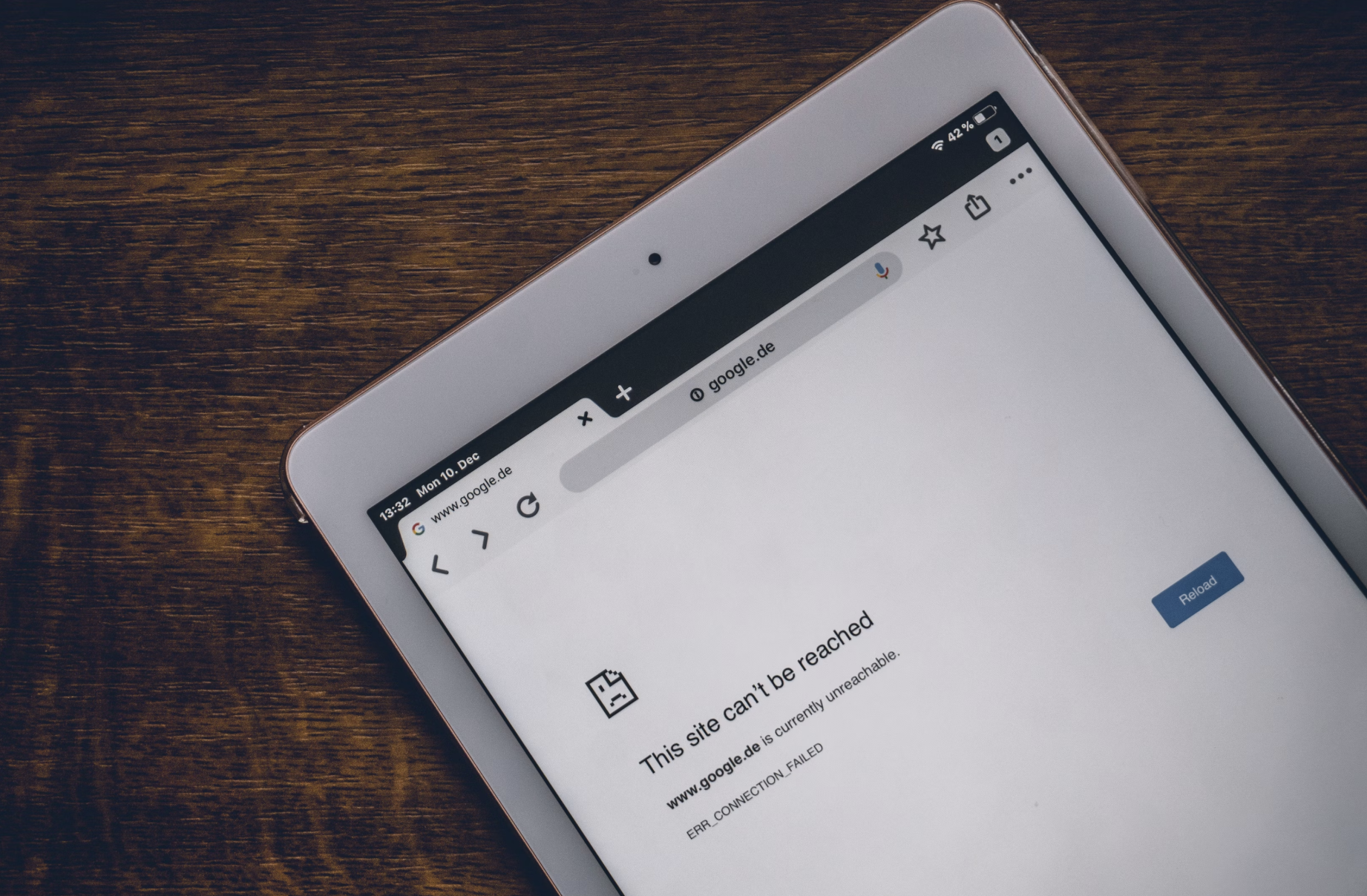
Having a computer that is seemingly connected to a WiFi account but won’t load any websites can be frustrating, but it is also a common issue that is easy to fix. Common factors for Windows PC users, like router problems, firewall, or IP address conflicts, can cause the “Connected Without Internet Connection” problem.
Quick Fixes
Here are some quick fixes for those who have a good grasp of their PC:
- Run the network troubleshooter.
- Forget the WiFi network, then reconnect.
- Restart or reset the router.
- Check your connection on another device.
- Update the network adapter driver.
- Reset the network settings.
- Check if Windows updates are waiting.
- Clear the DNS cache.
- Restart your device.
Apay a Nakakonektar ti WiFi mo nga awan ti Internet?
There can be several reasons why you’re getting the “WiFi connected but no internet connection” message. This can be incredibly frustrating, as it can impact your ability to work from home, download content, stream series, or access online Filipino betting sites as the basketball or boxing match is about to begin. Bad WiFi would mean you wouldn’t be able to take advantage of the generous bonuses and odds offered by these sites.
The most common causes behind this network error are:
- Outdated network driver.
- Broken or faulty WiFi router.
- Antivirus software or a firewall blocking internet access.
- Corrupted DNS cache.
- Incorrectly configured network settings.
- ISP outage.
- Wrong IP address.
- Network congestion or external factors impacting internet speed.
Understanding the cause behind your connection error can help you narrow down which steps you need to take to fix the problem.
Fixing Your Internet Connection
If you have the “WiFi connected but no internet connection” message on your Windows PC, you can try the following solutions:
1. Restart the WiFi router
This may seem simple, but its the simple solutions that often work. Look at the back or bottom of your router for the “reset” button and hold it in for up to 10 seconds. The router lights may go out and start flashing. Give the router a couple of minutes to reboot and then check your connection again.
2. Run the troubleshooter
Windows has a built-in network troubleshooting program that attempts to diagnose your connection problems and come up with a solution.
Here is how to find and run the troubleshooter:
- Click on the Windows or Start button to get started, and find “Settings”.
- Select “Network & Internet”.
- On the left side bar, select “Status” which will open the Network Status screen.
- Scroll down until you see the “Network troubleshooter” option and click on it.
- Follow the prompts until Windows diagnoses and fixes the issue.
3. Clear the DNS cache
If the Windows troubleshooter couldn’t diagnose the problem, then you can try clearing the DNS (domain name system) cache. This cache stores the IP (Internet Protocol) addresses of all the websites you’ve visited. The cache can become corrupted, which in turn prevents you from accessing the internet.
To clear your DNS cache, hold down the Windows logo + R on your keyboard. The Run window will open. Type “cmd” which will open the Command Prompt. Type in “ipconfix /flushdns” and hit Enter. The process will then run until you receive a message that the DNS cache has been successfully flushed.
4. Update drivers
Outdated drivers can prevent your device from connecting to the internet. You can quickly check whether any drivers need updating by going to the Device Manager, scrolling to Network Adapters, and finding your device. You can then right-click and select “Update driver” if there are any updates available.
5. Uninstall software preventing connection
Ti dadduma a software ket mabalin nga agsardeng ti aparato yo nga agkonektar iti internet uray nakakonnekta iti WiFi. Ti antivirus a software ket kadawyan a mangpukaw ti online a panagkonektar. Tapno maamuan no ti antivirus ti rason, subukam nga i-uninstall dayta ken kitaem no mabalin ka pay nga agkonektar iti internet. No kasta, mabalin a kasapulan nga agpili kayo ti sabali a software provider.
6. Contact your ISP
If the problem persists, there may be an issue on the internet service provider’s side. You should contact your ISP to notify them of the issue, as they might be able to guide you through steps to configure your router or notify you of regional internet connection issues.







check your device time and date