
Otter.aiという自動文字起こしサービスは、Google Meetを介してオンライン会議の字幕を提供するChrome拡張機能を新たにリリースしました。
Otter.aiのChrome拡張機能を使用すると、ChromeでGoogle Meetを開いたユーザーは、バーチャルビデオ会議をリアルタイムで文字起こしできるようになります。また、会議の録音された文字起こしファイルをOtterアカウントに直接保存して、アクセスやファイル共有が可能になります。

Chrome拡張機能はOtterのすべてのプランで動作し、他のユーザーも無料で利用できます。
Otter.ai のサービスは、iOS、Android、およびデスクトップデバイスで利用可能です。以前は、Otter.ai の有料プランにおいて、同様のサービスが Zoom 上で提供されていました。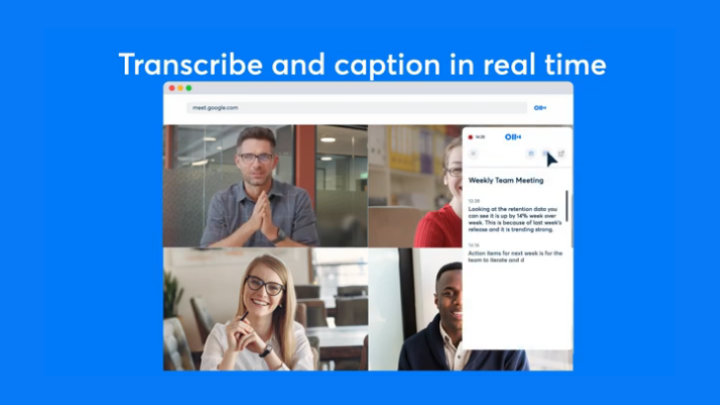
無料のChrome拡張機能の使用方法は以下の通りです:
- このリンクにアクセスし、[Chrome に追加]ボタンをクリックしてOtter.ai Chrome拡張機能をダウンロードしてください。
- ダウンロード後、Google Chromeを開き、ツールバーから拡張機能アイコン(パズルアイコン)をクリックしてください。これは画面の右上にあります。
- リストからOtter.aiを見つけ、ピン留めアイコンをクリックしてください。
- Google ChromeブラウザでGoogle Meetを開きます。
- Otter.ai Chrome拡張機能アイコンをクリックして開きます。
- まだの場合、Otterアカウントにサインアップまたはログインしてください。
- 録音の文字起こしを共有するOtterグループを選択します(オプション)。
- [記録]ボタンをクリックして開始します。
ユーザーがChrome拡張機能を停止すると、記録されたトランスクリプトは自動的にOtterアカウントに保存されます。
出典:Otter.ai ブログ
Frequently Asked Questions
What platforms is the Otter.ai Chrome extension compatible with?
The Chrome extension works across all Otter plans.
How do users access the Otter.ai transcript during a Google Meet session?
Users click the Otter.ai Chrome Extension icon to open it.
Where can users download the Otter.ai Chrome extension?
Users can download the extension by clicking the Add to Chrome button.



0 Comments
Leave a Reply