

Instagram 是最受欢迎的社交媒体平台之一,我们可以在这里上传照片。您可能已经上传了大量照片,但如果您想下载所有内容以备安全保存,或将其迁移到新账户或新平台,该怎么办?以下是具体操作方法。
选项一:直接从Instagram下载
此方法适用于 Android 和 iOS 应用程序,如果您希望下载所有 Instagram 数据(包括照片),这是最佳选择。
步骤 1:打开 Instagram 应用
步骤 2:点击右上角带有三条线的图标。
步骤 3:点击带有齿轮图标的“设置”。
步骤 4:点击“安全”
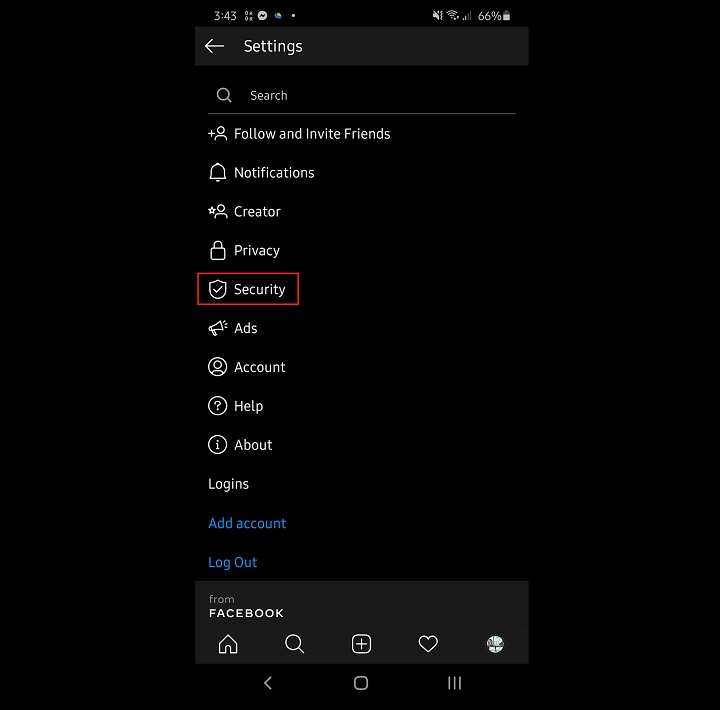
步骤 5:在“数据与历史记录”下点击“下载数据”

步骤 6:添加您的电子邮件地址
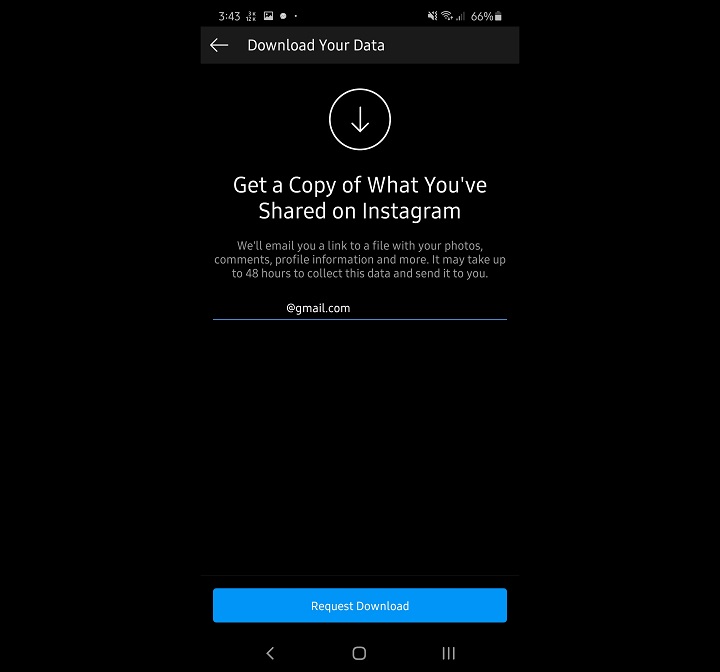
步骤 7:点击请求下载
从这里开始,Instagram 将收集您的数据,此过程最多可能需要 48 小时,随后会向您发送链接至邮箱。所收集的数据包括您的照片、评论、个人资料信息等。
选项二:从 Facebook 下载
如果您只想下载照片,可以通过 Facebook 实现。
步骤 1:登录您的 Facebook 账户。
步骤 2:进入您的个人资料页面。
步骤 3:点击“照片”
步骤 4:点击相册
步骤 5:点击“Instagram 照片”
步骤 6:点击相册右上角的齿轮图标
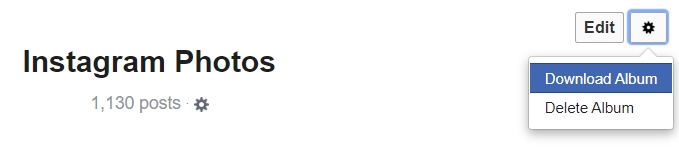
步骤 7:点击“下载专辑”

从这里开始,Facebook 将收集数据,并在准备就绪时通知您。一旦准备好,只需在提示时输入密码,即可获得包含照片的 ZIP 文件。不过请注意,并非所有 Instagram 照片都会显示在此处,特别是那些未同步发布到 Facebook 的照片。
以上就是全部内容。希望本指南能帮助您为Instagram照片创建备份。如果您需要了解如何将Facebook照片复制到 Google 照片的说明,可以阅读我们的指南 此处。
Frequently Asked Questions
How can I download all my Instagram data including photos?
Open the Instagram app, go to Settings > Security > Download Data, add your email, and request the download.
How long does it take for Instagram to prepare the data for download?
Instagram may take up to 48 hours to collect the data before sending a download link to your email.
Can I download only my Instagram photos from Facebook?
Yes, go to your Facebook profile, open the 'Instagram Photos' album, click the gear icon, and select 'Download Album'.



0 Comments
Leave a Reply