infinix x yugatech

Installing Google apps (GMS) on Huawei devices with GBox

Listen to article

Huawei devices are one of the best devices in the market right now. However, it doesn’t have GMS or Google Mobile Services, meaning there’s no Google Play Store and the Google apps don’t sync with Google services. Many users have resorted to different kinds of hacks to install GMS on Huawei devices and one of the newest ones uses the app called GBox. Here’s how to use it.

What is GBox?
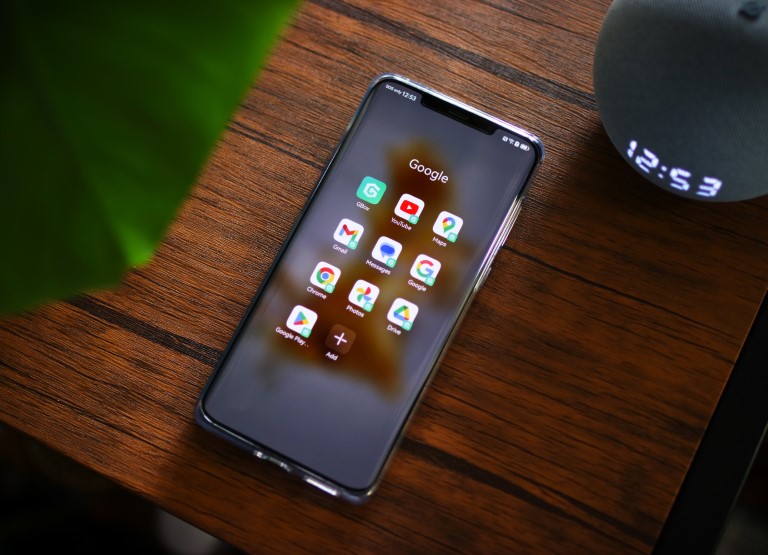
GBox is a free app that allows you to install Google apps like Google Play Store, Gmail, and YouTube. Unlike sideloading APKs directly to your Huawei smartphone, which won’t work as the device doesn’t support GMS natively, GBox virtualizes your Huawei smartphone as a different model and lets you sign in to those apps to your Google account.

How to install and use GBox?

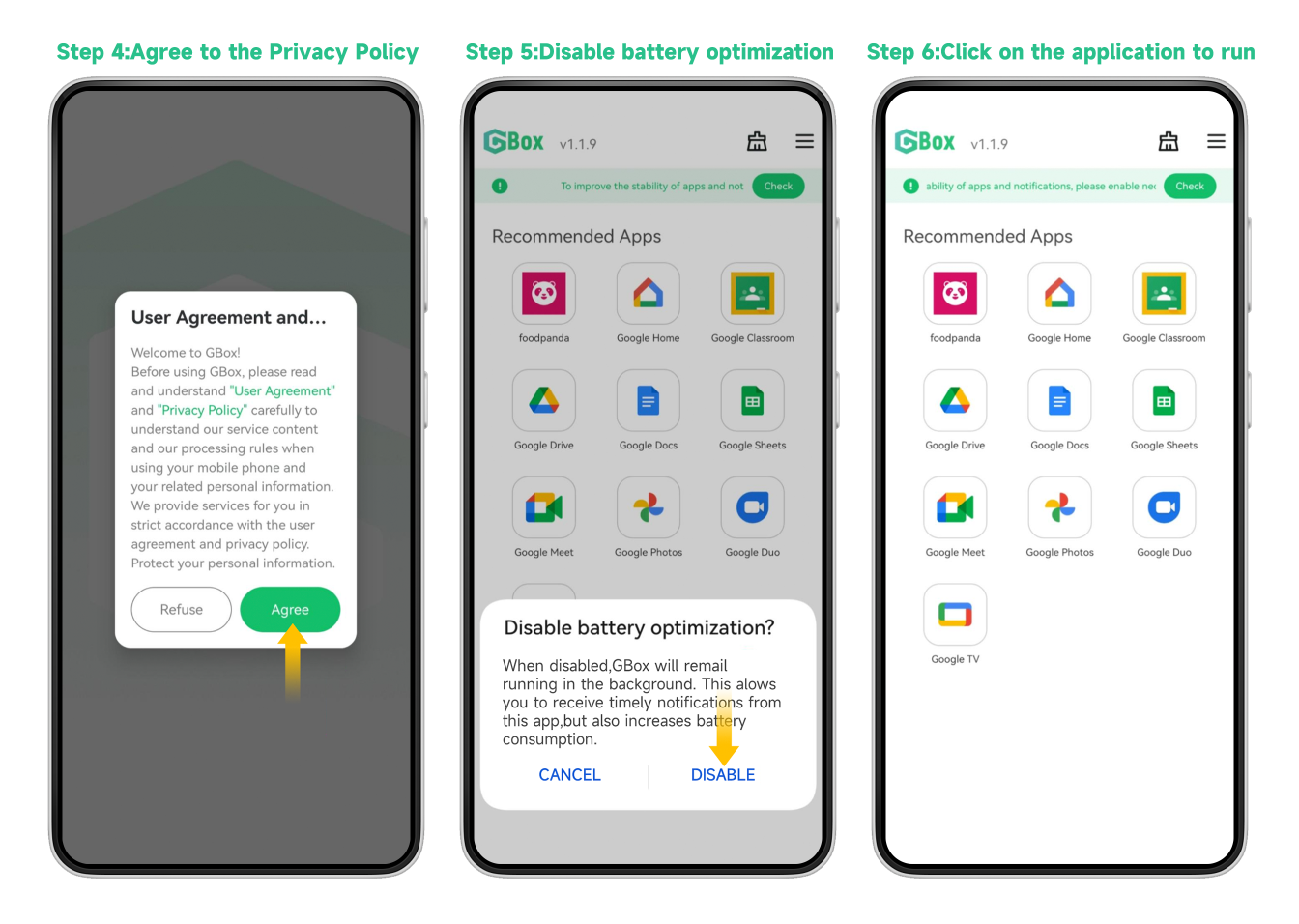
GBox is available in the Huawei AppGallery but you can also download it from its website at https://www.gboxlab.com. Once installed, just launch the app and follow these steps:
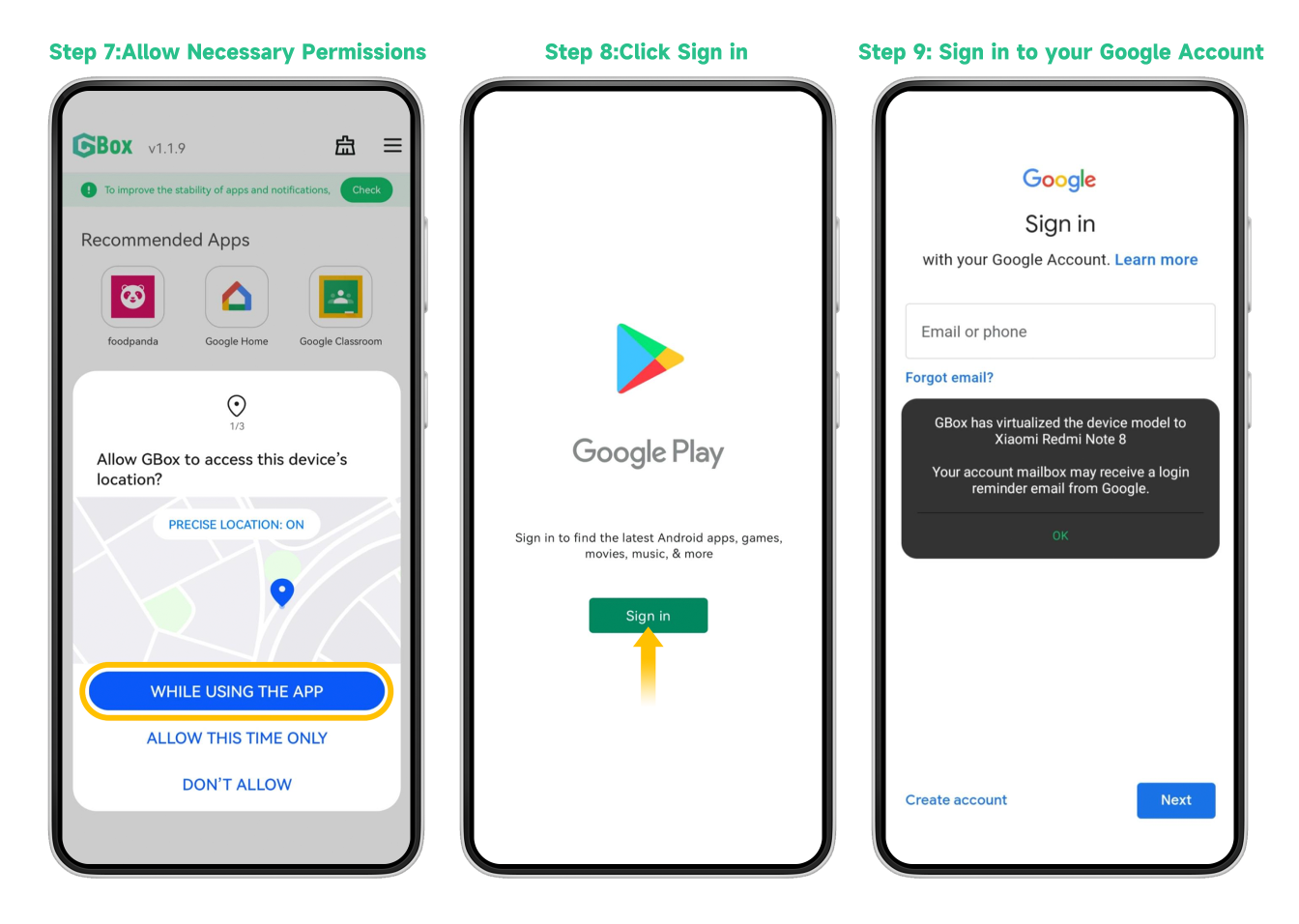
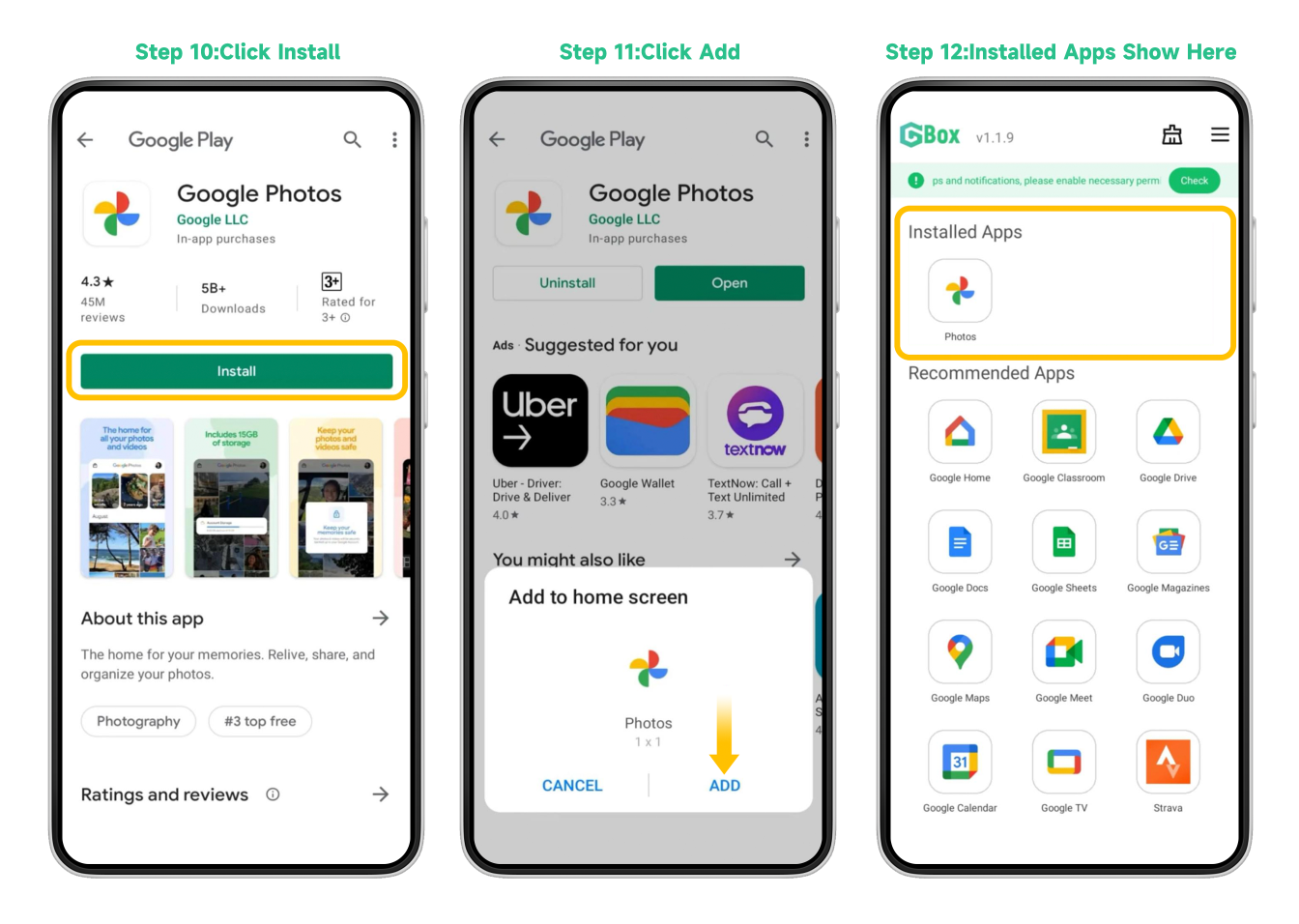
GBox already has recommended Google apps that you can install but in our case, we installed Google Play Store and then used it instead to download the other apps we needed. Once installed, you’ll have the option to place a shortcut to your home screen. Apps running via GBox will have the GBox icon on the lower left corner of the app icon.

Also note that, depending on the app, certain permissions will be requested. GBox will ask for permission to make sure it can install and run the apps, while Google apps might ask for additional permissions. Make sure to enable them to make sure the apps run smoothly.

As for its privacy and data security, GBox only assures that it will never collect personal data.

Google apps on Huawei

As for the performance, GBox runs in the background and works almost perfectly on the Huawei Mate 50 Pro. We just have to sign in to our Google account on the Google Play Store app and it automatically signed in on other Google apps we installed. YouTube was up and running in no time and Google Maps was able to access the device’s GPS and provide accurate location services.

We had problems with our work Gmail address, though, and cannot sync. On the other hand, we didn’t have syncing issues with our regular Gmail, however, it’s slow to pick up newly received emails and we don’t get any notifications as well. We also had problems setting Google Messages as our default app as it can’t be detected by the Huawei device.

To uninstall apps installed via GBox, just follow these steps:
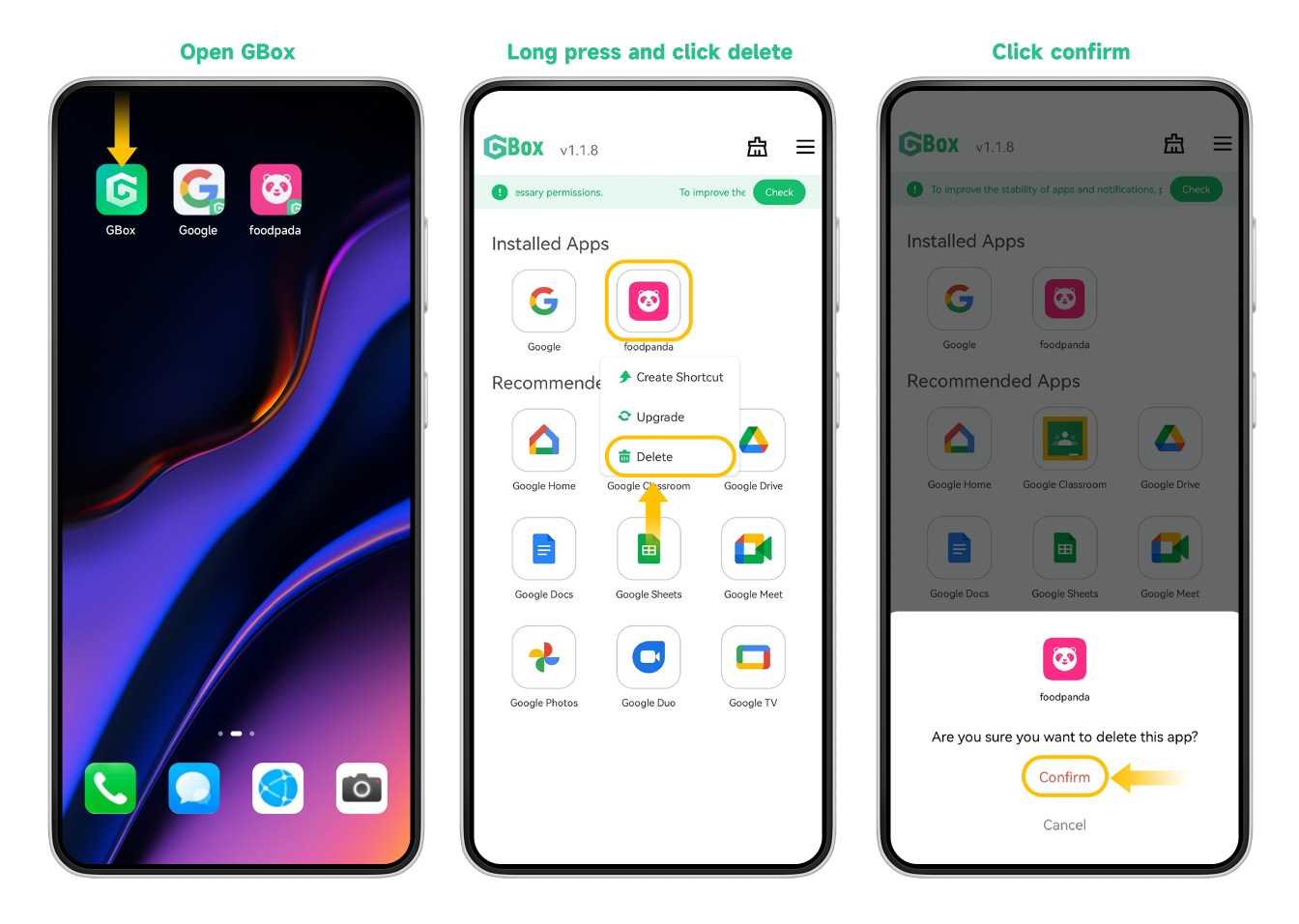
So far, we’re enjoying GBox. Issues are expected given that this is just a workaround but we’re glad that we can access Google services on a Huawei device without having to resort to more complicated methods.

Frequently Asked Questions

What is GBox?
GBox is a free app that virtualizes your Huawei device to install Google apps like Play Store, Gmail, and YouTube.
Where can I download GBox?
GBox is available in the Huawei AppGallery or can be downloaded from its website at https://www.gboxlab.com.
How do I know an app is running through GBox?
Apps running via GBox have the GBox icon on the lower left corner of the app icon.
React to this article:
Written by
Louie Diangson

Contributing writer at YugaTech, covering the latest in technology news and reviews.

View all posts by Louie Diangson →

16 Comments

MO
Monte · 2 years ago

On the Matepad Pro 13.2 on display at a Huawei store in China, Gbox did not appear in the search on Huawei App Gallery. Could anyone advise?

Reply
SP
spear · 3 years ago

Try using older version of GBox (1.3.29 and don’t update it to later version). na encounter ko yung issue na yan, apps not able to download and install. Versions after that seems don”t have the google play anymore.

Reply
HA
Happy · 3 years ago

Can’t open all the app on gbox for days now…what to do????

Reply
MP
Mpho · 3 years ago

I installed what’sapp on Gbox with my Gmail mail account and it can’t backup my messages, even after installing Google drive on Gbox.

Reply
AR
Aria · 3 years ago

I can’t install apps from 3rd party sites like APK pure/ APK mirror on Huawei anymore. If i try to install from Huawei app gallery, each app has a description “Run [app name] in Gbox” and I don’t have Gbox installed. is this the normal way of installing apps on Huawei now or is there something wrong with my device?

Reply
DE
Demi · 3 years ago

Had installed the GBox on Huawei mate 40 pro, but the Google Play Store icon not found inside the GBox, only can open through the web, then Google play store will show up. Any solution to add the shortcut back?

Reply
DE
Demi Chong · 3 years ago

Had installed the GBox on Huawei mate 40 pro, but the Google Play Store icon not found inside the GBox, only can open through the web, then Google play store will show up. Any solution to add the shortcut back?

Reply
JE
Jer · 3 years ago

No google play store when i installed gbox. Bakit kaya? Huawei p50 pro

Reply
LE
Leonita · 3 years ago

What can be done if my gbox does not want to open any of my apps

Reply
KA
Kal Zod · 3 years ago

Gbox is a totally unnecessary and useless app that requires way too much extra steps even though they claim to make it easier to use. This app is completely unnecessary due to the fact that on other devices one can simply download their apps/games via Google play store.

Reply
NA
NAVANKUR PRAKASH SAIKIA · 2 years ago

Are you a fool? Were talking about Huawei here.

CH
Chris · 3 years ago

Some of the games like Nikke Goddess…. Are not working it just opens the game and load and doesnt reach 50 percent then closes the game. How do i fix this

Reply
LU
Luc · 4 years ago

Are banking apps safe to download and use kaya?

Reply
JO
Johnclaude · 4 years ago

good job

Reply
JH
Jhen · 4 years ago

how to download the apps again from gbox to playstore if we encountered error?
For example downloading viber but we rcvd error msg

Reply

Leave a Reply

Loading next article...