Phone Chromecast

yugatech x ASUS

Latest Review

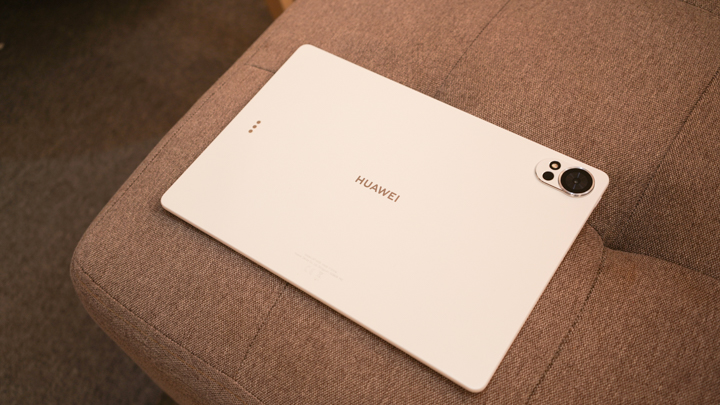
Sleek HUAWEI MatePad 12 X tablet on a dark surface
HUAWEI MatePad 12 X (2026) Review
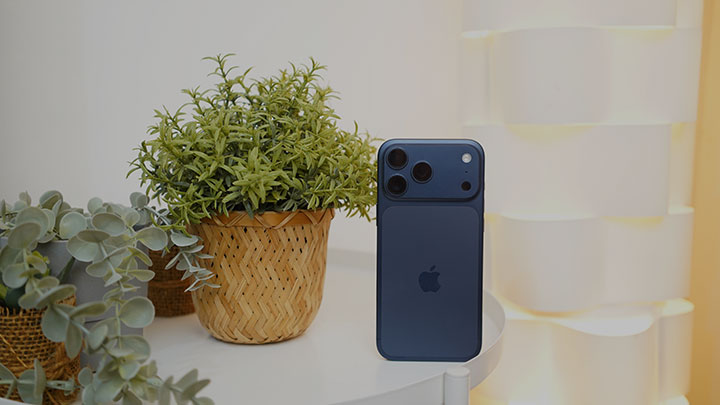
A person holding the new iPhone 17 Pro Max
iPhone 17 Pro Max Review
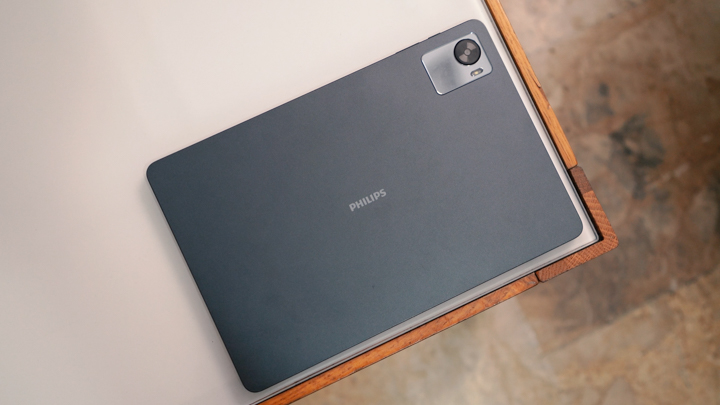
Gray Philips tablet with rear camera and flash on metallic finish
PHILIPS 10-inch Tablet (T7305L) Review
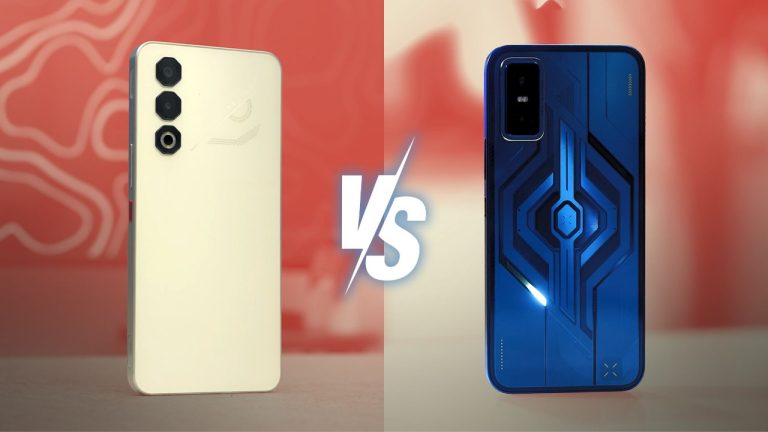
nubia Neo 3 GT vs. Infinix GT 30 Comparison Review
Nothing Phone (3a) Lite smartphone on a white background
Nothing Phone (3a) Lite Review

Latest Guide

What’s new with Samsung One UI 8
Smartphones Under PHP 10,000 | Q3 2025
Smartphones Under ₱6K (Php 6,000) | Q3 2025
Xiaomi 15T Pro vs. Xiaomi 14T Pro: What’s different?
List of Xiaomi devices for HyperOS 3 Update Timeline
Phone Chromecast Archives » YugaTech | Philippines Tech News & Reviews
Yugatech Logo 2023
YugaTech is the largest and longest-running technology website in the Philippines. Orignally established in October 2002, the site was transformed in 2005 into a full-fledged technology news and reviews destination for Filipinos across the globe.

Tech Guides

YugaTech | Philippines Tech News & Reviews
© 2025. All Rights Reserved.

Now that today's smartphones are capable of doing a bunch of things, from replying to emails to checking out your daily feed on social media, you can also turn it into a fully functional computer. Here's a guide on how to turn your smartphone into a desktop PC. Author's Note: Turning your smartphone into a desktop PC needs the following main components: an external monitor, keyboard, mouse, and some dongles. Connecting a Keyboard and Mouse Photo by: PCWorld Most people are used to typing on a touchscreen on their smartphone, but nothing can take away the feeling of typing on a regular keyboard– particularly when you need to be efficient. This process for Android smartphones is pretty straightforward, but there's no way to use an iPhone with a wired keyboard or mouse. So if you're an iPhone user, you only have the option of using a Bluetooth-enabled accessory. External Display: Cast to a Larger Display Now, the issue lies in the fact that not all smartphones offer the mirror display function using a Bluetooth or wired connection. But for some newer phones, they have their own custom desktop experience when they're connected to an external display that doesn't require any sort of cable or dock to access. Read more in our articles including "Turn your Smartphone into a Desktop PC" and "Top iPhone 3G Alternatives".

More About Phone Chromecast

Frequently Asked Questions

What is Phone Chromecast?

Now that today's smartphones are capable of doing a bunch of things, from replying to emails to checking out your daily feed on social media, you can also turn it into a fully functional computer. Here's a guide on how to turn your smartphone into a desktop PC.

What have you covered about Phone Chromecast?

Author's Note: Turning your smartphone into a desktop PC needs the following main components: an external monitor, keyboard, mouse, and some dongles. Connecting a Keyboard and Mouse Photo by: PCWorld Most people are used to typing on a touchscreen on their smartphone, but nothing can take away the feeling of typing on a regular keyboard– particularly when you need to be efficient. This process for Android smartphones is pretty straightforward, but there's no way to use an iPhone with a wired keyboard or mouse.

Where can I find articles about Phone Chromecast?

Our coverage of Phone Chromecast includes: "Turn your Smartphone into a Desktop PC"; "Top iPhone 3G Alternatives"; "iPhone 3G: The Good, the Bad and the Ugly". Each article provides unique insights and information.