
Last time, we had a rundown of what’s new with HyperOS 3 and we also learned some tips like disabling ads individually on system apps.
In this article, what we’re going to do is properly debloat your Xiaomi phone using Canta and Shizuku method. This means removing all of those bloatware apps including some system-level apps that you can’t uninstall normally.
If you have a REDMI or a POCO phone, this method works with those as well.
So, without further ado, let’s get right into it.
Preliminaries: Compatibility? Canta and Shizuku, what are they?
Compatible devices
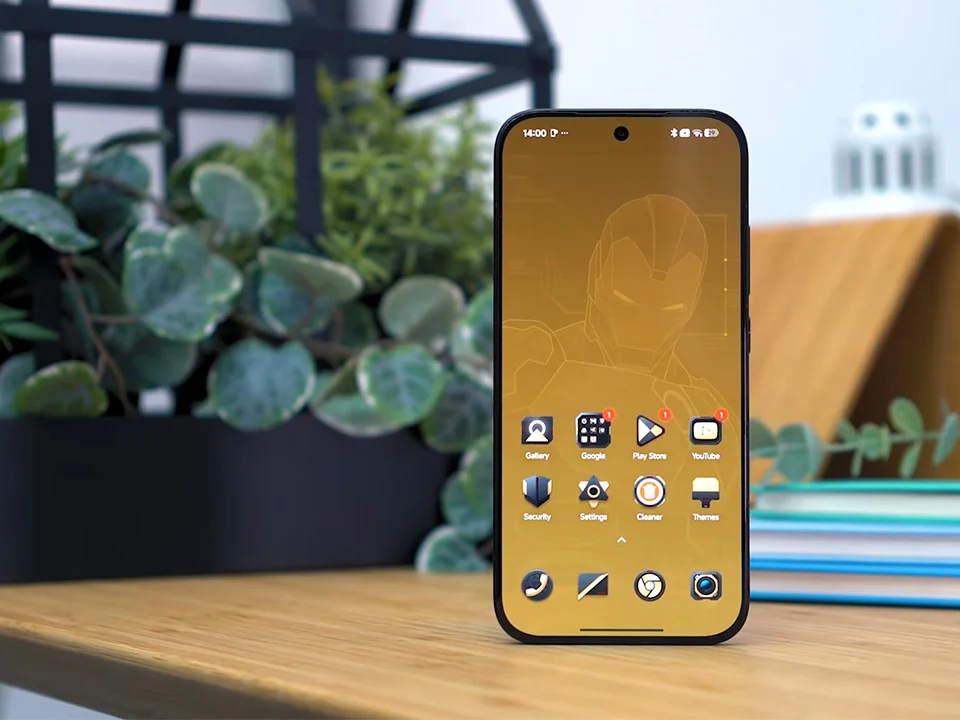
For reference, what we’re using in this guide are the new POCO X8 Pro Iron Man Edition and POCO X8 Pro Max. They shipped with HyperOS 3 based on Android 16. But like I said, this method also works for Xiaomi and REDMI models, even those running older software versions like HyperOS 1 or 2 or MIUI.
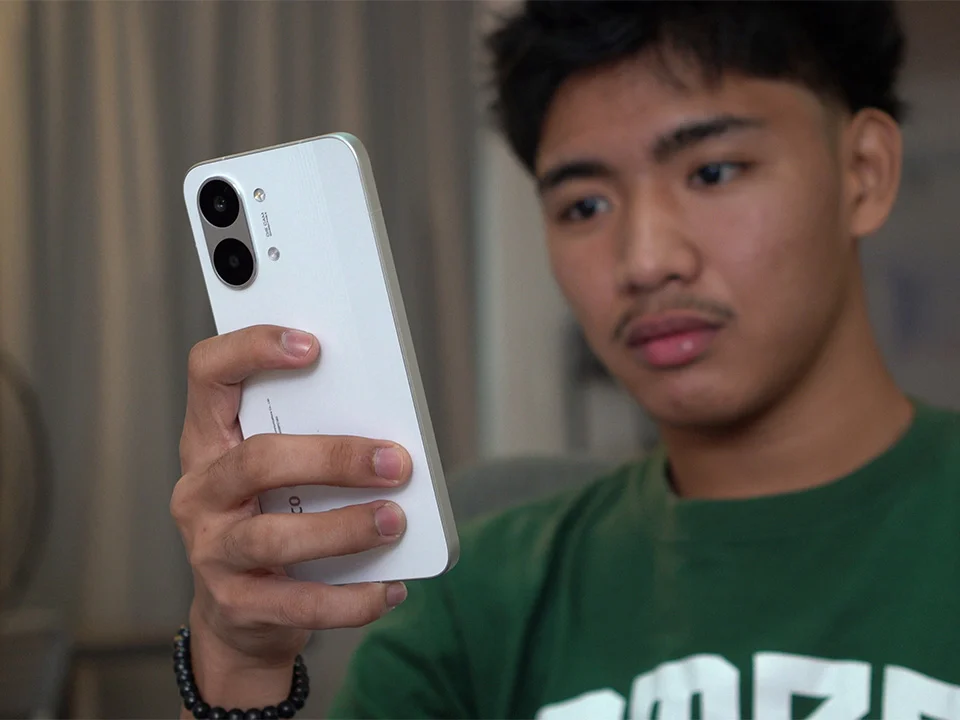
Though some settings might vary depending on the OS version, the overall process of doing so should be more or less the same, provided you have a Xiaomi phone running Android 9 or later.
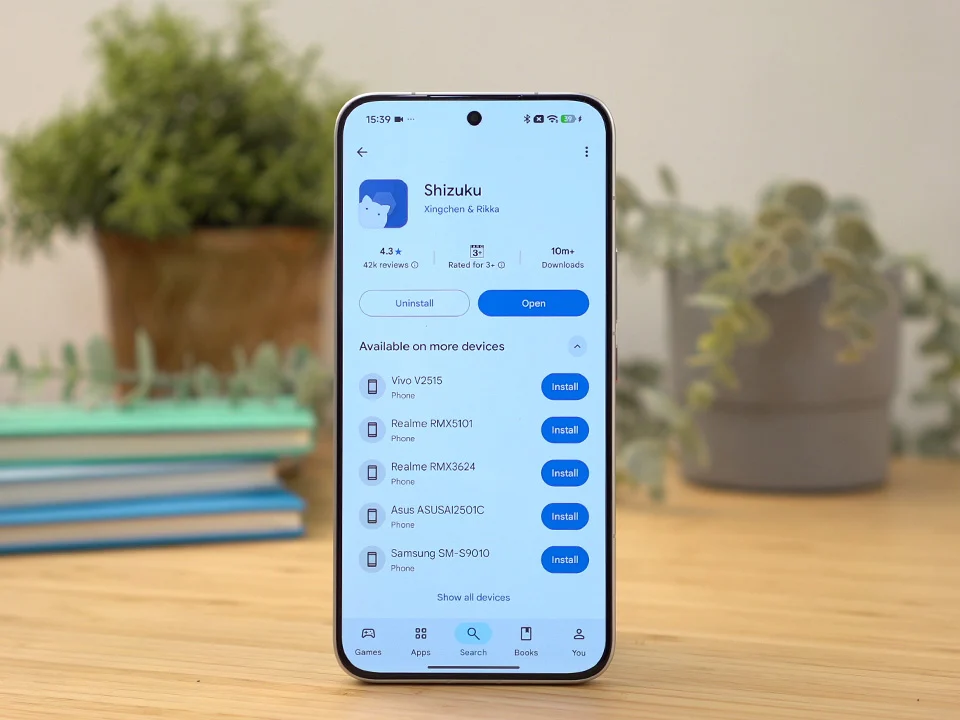
What do Shizuku and Canta do?
Well, to put it simply, Shizuku lets you have system-level access and permissions (via Android Debug Bridge or ADB) to your phone without rooting it.
So, it allows for stuff like doing advanced UI customizations, changing system settings, managing other apps, or even accessing system files that normal apps can’t really touch.
That said, we’re going to focus on removing bloatware apps and other system apps that the phone doesn’t really need to function.
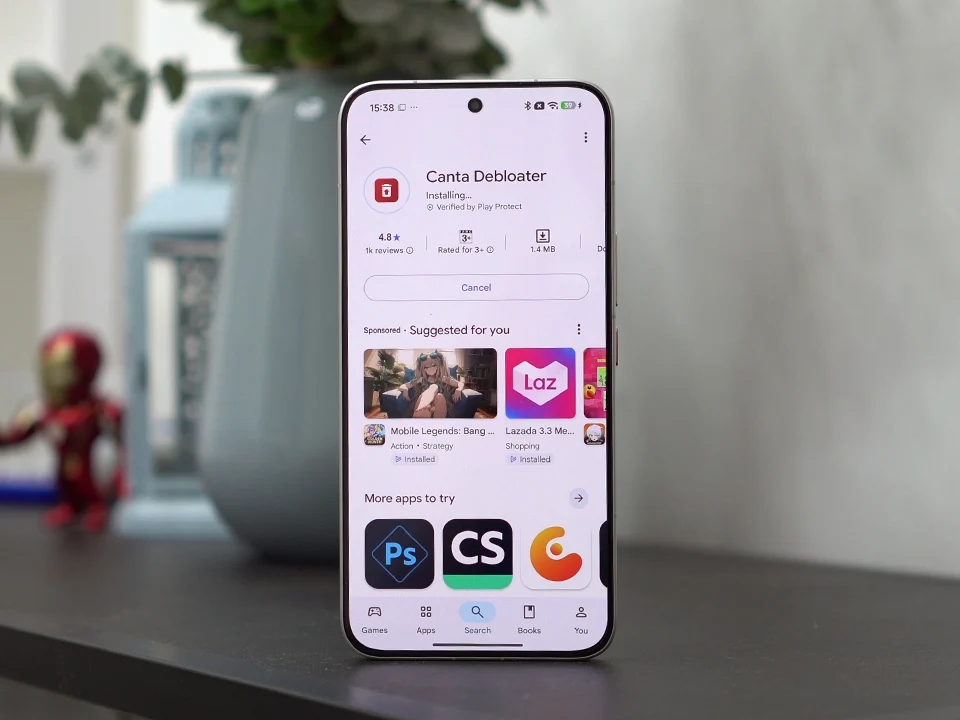
This is where a debloater app like Canta comes in. It’s basically a more advanced app manager that can uninstall any app and service on your phone.
Enabling “Developer options,” installing Canta and Shizuku
First things first, we’re going to need access to “Developer options.”
On your device, open Settings > find “About phone” > tap on the OS version multiple times > it will prompt for your screen lock > then right after, you should get a pop-up that says, “You are now a developer!”
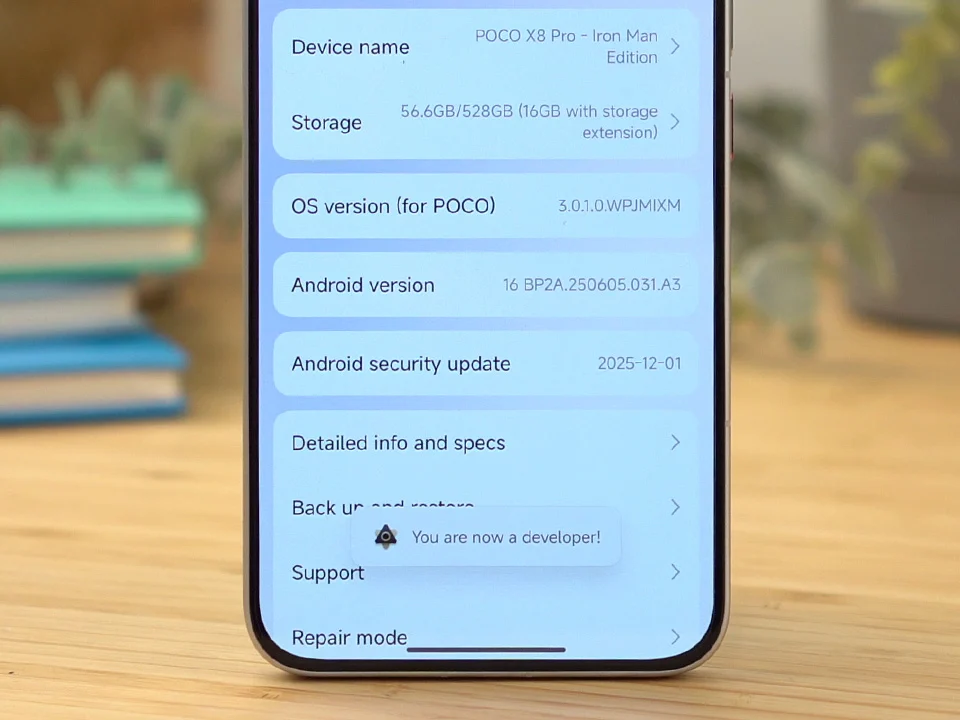
Now that’s enabled, let’s now download both Canta and Shizuku. Thankfully, both apps are available right on the Google Play Store itself.
So, just type in the names of both apps on the search box > tap install for each > then wait for them to be downloaded and installed on your phone.
Login with your Xiaomi Account (required)
Next, we need to login with a Xiaomi Account. This is required to do before we can enable some settings in the Developer options. Interestingly, other phone brands don’t require any login, but yeah, that’s Xiaomi for you.
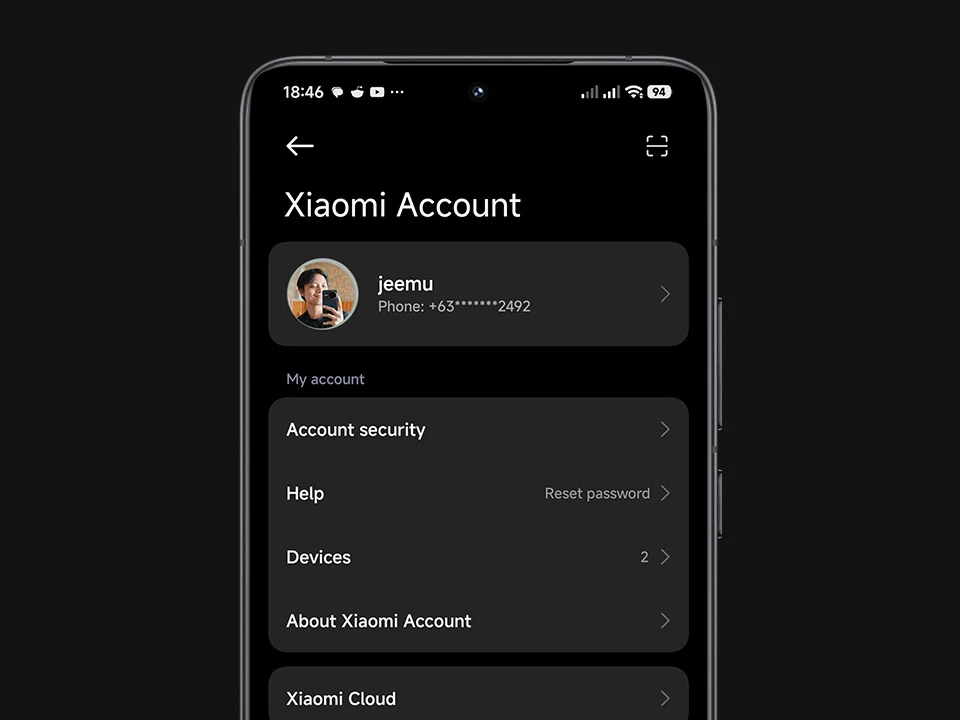
Open Settings > scroll down and find “Xiaomi Account” > then follow the instructions of creating an account from there.
Once you’re logged in, let’s now access Developer options. Just go to Settings > scroll down until you see “Additional settings,” tap on it > scroll down again and find “Developer options.”
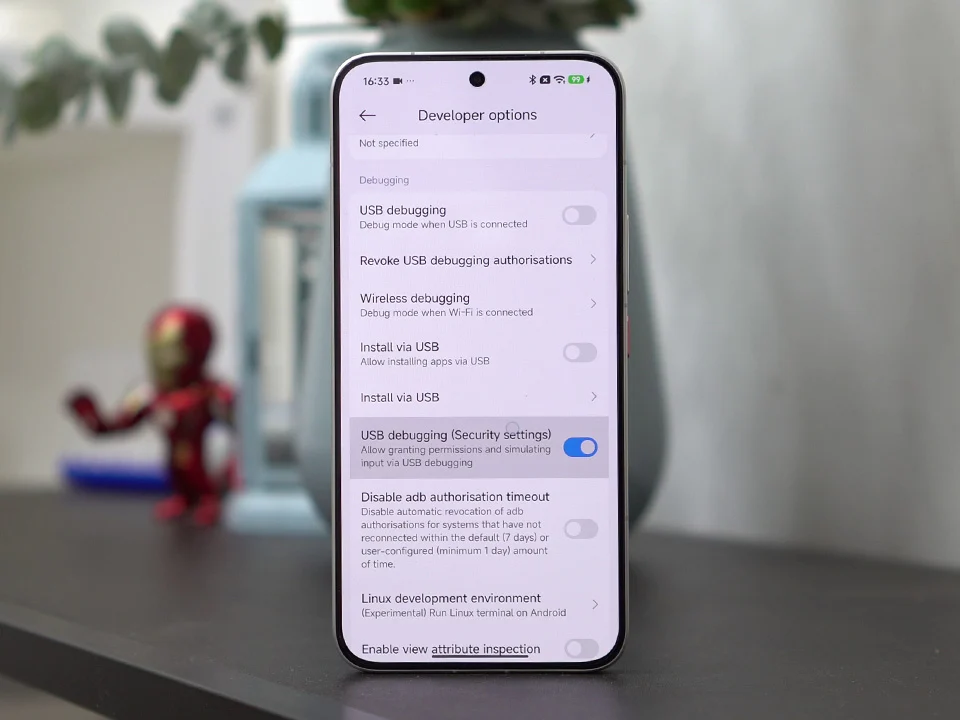
Scroll down one more time and you should be able to see “USB debugging (Security settings)” > toggle it then it will prompt a few warnings > just tap “Next” a couple of times, and then tap “Accept”.
Enabling Shizuku
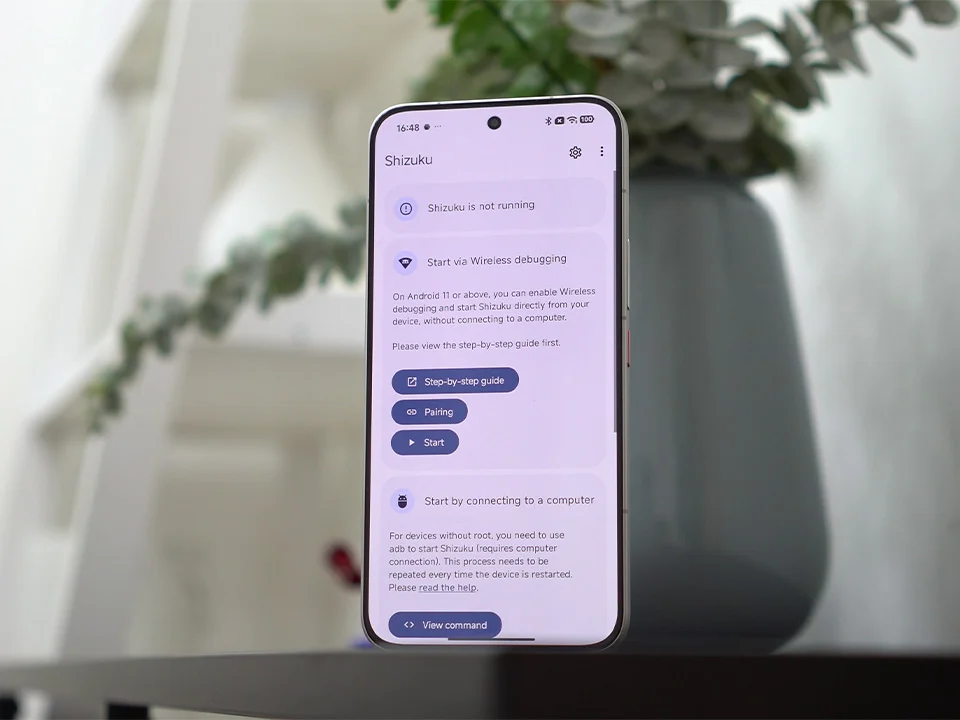
Open the app > tap on “Pairing” and it will redirect you to “Developer options” > scroll down and find “Wireless debugging” > a prompt will appear saying “Allow wireless debugging on this network?” just hit OK.
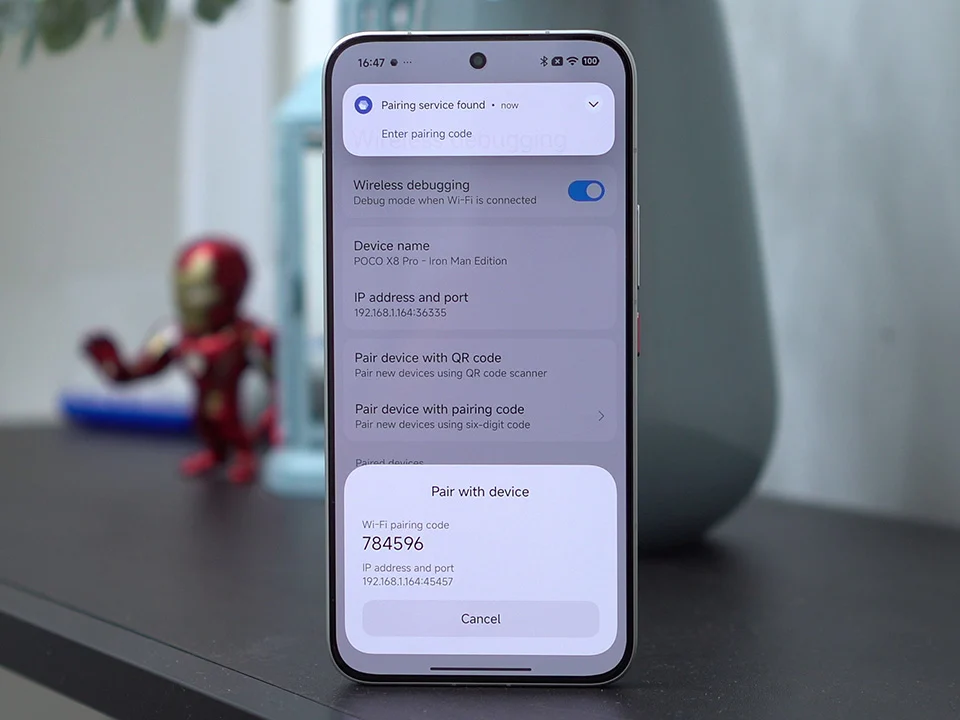
After that, tap on “Pair device with pairing code” > then a Wi-Fi pairing code should pop-up along with a notification from Shizuku > from there, enter the six-digit code and you should see a notification that says, “Pairing successful.”
Go back to the Shizuku app and from the home page, tap on “Start” > wait a few minutes, and you should be able to see “Shizuku is running.”
Uninstalling apps & services via Canta
Now here’s the most exciting part, we can finally uninstall apps using Canta.
As you open Canta, you will see all the apps and system services installed on your phone with different labels: “Recommended,” “Advanced,” “Unsafe,” and “Expert”.
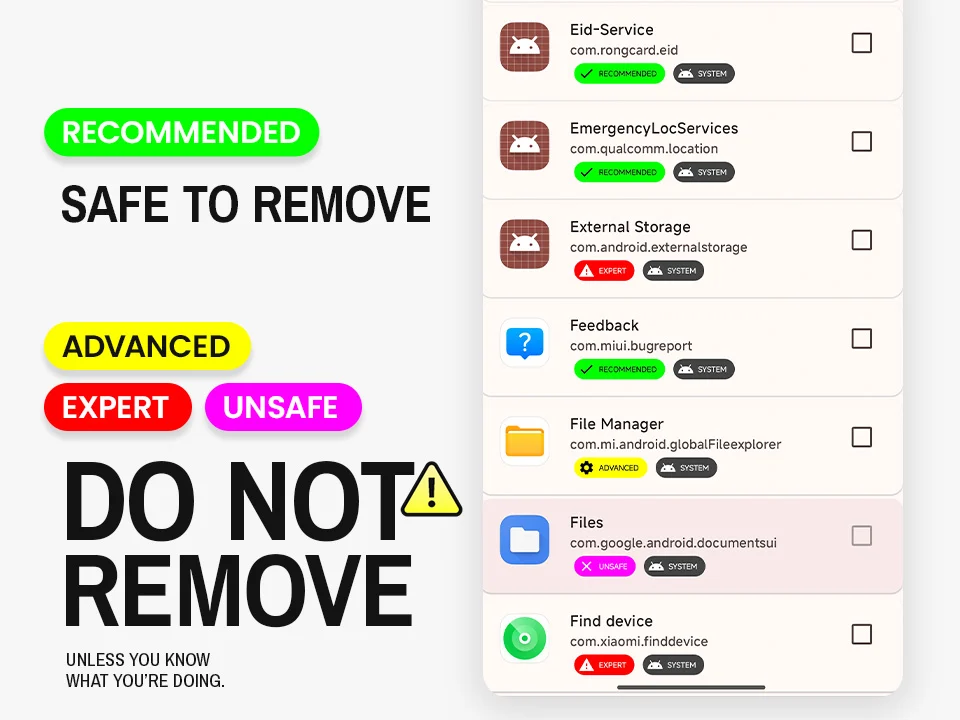
Besides the “Recommended” label, you should be more careful around the other three labels. You don’t want to brick your phone by accidentally removing a critical system app. So, keep in mind that we are STRICTLY uninstalling those labeled as “Recommended.” Nothing else. (You have been warned.)
Technically, you CAN uninstall all of these “Recommended” apps, but some of these are still essential in some way. So, in our case, we only uninstalled the apps we think that we don’t really need that won’t affect the phone at all.
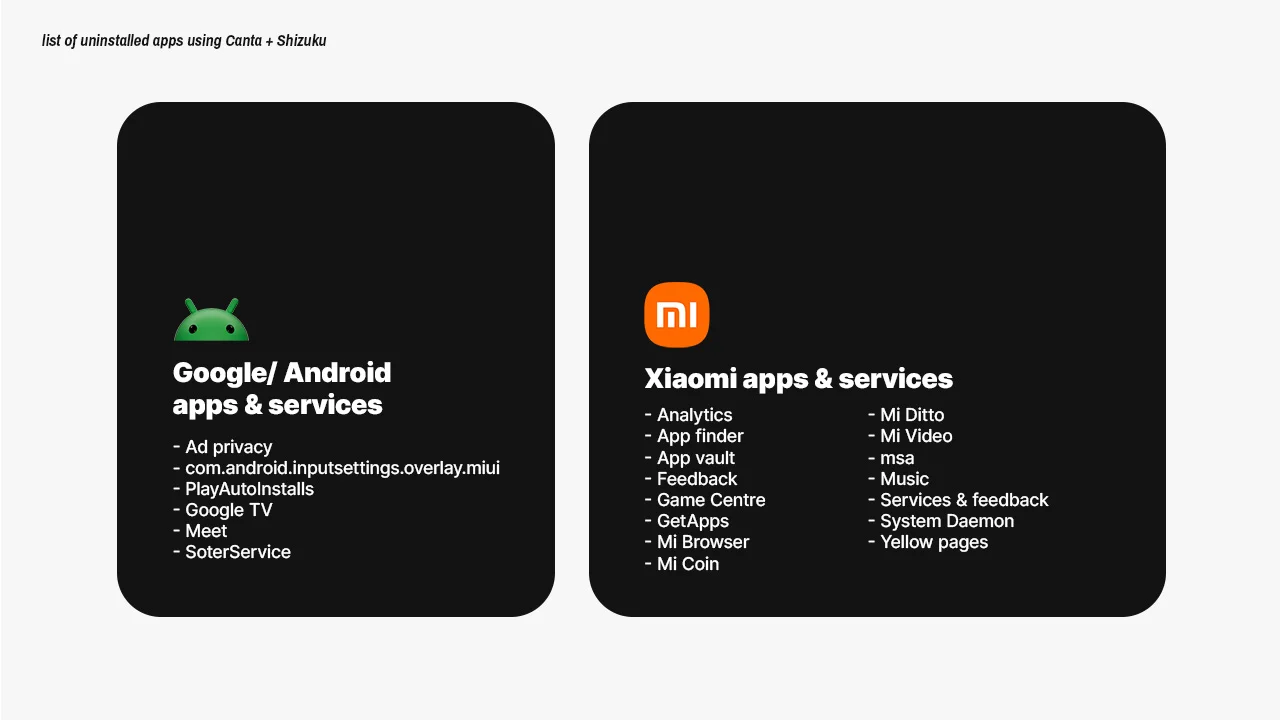
List of apps we uninstalled using Canta + Shizuku
Xiaomi apps & services
– Analytics
– App finder
– App vault
– Feedback
– Game Centre
– GetApps
– Mi Browser
– Mi Coin
– Mi Ditto
– Mi Video
– msa
– Music
– Services & feedback
– System Daemon
– Yellow pages
Google/ Android apps & services
– Ad privacy
– com.android.inputsettings.overlay.miui
– PlayAutoInstalls
– Google TV
– Meet
– SoterService
The trickiest ones to remove are the App finder and App vault. We first need to disable them on the Home screen settings.
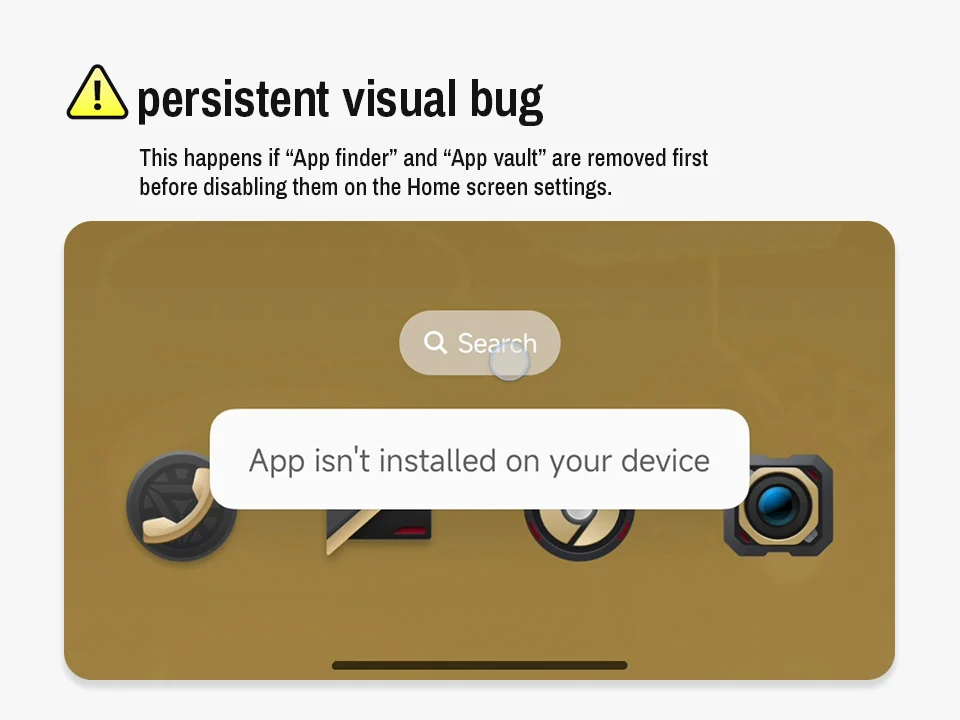
Otherwise, if you removed them right away through Canta, you’d get this visual bug below which is persistent by the way, even if you restart the phone. And that’s annoying. So…
Just pinch on the Home screen > tap Settings > tap on More > tap on “Home screen search” and toggle it OFF > go back, then tap on “Swipe down on the Home screen” and set then it to “Notification shade and Control centre”.
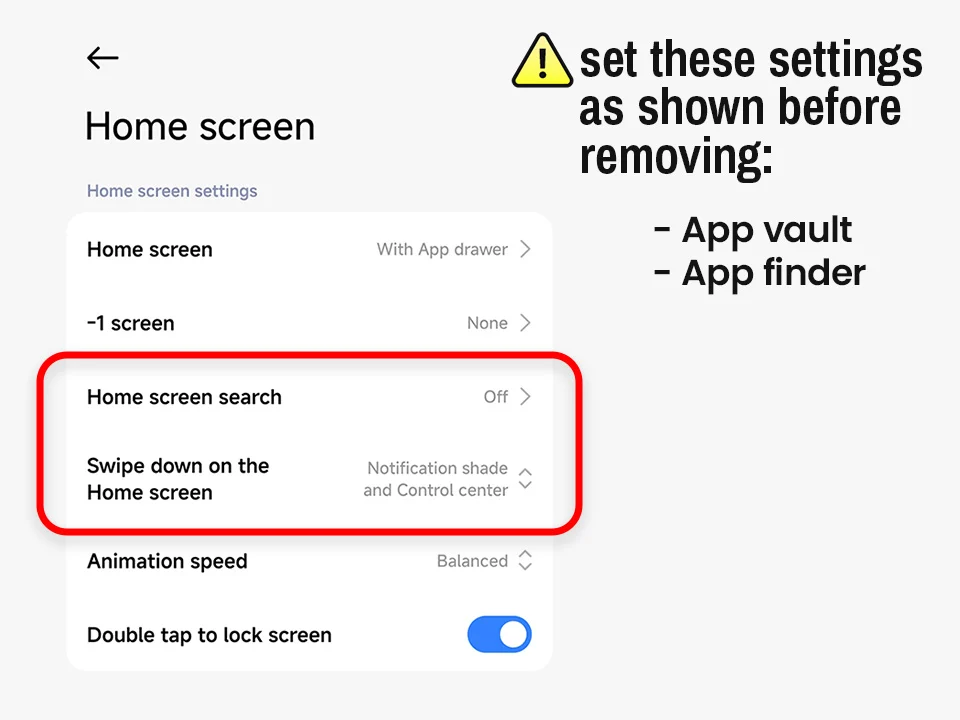
Now, go back to Canta, then remove both “App finder” and “App vault”, and the visual bug shouldn’t appear anymore.
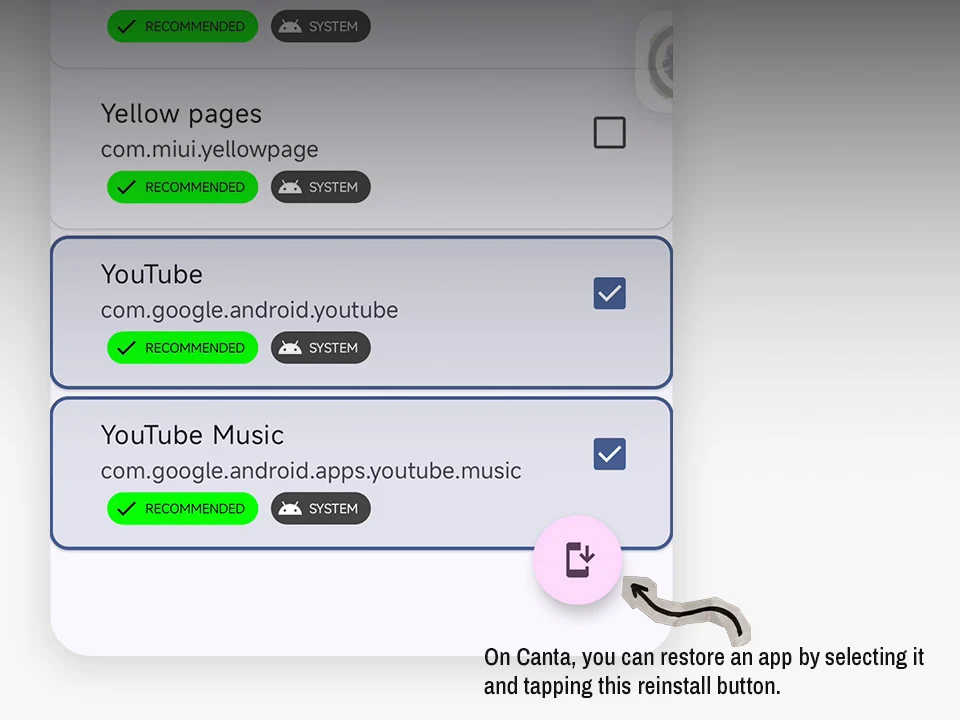
That reminds me, if you ever accidentally uninstalled an app, you could just access the Uninstalled page and reinstall the app right there.
Final touches
And congratulations! You have successfully debloated your Xiaomi, REDMI, or POCO phone! But before we wrap up, let’s do some final touches.
You can leave both Shizuku and Canta installed on your phone or uninstall them- up to you, really. Because Canta, even when uninstalled, will still show you the system apps and services you removed if you get it back up and running via Shizuku. So, it’s not really a problem.
However, one crucial thing to do is disabling “Developer options.” Because if you leave it enabled, certain finance and banking apps, especially GCash, won’t work unless you disable Developer options.
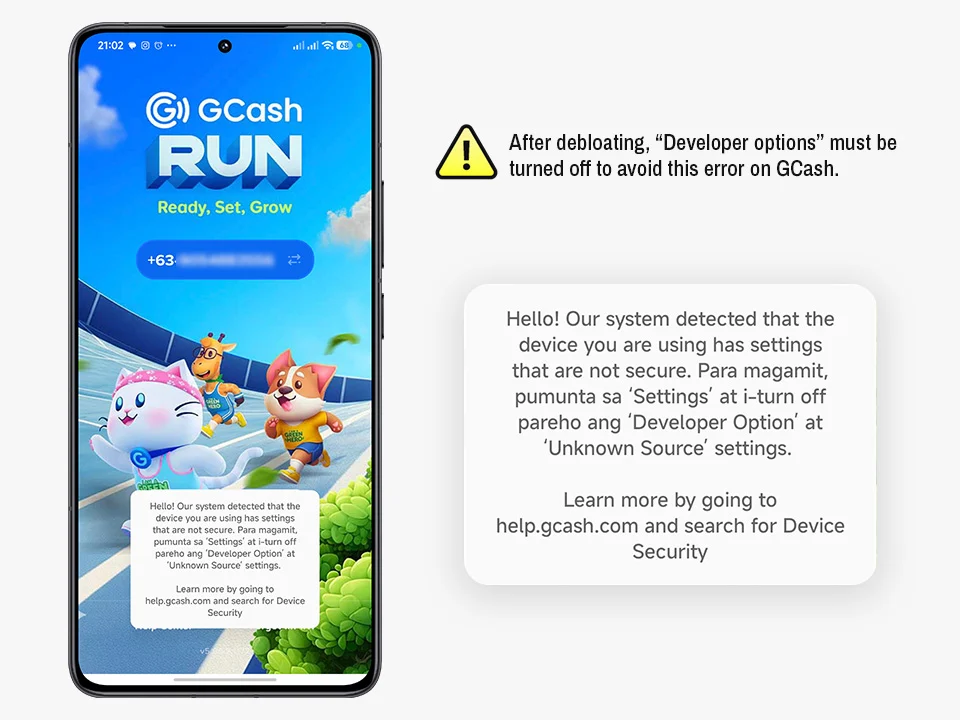
Just head back to Settings > Additional settings > Developer options > and toggle it OFF. Restart your phone and everything should work smoothly.
And that’s about it for this guide! Do you recommend an app or a system service worth removing? Let us know in the comments below!





0 Comments
Leave a Reply