

We’ve all been there: trying to get online and struggling with a sluggish WiFi connection. While your internet service provider is the ultimate determinant of your download and upload speeds, there are still practical steps you can take to improve your WiFi connection so that it runs faster.
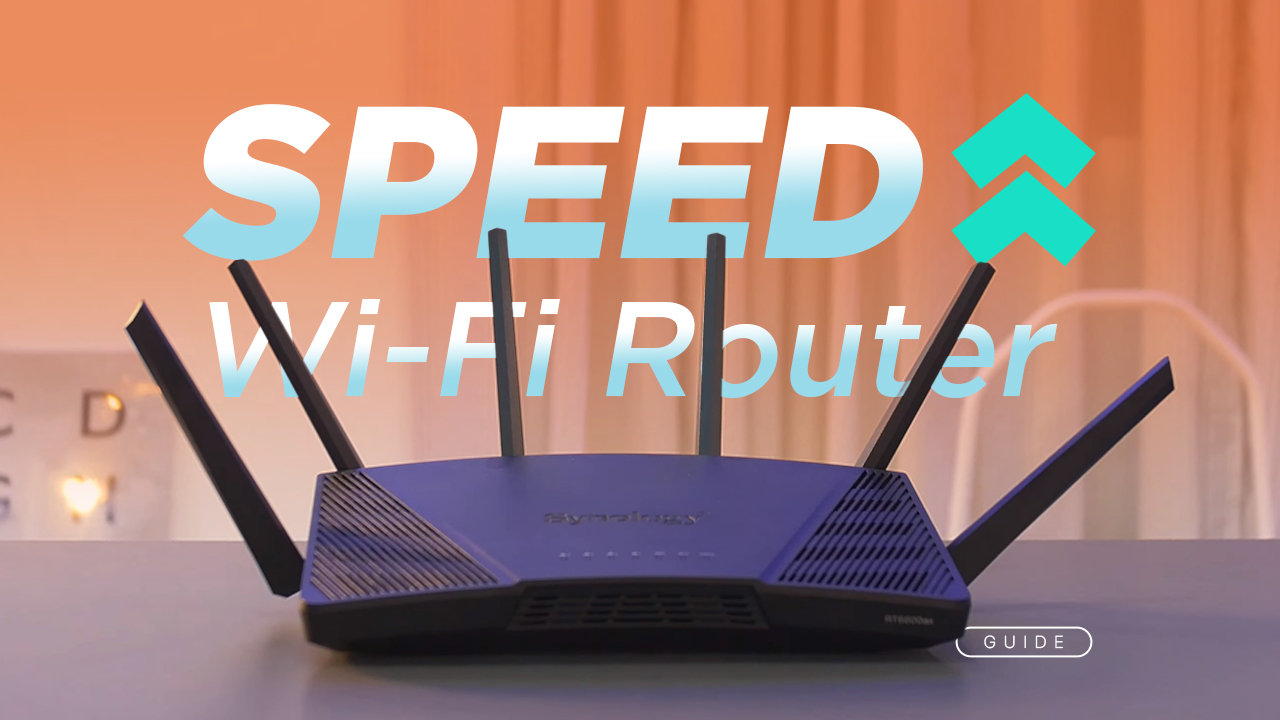
1. Check Router Settings & Reduce Connected Devices
First and foremost, check your router’s settings. Ensure that it is set to the right channel and that you are using the most up-to-date firmware.
You can also try changing your router’s position and its antennae to improve the signal strength.
If you have multiple devices connected to your Wi-Fi network, disconnect those that don’t need internet. This will free up bandwidth so that devices that are still connected can access the internet faster.
2. Switch to 5GHz Band
You can try switching to a different Wi-Fi frequency band as an alternative way to improve your connection speeds. Most routers broadcast on both 2.4 GHz and 5 GHz bands; however, in general, the 5 GHz band is a better option since it is typically faster and less congested than the 2.4 GHz band.

This makes it an ideal choice for those who are struggling with slow connection speeds. Additionally, if you are in a crowded area with many other networks, the 5 GHz band can provide a better connection since it is less susceptible to interference. Keep in mind that the main caveat here would be a lesser connection range compared to a 2.4 GHz band.
3. Update Your Devices
Make sure that your devices are running the latest software/firmware. Outdated software and drivers can prevent your devices from connecting to the internet at their optimal speeds.
4. Keep the WiFi Router Away from Other Electronics
You can also take measures to reduce interference from other electronics and appliances. Try to keep your router away from microwaves, cordless phones, refrigerators or other devices that may cause interference.
You can also check to see if your router is set to use the right frequency by using a WiFi analyzer app.
5. Upgrade to a Mesh Network
Some of you may have already experienced this: the Wi-Fi router is in the living area, and you want to connect from your bedroom on the second floor.
Using a mesh network or range extenders will expand your Wi-Fi signal over a wider area. This will ensure that your devices are always connected to the strongest signal, which can help improve your overall connection speed.

Consider mesh Wi-Fi routers if you can afford them. Once you have your mesh network properly set up, turn off the Wi-Fi signal on that stock modem/router you get from your ISP. Your mesh network should then be smart enough to divide your upload and download bandwidth to the connected devices accordingly.
More reading:
What is a Mesh WiFi System?
Mesh WiFi Systems You Can Buy Under PHP 5K
6. Upgrade the WiFi Router
For an even greater boost to your WiFi speed, you may want to consider turning off the WiFi connection from your stock router and upgrading it. Look for routers with the latest technology and features, such as the latest 802.11ac standard or MU-MIMO technology.
Read more: Fastest and Strongest WiFi Routers in the Market
These features will help you achieve faster connection speeds and better range. Additionally, newer models may offer more Ethernet ports that aren’t locked up by your ISP or advanced features such as parental controls. You can also consider using a dedicated router for gaming or streaming media. Dedicated gaming routers are designed to provide faster speeds and reduce lag, making them ideal for gaming or streaming.
7. Coordinate with Your Respective ISPs
Consider working with your internet service provider to upgrade your speed package. If you are able to upgrade to a faster package, you should be able to enjoy even more speed and reliability for your WiFi connection.

Read more: Fastest and Strongest WiFi Routers in the Market
- When possible, plug some of your WiFi devices (desktop PC, TV, repeaters) to a LAN cable to make the connection more stable, maximize the internet speed and decongest the wireless network.
- Evenly distribute the WiFi channels between routers or access points if you use several of them in the house. Always choose Channels 1, 6, or 11 and try to pick the emptiest of the three, using the WiFi Analyzer as your guide. Other channels get more interference.
At the end of the day, it’s all about finding those bottlenecks and figuring out what you need for yourself, your family, or your business. By taking these simple steps, you can enjoy a faster WiFi connection and get back to surfing the web. With the right combination of hardware and software, you can definitely get the most out of your internet connection.
More readings: Globe, PLDT, Converge, SKY: Unli Fiber Internet Plans Compared (2022)
Do you have your own way or hacks to improving Wi-Fi connection speeds? Share it with us down in the comments!







I’m using range extenders.