
ASUS has released the newest iteration of its dual-screen laptop lineup: the 2026 ASUS Zenbook Duo (UX8407AA).
While this is probably one of the most bizarre things I’ve seen in consumer tech, it practically does offer some neat advantages as compared a normal laptop.

But aside from its main selling point, how does this laptop perform for everyday use? Let’s find out in this review.
Design and Construction
At first glance, anyone would think that this is just a normal laptop, and that’s a good thing. This is my first time reviewing a dual screen laptop, and to be frank, I expected the Zenbook DUO to be a thick, hefty machine. I’m glad to be wrong.
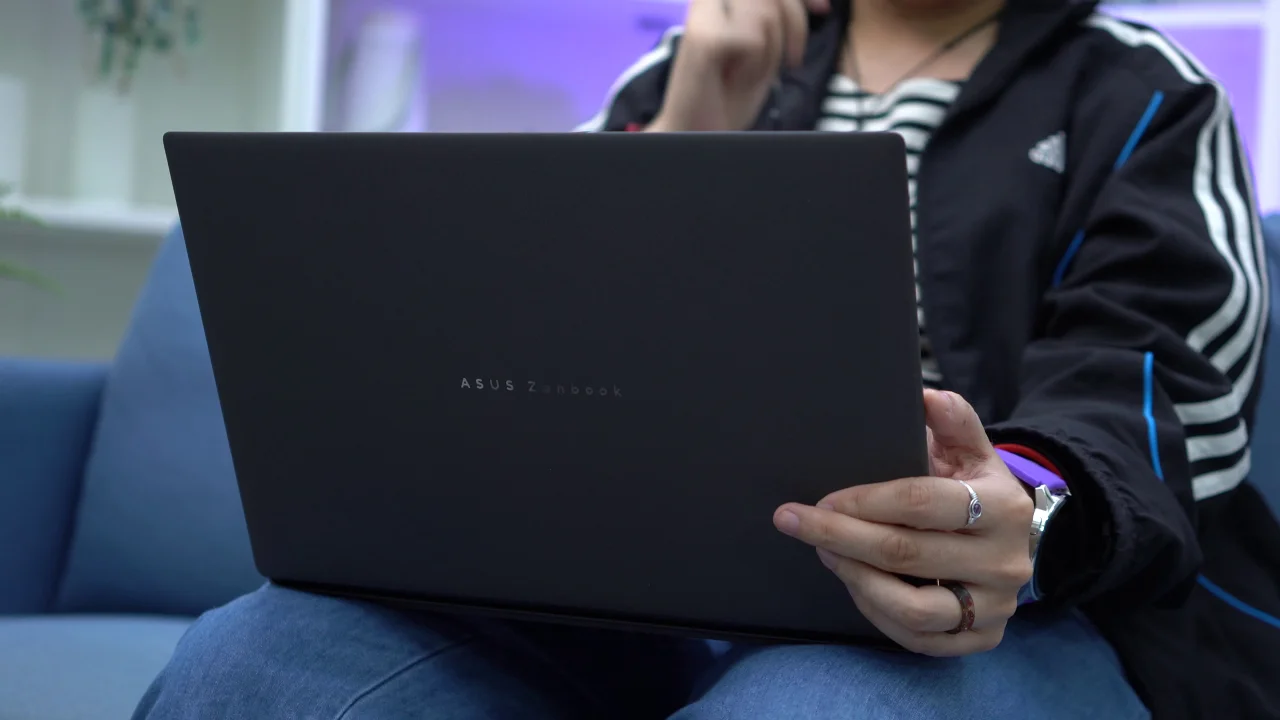
It weighs just about 1.65 kilograms and measures around 1.96 mm at its thinnest point. In other words, I can comfortably carry it around, and for some reference, it snugly fits my bag where I usually store my 2017 MacBook Air.
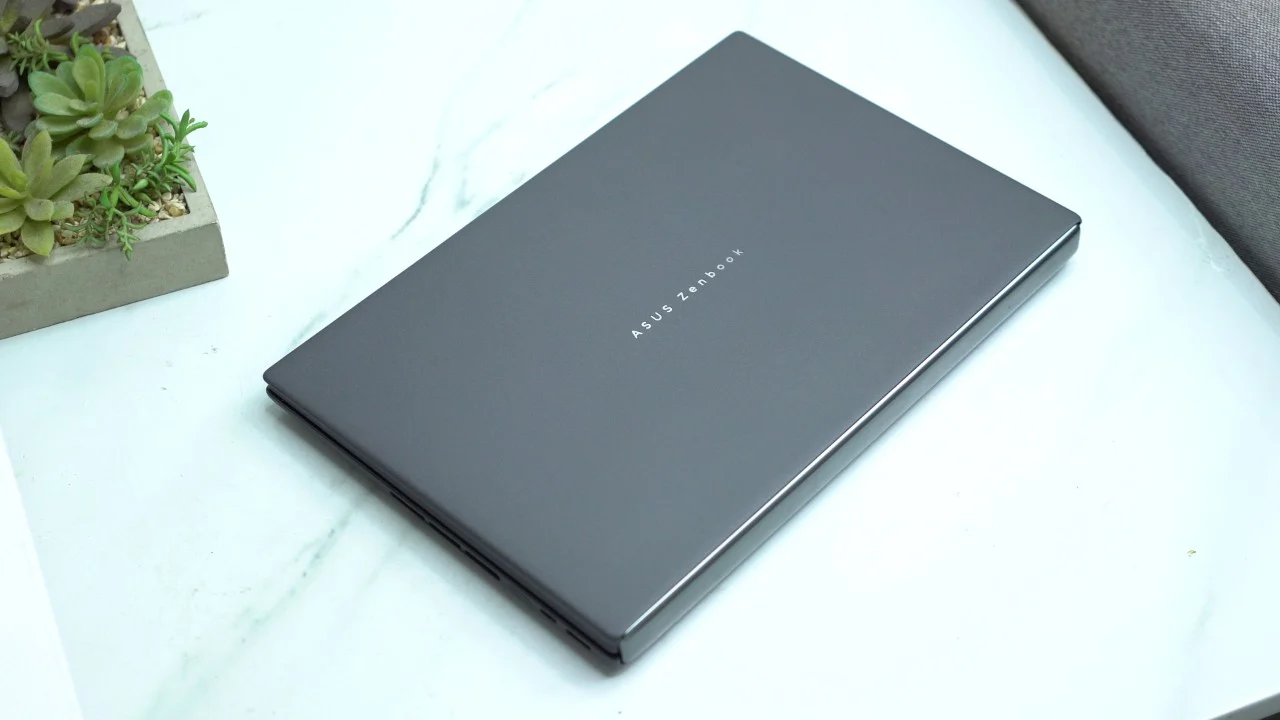
The Zenbook DUO’s build quality is superb. The entire chassis along with the detachable keyboard are both made of magnesium-aluminum material giving that sleek, metallic feel.
There’s minimal wobble and the hinge feels sturdy enough.
I also like the matte finish all around, although it does easily catch smudges, especially if you have sweaty hands like me. Also, if you’ll notice, there are no stickers to be seen here, at least in laptop mode, giving it a cleaner look.
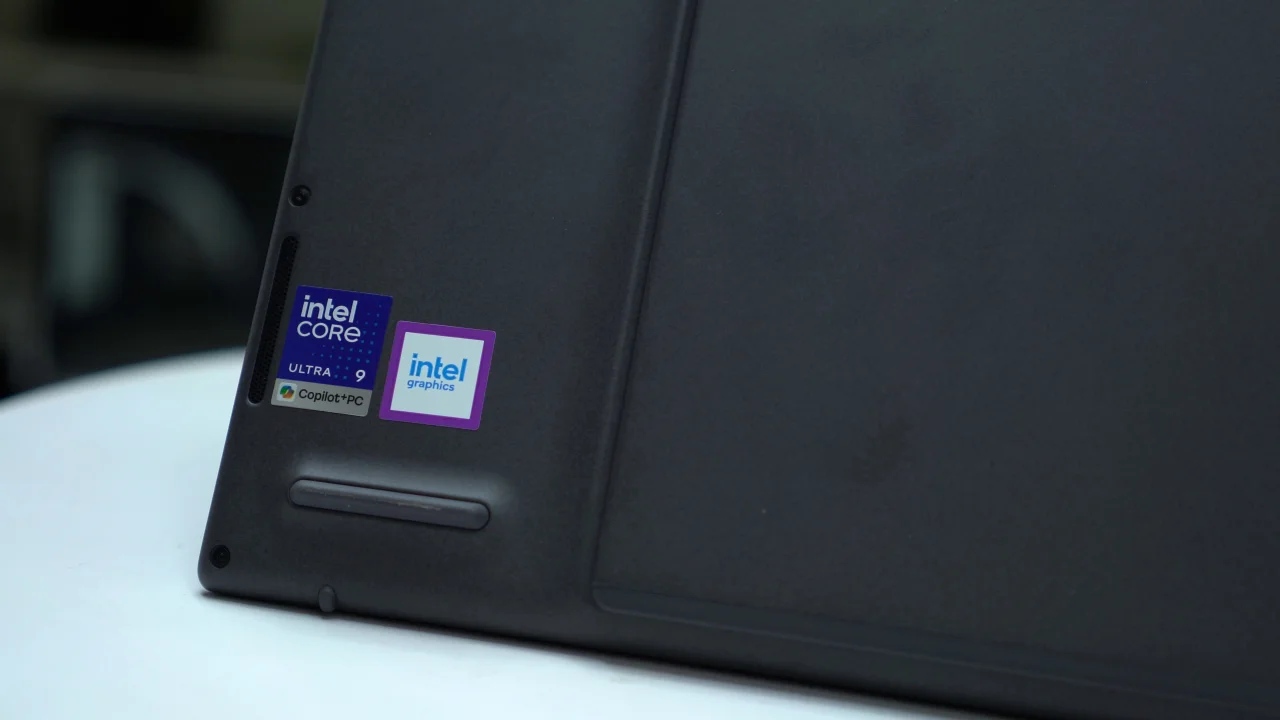
The Zenbook DUO does have them on the bottom part and not on the keyboard, so that’s a nice touch. Except, there’s an “HDMI” sticker on the second screen which I find to be unnecessary.
For inputs and outputs, facing the screen, found on the left is an HDMI 2.1, a USB-C Thunderbolt 4, and a 3.5 mm 2-in-1 audio jack. While on the right, there’s one USB-A port, another Thunderbolt 4, and the power button.
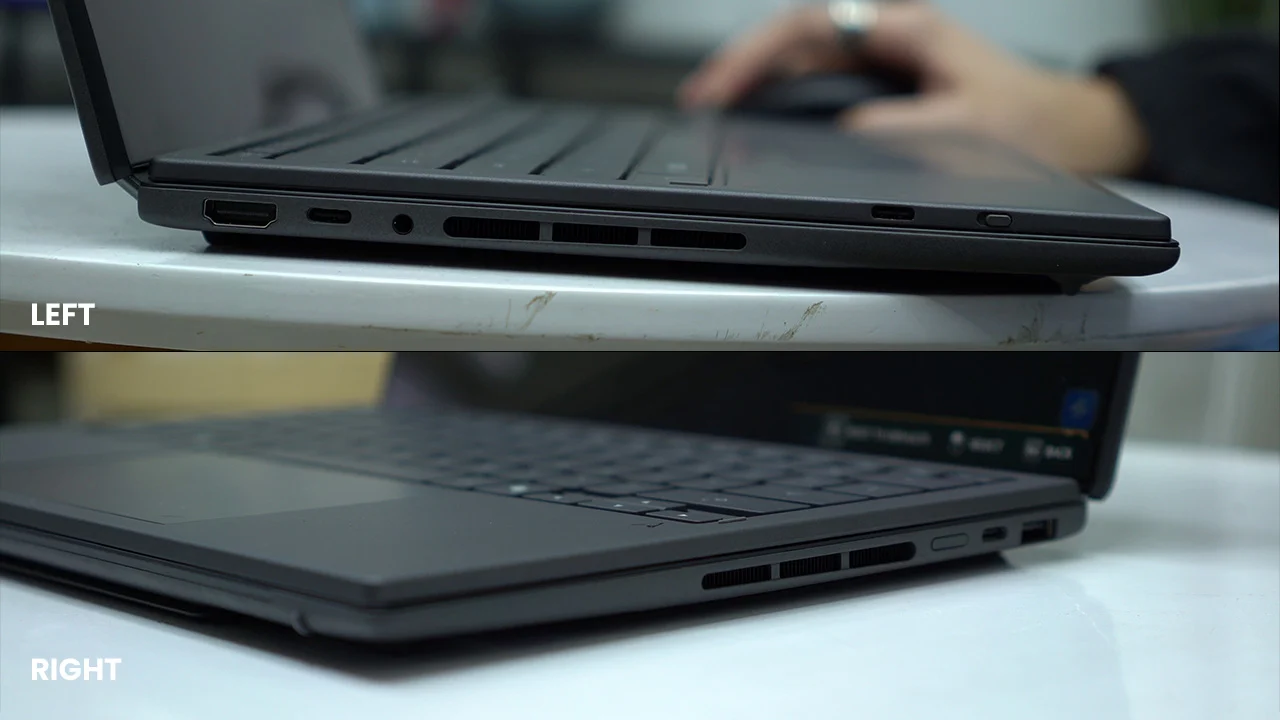
There’s no fingerprint sensor here if anyone’s wondering.
For extra protection, the laptop has military-grade durability (MIL-STD-810H), so it should be able to withstand some occasional drops. It also comes with a laptop sleeve in the box, as it should.
But, of course, I’d rather you take extra care with the Zenbook DUO since this is not your usual laptop. The magic happens when you take out the detachable keyboard, lift the kickstand from below, and voila! You’ve set it up in dual-screen mode, and let’s talk about that now.
Display and Multimedia
The Zenbook DUO sports a dual 14-inch OLED touchscreens both having 3K resolution, up to 144Hz refresh rate, and have 500 nits typical brightness. HDR peak brightness is up to 1000 nits.
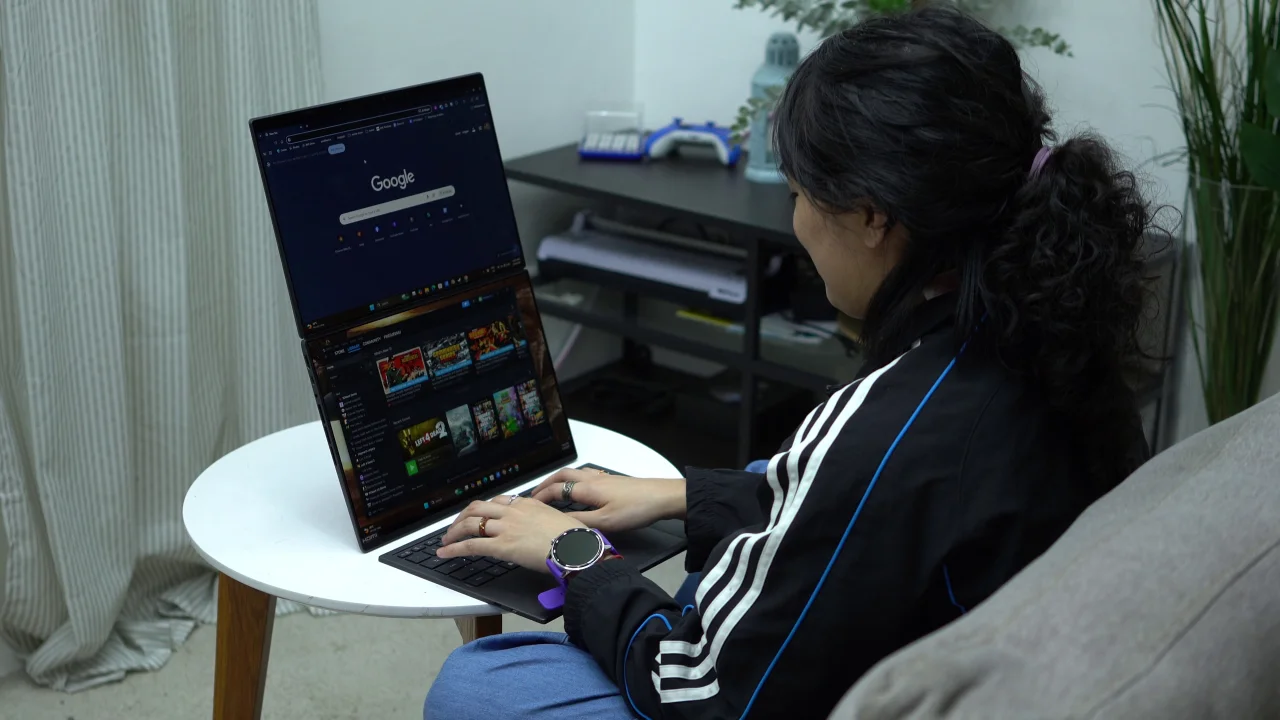
As expected of an OLED screen, colors are vivid, blacks are deep, and I like the fact that the text renders sharply.
I’m used to a 1080p monitor with my desktop PC that have fuzzy text rendering, so it’s nice to see that I’m actually seeing high-quality text for a Windows laptop, similar to what I see on smartphones.
It also covers 100% DCI-P3 color gamut that’s best for tasks like photo or video editing since you’ll get wider, more accurate colors possible.
Notably, the whole screen setup is an anti-glare and low-reflection (AGLR) display which is nice to have, especially if you’re always on the go.
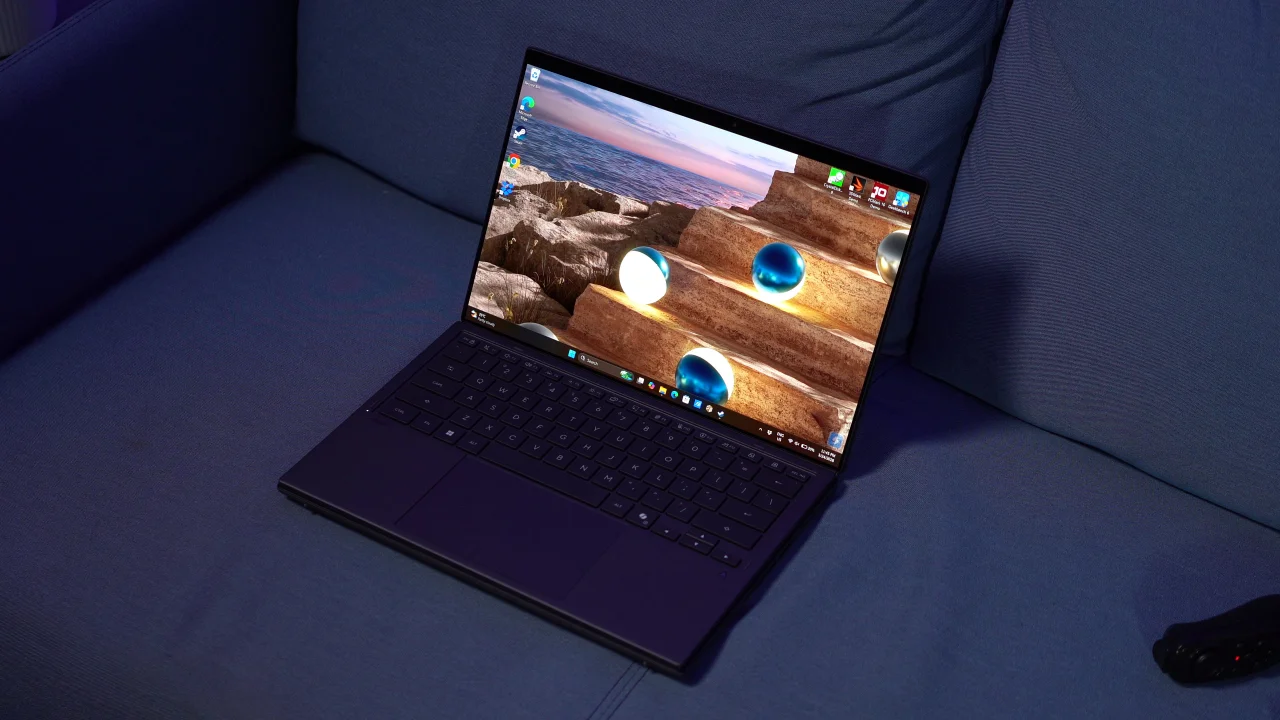
As someone who is used to a keyboard-and-mouse setup via desktop PC and trackpad on a MacBook, it’s quite challenging for me to fully maximize the touchscreen. But since it comes with a stylus in the box (the ASUS Pen 3.0), I think the best use case for this is drawing.
I’m not an artist myself, but I’m pretty sure anyone who’s into art can definitely make use of the touch screen.
What probably bothers me most is that thick top bezel. I mean, it could’ve been thinner, right? Or the webcam could’ve been housed in a notch- but this is just me nitpicking.
Also, since the keyboard is detachable, the second screen can accumulate dust rather quickly, so I often have to wipe it off whenever I’m using the Zenbook DUO in dual-screen mode.
To be fair, the screens both have 16:10 aspect ratio which feels wide enough for most productivity tasks. However, let’s say I’m editing a video on this laptop, the second screen definitely adds a more comfortable screen real estate for my workflow.
In fact, I used the laptop itself to write this review, with the top screen for research and the bottom screen for the writing. It’s actually more intuitive than any other setup I’ve used before.
From experience, you’ll want to be careful not to topple the laptop in dual-screen mode. While the kickstand is generally reliable, it works best when placed on a stable surface.
Now, when it comes to the audio-visual experience, the Zenbook DUO does not disappoint. The dual-speaker setup is impressively loud and is complemented by high-quality sound output.
There’s a nice balance between the highs and mids, and the bass definitely packs a punch although it doesn’t pack . I can easily get immersed in whatever content I’m watching or listening to.
Although, if I have to nitpick, the audio quality tends to get muffled at max volumes. So, there’s that.
Webcam and Face Unlock
Moving on, let’s talk about the webcam. The Zenbook DUO features a Full HD 1080p webcam, and simply enough, it works as intended.
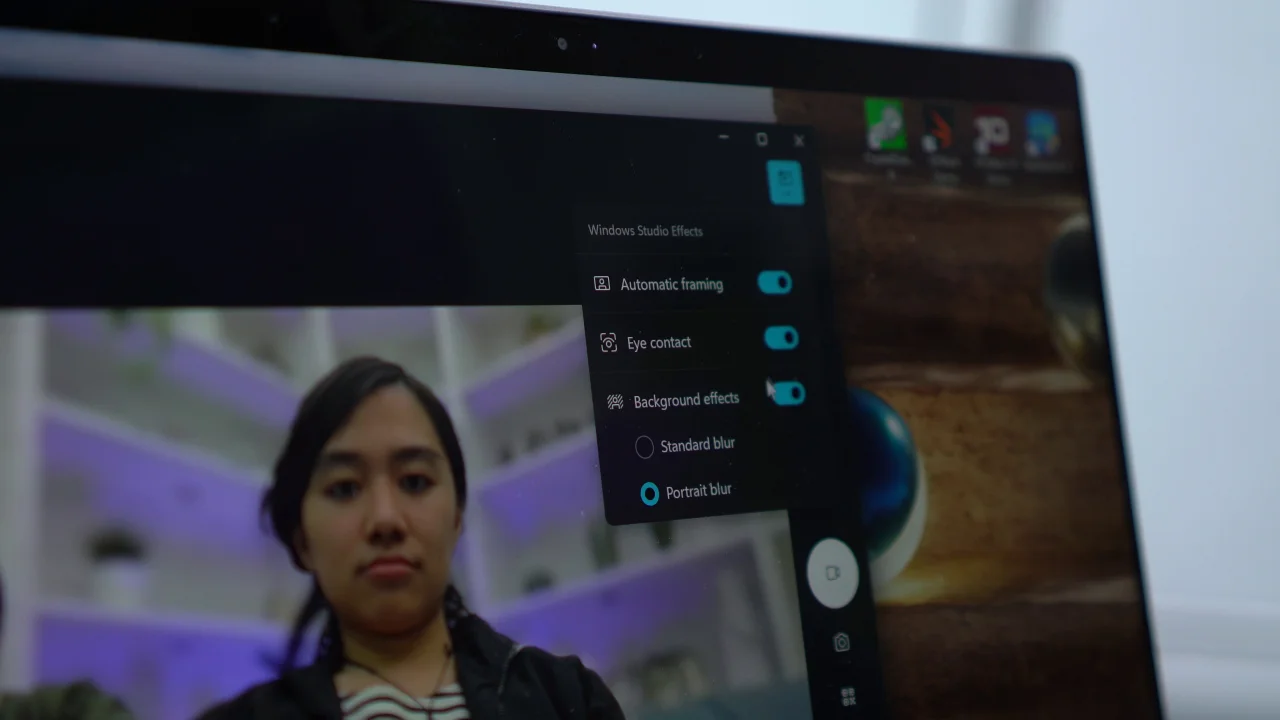
It’s best to use in a well-lit environment though to get a decent image quality, but even then, it won’t be as good as compared to a smartphone’s selfie camera. Some grain creeps in already, and the details are rather soft.
The same goes for video capture. Using the built-in camera, it struggles in low-light and the audio pickup isn’t the best. You can literally hear the noise in the background.
But then again, there’s the 3.5 mm audio jack so you have the freedom to use whatever pair of headphones or earphones you have.
There are Windows Studio Effects available here like auto-framing and background blur, in which the latter works fine. The auto-framing, however, doesn’t seem to work most of the time.
That said, I think its webcam is still decent for online conferences and meetings.
Furthermore, Windows Hello face unlock seems to be working as intended in well-lit environments.
Performance and Benchmarks
Let’s finally talk about the laptop’s performance.
Powering the 2026 Zenbook DUO is the Intel Core Ultra 9 386H configured with 32GB of LPDDR5X RAM and 1TB of M.2 NVMe PCIe 4.0 SSD storage. Overall, the performance is pretty solid, especially considering how thin this thing is and the fact that it’s running two displays.
Without delving into the numbers, you can expect the laptop to handle everything with ease. Launching apps is reasonably quick, and even with a bunch of windows spread across both screens, it doesn’t really caused any slow downs.
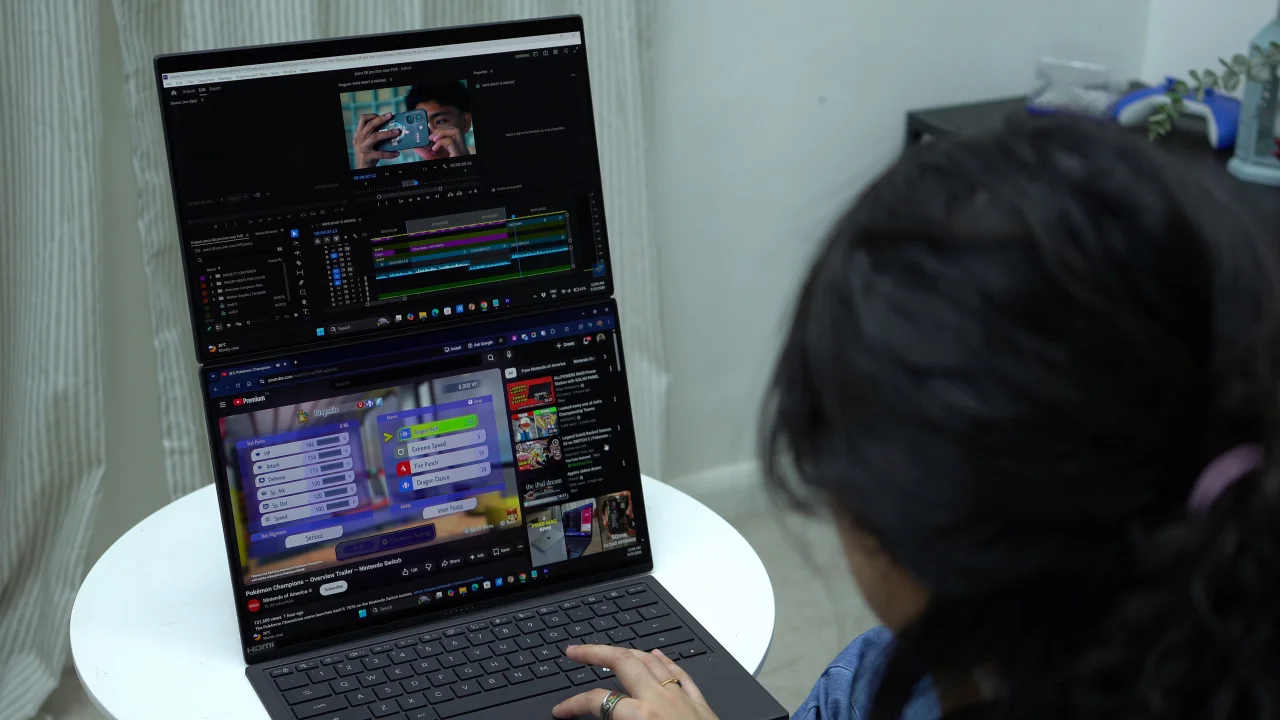
Until you throw in some creative work, I noticed some minimal lag when trying to work on a Premiere Pro project. In all fairness, the overall experience was still smooth, especially when plugged in.
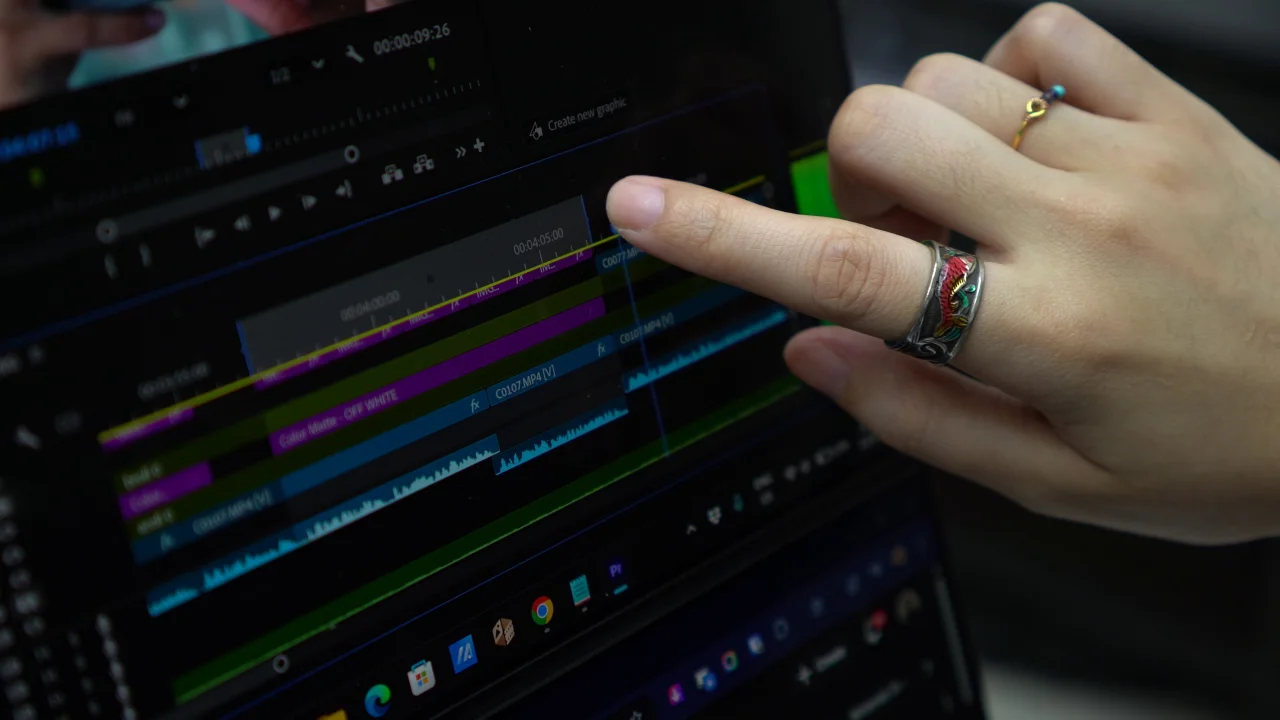
In synthetic benchmarks, the laptop posted 2,901 in single-core and 16,795 in multi-core on Geekbench 6, which is right up there with other high-end thin-and-light laptops. In real use, that translates to a smooth experience pretty much across the board.
| Benchmark | Performance Mode (Plugged In) | Balanced Mode |
|---|---|---|
| Geekbench 6 (Single) | 2,901 | 2,738 |
| Geekbench 6 (Multi) | 16,795 | 16,022 |
| Geekbench 6 (OpenCL) | 23,947 | 23,738 |
| Geekbench 6 (Vulkan) | 29,737 | 26,201 |
| PCMark 10 | 9,111 | 8,573 |
| 3DMark Steel Nomad Light | 2548 (18.88 FPS) | 2468 (18.28 FPS) |
| 3DMark Time Spy | 3,414 | 3,367 |
| CrystalDiskMark (Read) | 6084.11 MB/s | 6221.97 MB/s |
| CrystalDiskMark (Write) | 5360.51 MB/s | 5366.95 MB/s |
| Cinebench R24 (Multi) | 991 pts | 846 pts |
| Cinebench R24 (Single) | 123 pts | 121 pts |
| Cinebench R24 (MP Ratio) | 8.05x | 6.98x |
| Blender (CPU) | 276.85 | — |
| Blender (GPU) | 584.69 | — |
Storage speeds are also fast. You’re getting over 6000 MB/s read and 5300 MB/s write, which basically means everything feels instant like boot times, file transfers, all of that.
As for gaming, however, the laptop did not come with a discrete GPU, but an Intel integrated graphics instead.
A 3DMark Time Spy score of 3414 means you can do some light gaming and GPU-accelerated work, but this isn’t a gaming machine. Esports titles should run fine, and creative apps that use the GPU will benefit, just don’t expect to max out demanding games.
In particular, I tried playing Hogwarts Legacy and the recommended graphics already set everything to Low. Still, the game was playable without any obvious stuttering throughout my short gameplay.
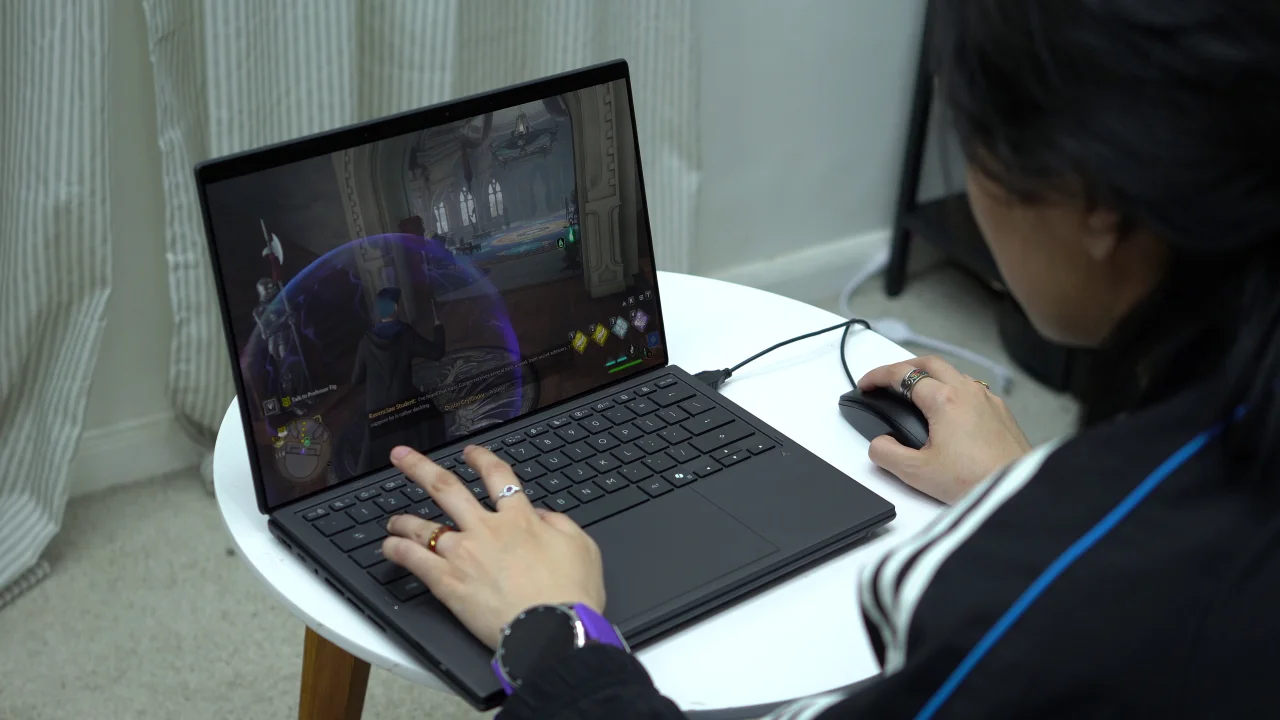
One thing I really like about this laptop is how good its thermal management is. I can do work for long periods and it doesn’t really warm up. I only felt the temps rising when I was editing a video and playing a game. That’s it.
It was indeed a comfortable experience all throughout my testing, especially with how much battery life you can get out of this thing. We’ll talk more about it in a bit.
OS, UI, and Apps
Software-wise, the Zenbook DUO is powered by Windows 11 Home. I’m mostly a Windows user myself, and it’s still reliable… for the most part.
I just really don’t like how bloated this piece of software has become over the years. There’s the unnecessary Bing search right on the Start page (it’s a hassle to turn off by the way), File Explorer can weirdly feel slow at times especially when it tries to load the context menu, and there are two Sticky Notes apps for goodness’ sake.
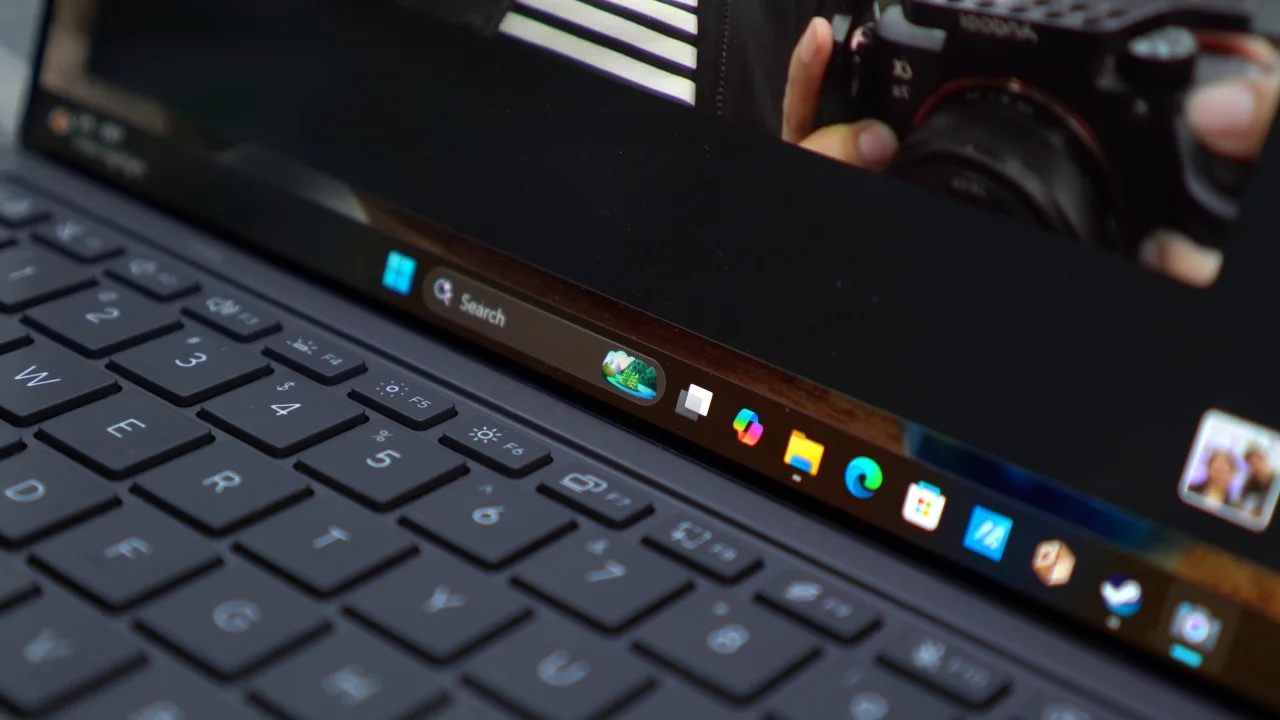
There’s the Copilot AI chatbot feature evident with its dedicated button on the keyboard, and to be honest, I didn’t really use Copilot even on my own rig. I actually uninstalled it if we’re being real.
You can also see Copilot in certain apps like the Notepad and Paint among others and it’s just mostly useless in my opinion.
And don’t get me started on UI design. There are just too many inconsistencies here and there. It feels like an ancient Windows OS masked with a modern skin. I mean, just look at the Control Panel still existing when there’s already a modernized Settings page.
It’s not that ASUS is entirely to blame for all these complaints I have with Windows, but technically, they’re still part of the problem.
First off, there are many first-party apps here that, sure, seem useful on paper. But I find them less user-friendly, both in terms of navigation and design. These ASUS apps just lack flair in my opinion. There are no sleek animations, and there are often too many settings to dig through. It can feel overwhelming for the average user.
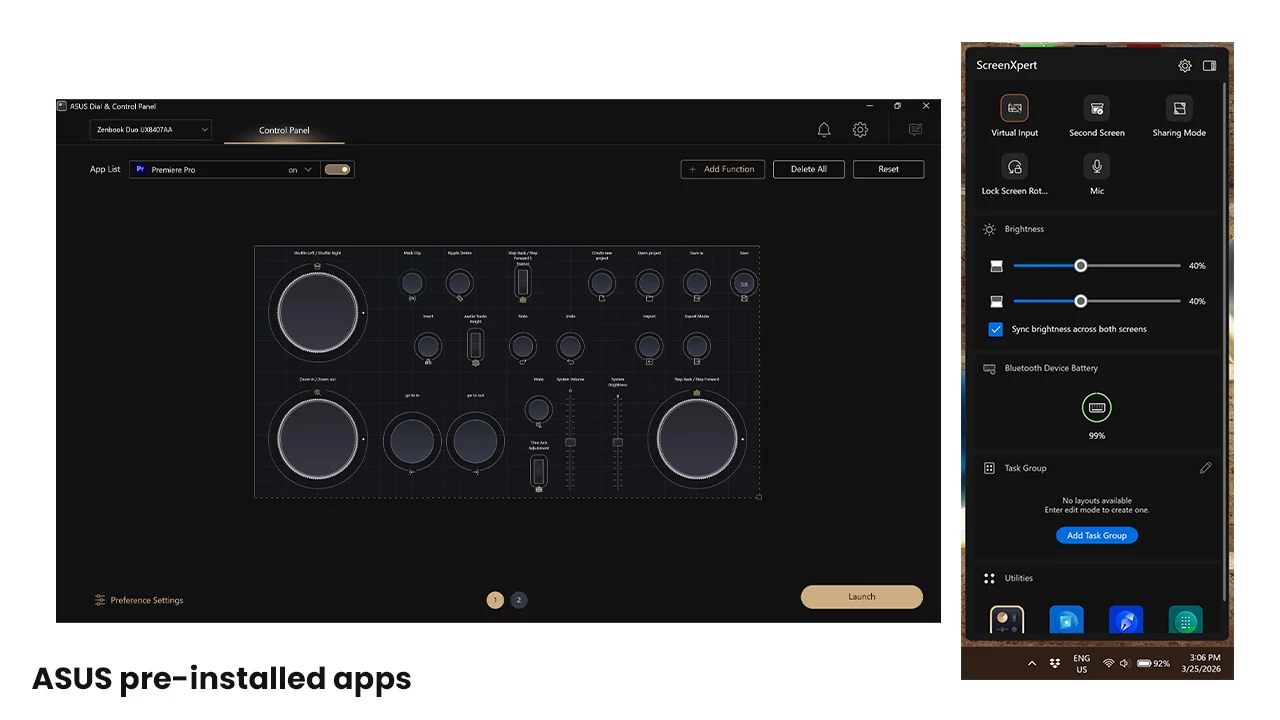
I guess if you really try to use them, you can still get some solid utility, especially for a dual-screen laptop like this. The ASUS Dial & Control Center, for example, adds extra controls that you can toggle using the second screen.
Second, if I’m nitpicking again, I think Windows makes this laptop look bad software-wise, almost as if it’s not optimized for a dual-screen setup. Just look at the two taskbars on both screens. Seriously, hello?
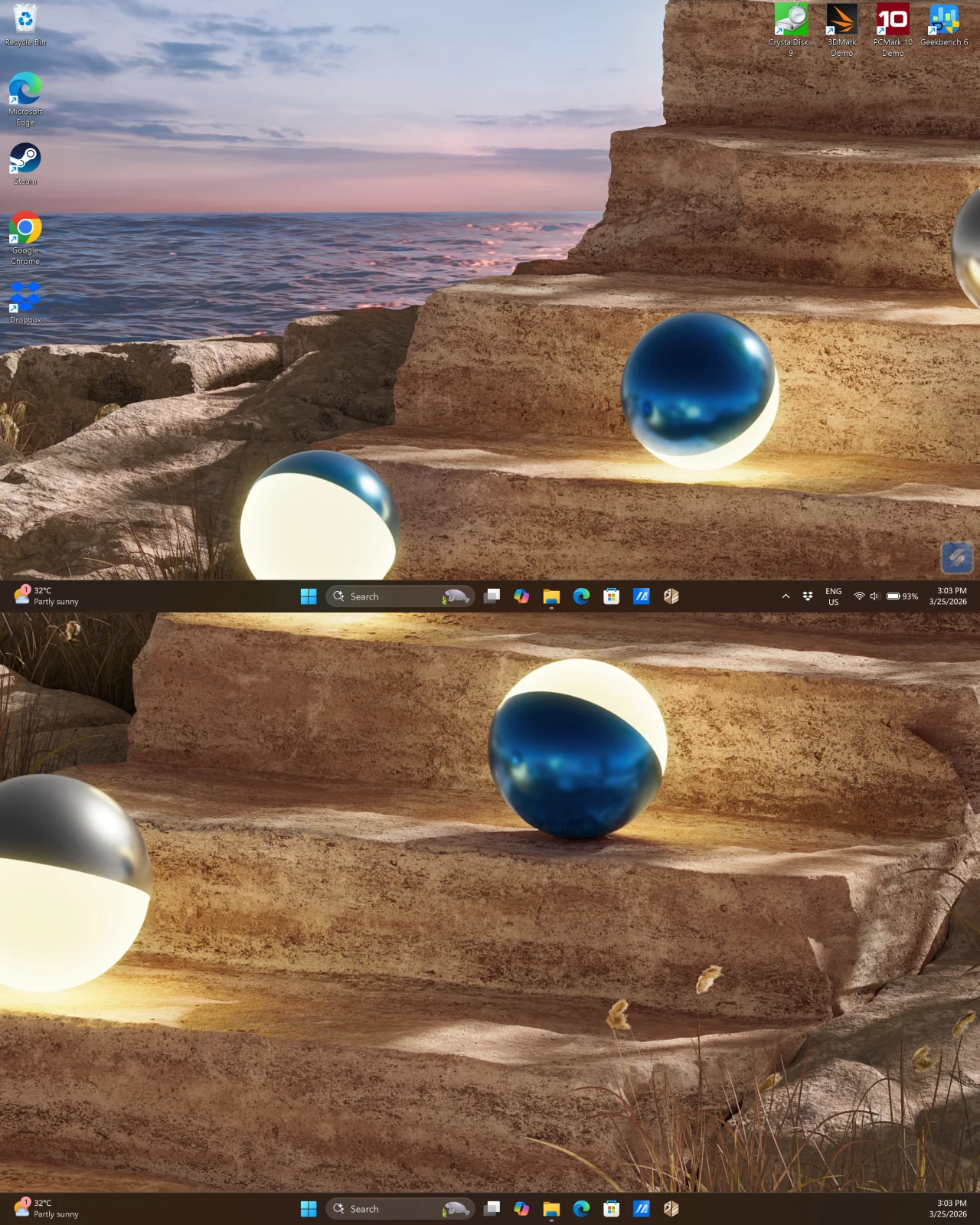
I know I can just enable auto-hide for the taskbar, but the animation when pulling it up isn’t even that smooth. It’s also difficult to hover over the upper taskbar since the mouse goes through the bottom screen, so I’d rather leave it as is, even if it seems redundant.
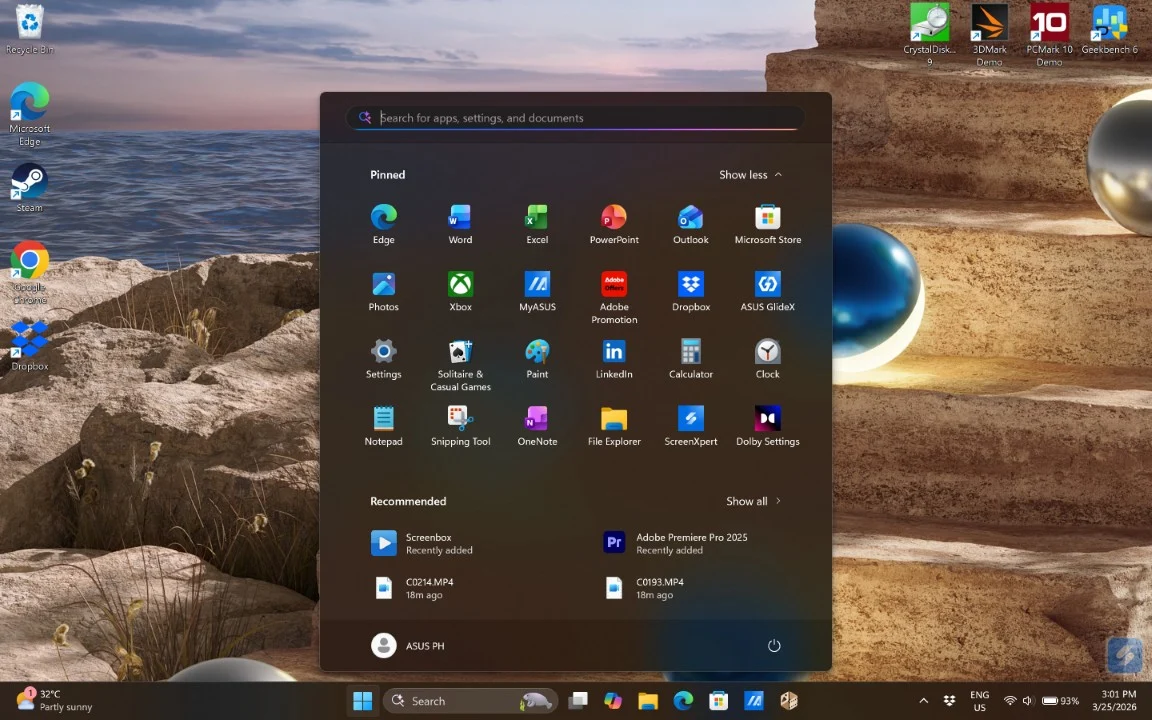
You’ll definitely notice the sloppiness of Windows when switching between different setups, like from laptop mode to dual-screen mode, and honestly, in many other areas too. If you have a keen eye for these things, it can get really frustrating, and all you can do is get used to it, miserably.
Perhaps the only thing I can really praise Windows for is gaming. This laptop can literally play anything I throw at it, as long as it’s playable. That’s something that other systems like macOS don’t do any better, so you’re still fairly appreciated Windows.
Connectivity and Battery Life
Now, let’s talk about something more positive: its battery life.
The Zenbook DUO packs a 99Wh unit paired with 100W of wired charging, and the laptop, surprisingly lasts longer than expected. So, I was thinking it to just get around four hours of uptime on battery, considering it’s a dual-screen laptop.
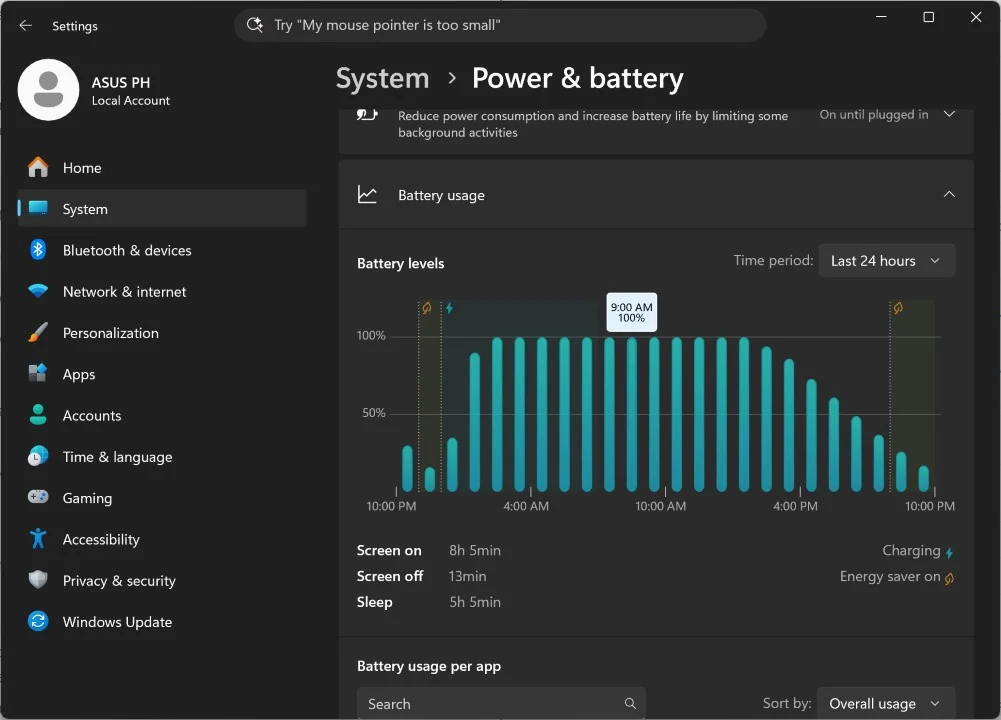
But, I’m happy to report that I’m getting around six to eight hours of battery life with typical usage that include browsing, watching content, and typing with the detachable Bluetooth keyboard.
Speaking of the keyboard, it was really comfortable to type on. It has short key travel and it’s quiet as well, and I like that. Using the trackpad is pretty nice as well. The usual gestures work fine and it’s not that of a fingerprint magnet.
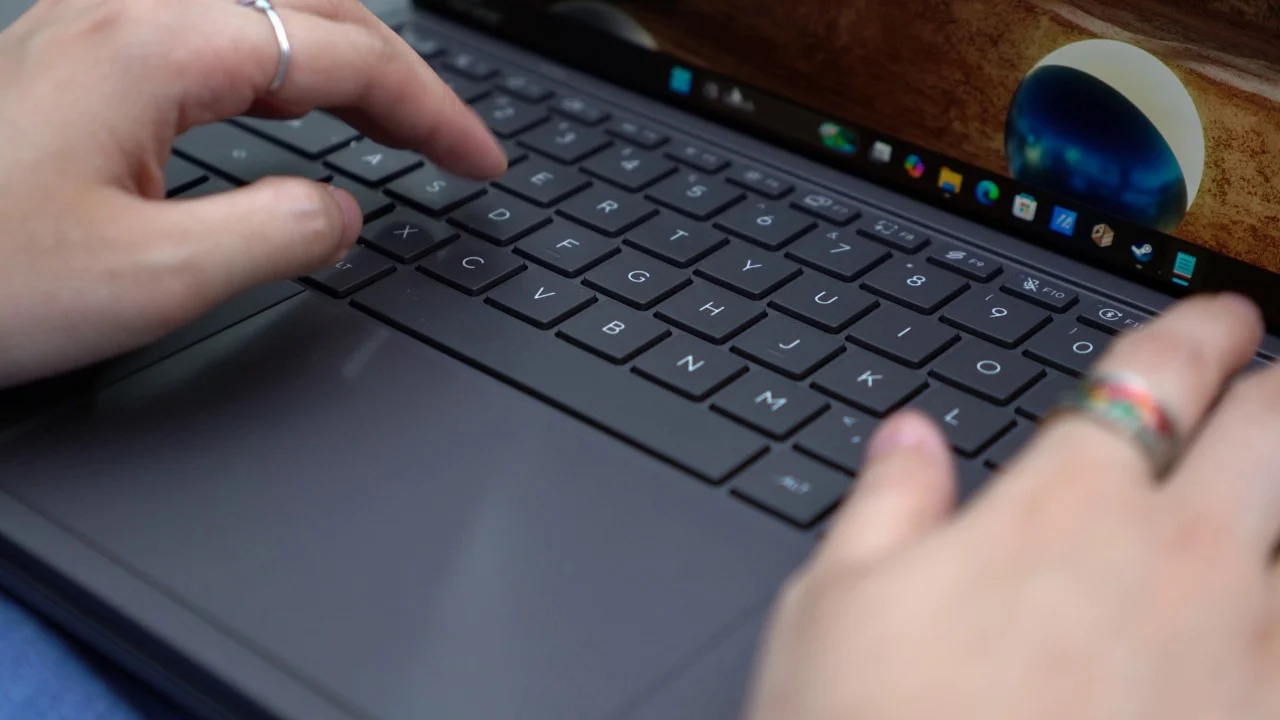
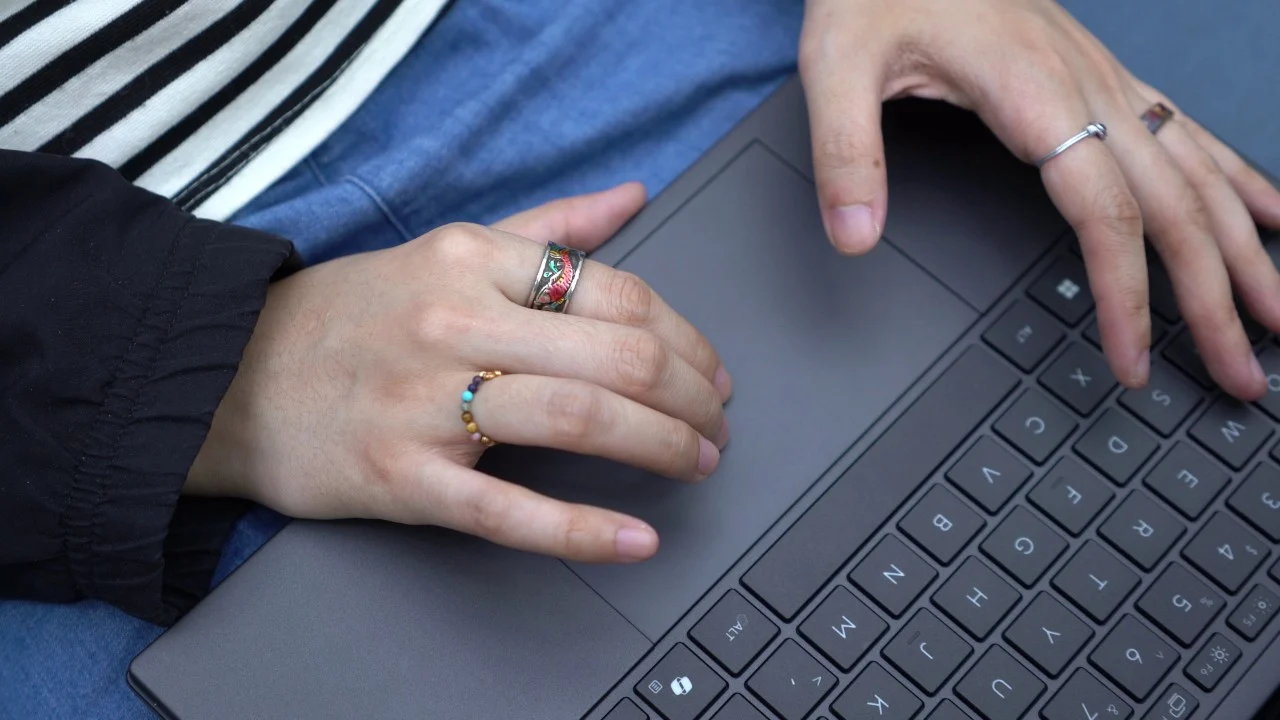
The keyboard does connect and charge magnetically onto the laptop, but just in case it’s running low on battery while using dual-screen mode, there’s a USB-C port on the left for charging.
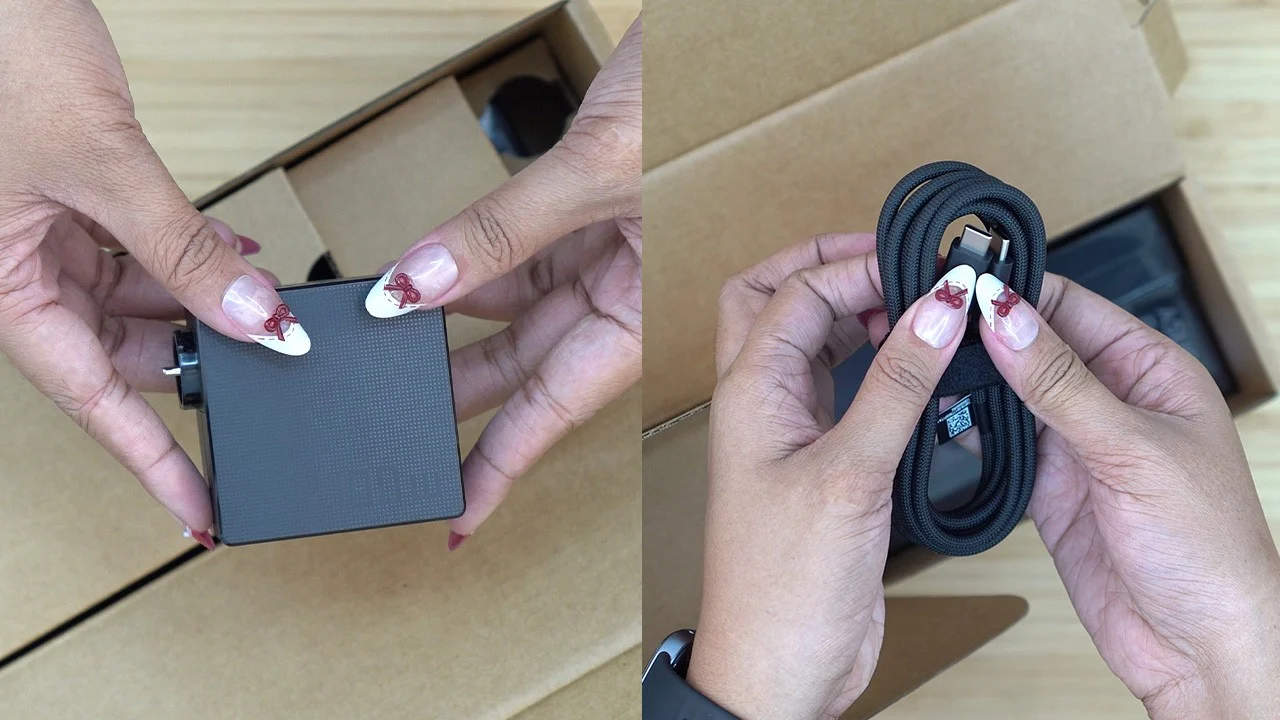
And when the laptop itself is low battery, the “ultra mini” charging brick refills the battery in just about two hours. It’s actually great to have a more compact charger like this rather than having to carry a literal brick with a couple of tangled cables in your bag.
Connectivity-wise, the laptop supports triple-band Wi-Fi 7 and Bluetooth 5.4.
Pricing
Before we move over to our verdict, let’s talk about the price.
The ASUS Zenbook DUO 2026 (UX8407AA-SN152WSM) is priced at PHP 179,995 and comes with 32GB + 1TB configuration.
Verdict
For what its worth, the 2026 ASUS Zenbook DUO presents itself as this powerful, reliable, and flexible laptop that essentially fixes that “need” of having more screen real estate.
So, instead of using a monitor, a tablet, or any other display output separately to connect with a laptop, the Zenbook DUO brings in a solution that just makes sense. It offers that sweet extended display that is equally as great as its main screen.
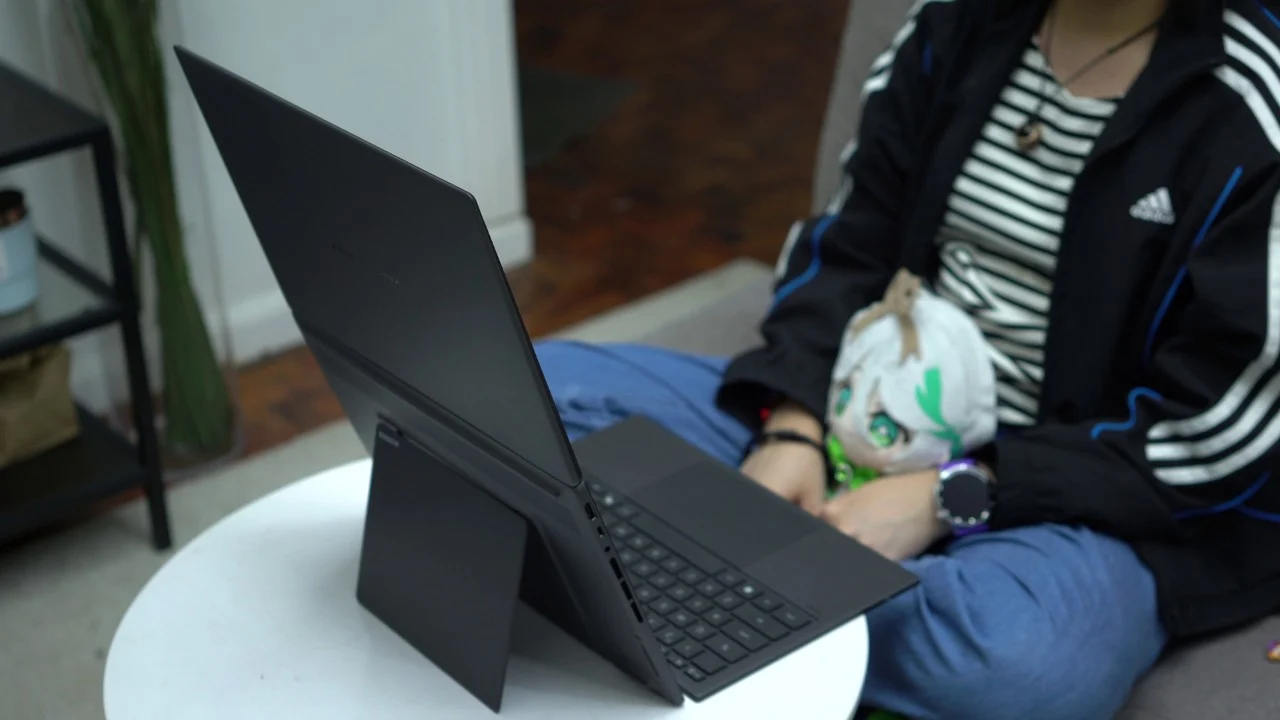
This laptop just works like a charm for a variety of workflows from doing research, watching content, and using it for creative and productivity apps. It’s convenient and pretty cool having to setup a tall, dual-screen setup without much effort. Imagine doing that at a random cafe. That’s cool AF.
Plus, with it actually looking like a normal laptop at first glance, it’s going to be an easy conversation starter.
Although, it’s not all good and dandy. Windows is what’s really holding it back with all that bloat and the aggressive Copilot AI “integration”. It just makes the experience a little less user-friendly.
But when you put the typical Windows 11 experience out of the picture, then the Zenbook DUO, in its own right, is one heck of a machine that a lot of power users can take advantage of.
And with its solid battery life, those who are always on the move can finally have a nice, sleek Windows laptop that doesn’t need to be plugged in all the time.
What we liked:
- OLED screen with vibrant colors, deep blacks
- Quirky dual-screen setup
- Impressive sound stage
- Long battery life
What we didn’t like:
- Sloppiness of Windows 11
- Less intuitive ASUS apps
- Mediocre webcam
2026 ASUS Zenbook DUO (UX8407AA) specs:
Dual 14-inch 3K OLED touchscreen
(2880 x 1800), 144Hz refresh rate, 16:10 aspect ratio
500 nits typical, 1000 nits HDR peak brightness
0.2ms response time, 93% screen-to-body ratio
Anti-glare and low-reflection (AGLR) display
Intel Core Ultra 9 386H
16 cores, 16 threads, up to 4.9GHz
Intel Graphics (integrated)
Intel NPU, up to 50 TOPS
32GB LPDDR5X RAM
1TB M.2 NVMe PCIe 4.0 SSD
1080p FHD IR webcam
Triple-band Wi-Fi 7
Bluetooth 5.4
I/Os:
• 1x USB-A (USB 3.2 Gen 2, up to 10Gbps)
• 2x Thunderbolt 4 (supports display/ PowerDelivery, data up to 40Gbps)
• 1x HDMI 2.1 FRL, 3.5 mm 2-in-1 audio jack
Face unlock (Windows Hello)
Stylus support (ASUS Pen 3.0)
Precision touchpad, backlit keyboard
Windows 11 Home
99Wh battery, 4-cell Li-ion
100W charging (wired), ultra mini AC adapter
31.01 x 20.86 x 1.96 ~ 2.34 mm (dimensions)
30.63 x 20.37 x 0.51 ~ 0.53 mm (keyboard dimensions)
1.65 kg (weight including battery)
Moher Gray



0 Comments
Leave a Reply